
iPhone Keeps Restarting? How to Read the Panic Log and Find the Real Cause
An iPhone that restarts by itself every few minutes leaves a clue: the panic log. Here is how to find it, what common messages mean, and which fix to try for each cause.
Random restarts are one of the most frustrating iPhone problems: the screen goes black, the Apple logo appears, and it happens again a few minutes or hours later. Sometimes it is a software bug; often, especially when it happens every 3 minutes, it is a hardware component that the iPhone can no longer detect.
The iPhone records each crash in a panic log. Learning to read it saves time and money, whether you repair phones yourself or take them to a technician.
Step 1: Rule out the simple causes
- Update iOS. Some versions have restart bugs. iOS 27.0.1, for example, fixed restarts on iPhone 18 Pro when Face ID fails (details).
- Free up storage: below 1 to 2 GB free, iOS can crash. See iPhone storage full.
- Update or remove recent apps, especially VPNs, antivirus apps and system "cleaners".
- Check the temperature: an overheating iPhone protects itself (overheating guide).
Step 2: Find the panic log
- Open Settings > Privacy & Security > Analytics & Improvements.
- Tap Analytics Data.
- Look for files whose names start with panic-full (for example
panic-full-2026-10-04-183012.ips). - Open the most recent one. The first lines contain the key information, usually after
"panicString".
If there are no panic-full files at all, the restarts may be caused by the battery (sudden power loss) rather than a crash. Check Settings > Battery > Battery Health.
Tip: tap the share button to send the log to yourself or to your repair technician.
Step 3: Understand common messages
Panic logs are technical, but a few patterns come up again and again. They are clues, not certainties; always confirm before replacing parts.
| Text in the panic log | What it often means |
|---|---|
Missing sensor(s): mic1 or mic2 | The iPhone cannot see a microphone, often on the charging port flex cable. Common after liquid damage or a port replacement. |
Missing sensor(s): prs0 | The barometer/pressure sensor is not detected, also often on the charging port assembly. |
Missing sensor(s): TG0B or TG0V | Battery sensors are missing: battery connector, battery or its flex cable. |
thermalmonitord and watchdog | The thermal monitoring process stopped responding, usually because a sensor is missing, as above. |
AppleAVE, ANS2 or NAND | Problems related to video encoding or storage. A full restore is the first step; persistent cases may need board repair. |
userspace watchdog timeout with app names | Often software: an app or service froze the system. Update, remove recent apps, or restore. |
A useful sign: if the iPhone restarts about every 3 minutes and the log mentions missing sensors, the problem is almost always hardware. The watchdog restarts the iPhone after about 180 seconds when a required sensor is not found.
Step 4: Apply the right fix
Software causes
- Install the latest iOS version.
- Settings > General > Transfer or Reset iPhone > Reset > Reset All Settings (keeps your data).
- If it continues, back up and do a clean restore with the IPSW file: restore guide. After the restore, test the iPhone for a few hours before restoring your backup, to see if the backup brings the problem back.
- iPhone 18 Pro · iPhone 18 Pro Max
- iPhone 17 · iPhone 17 Pro · iPhone 17 Pro Max · iPhone Air · iPhone 17e
- iPhone 16 · iPhone 16 Plus · iPhone 16 Pro · iPhone 16 Pro Max · iPhone 16e
- iPhone 15 · iPhone 15 Plus · iPhone 15 Pro · iPhone 15 Pro Max
- iPhone 14 · iPhone 14 Plus · iPhone 14 Pro · iPhone 14 Pro Max
- iPhone 13 mini · iPhone 13 · iPhone 13 Pro · iPhone 13 Pro Max
- iPhone 12 mini · iPhone 12 · iPhone 12 Pro · iPhone 12 Pro Max
- iPhone 11 · iPhone 11 Pro · iPhone 11 Pro Max
- iPhone SE (2nd gen) · iPhone SE (3rd gen)
Another model? Browse all iPhone firmware or use the Identifier Lookup tool.
Hardware causes
- Charging port / microphones / pressure sensor: replacing the charging port flex cable usually solves it.
- Battery sensors: reseat or replace the battery with a quality part.
- After a drop or liquid damage: board-level diagnosis by a micro-soldering specialist.
Under warranty or AppleCare? Check at checkcoverage.apple.com before any third-party repair, as opening the iPhone can affect coverage.
Restart loop: the iPhone cannot even reach the Home Screen
Put it in recovery mode and choose Update first, then Restore:
- iPhone 8 and later (including iPhone SE 2nd/3rd generation): press and release Volume Up, press and release Volume Down, then press and hold the Side button. Keep holding when the Apple logo appears and release only when you see the computer-and-cable recovery screen.
- iPhone 7 and 7 Plus: press and hold the Side (or Top) button and Volume Down together until the recovery screen appears.
- iPhone 6s and earlier, iPhone SE (1st generation): press and hold the Home button and the Side (or Top) button together until the recovery screen appears.
If it restarts even during the restore, the cause is almost certainly hardware. See also iPhone stuck on the Apple logo.
Useful resources
You Might Also Like

Apr 23, 2026
"iPhone Is Disabled": How to Unlock It on Older iOS Versions
'iPhone is disabled, connect to iTunes' appears on iPhones running iOS 15.1 or earlier after too many wrong passcodes. Here is how to restore it with a computer or Find My.
Read more →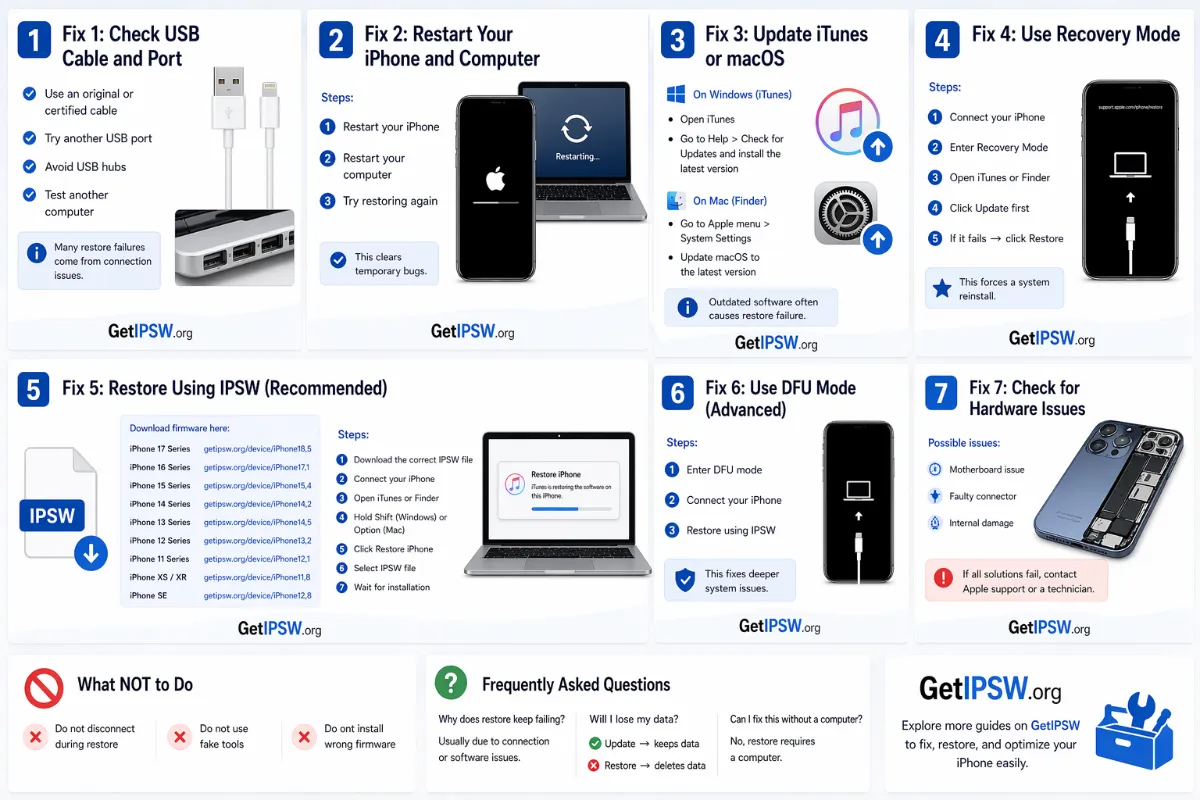
Apr 23, 2026
iPhone Black Screen: How to Fix It Step by Step
A black iPhone screen can be a drained battery, a frozen system or a broken display. Here is how to find out which one and fix it.
Read more →
Apr 28, 2026
iPhone Running Slow After an Update? How to Speed It Up
An iPhone often feels slow for a few days after an update. Here is why, how long it lasts, and what to do if it stays slow.
Read more →