iPhone Running Slow After Update? Speed It Up in Minutes (2026 Guide)
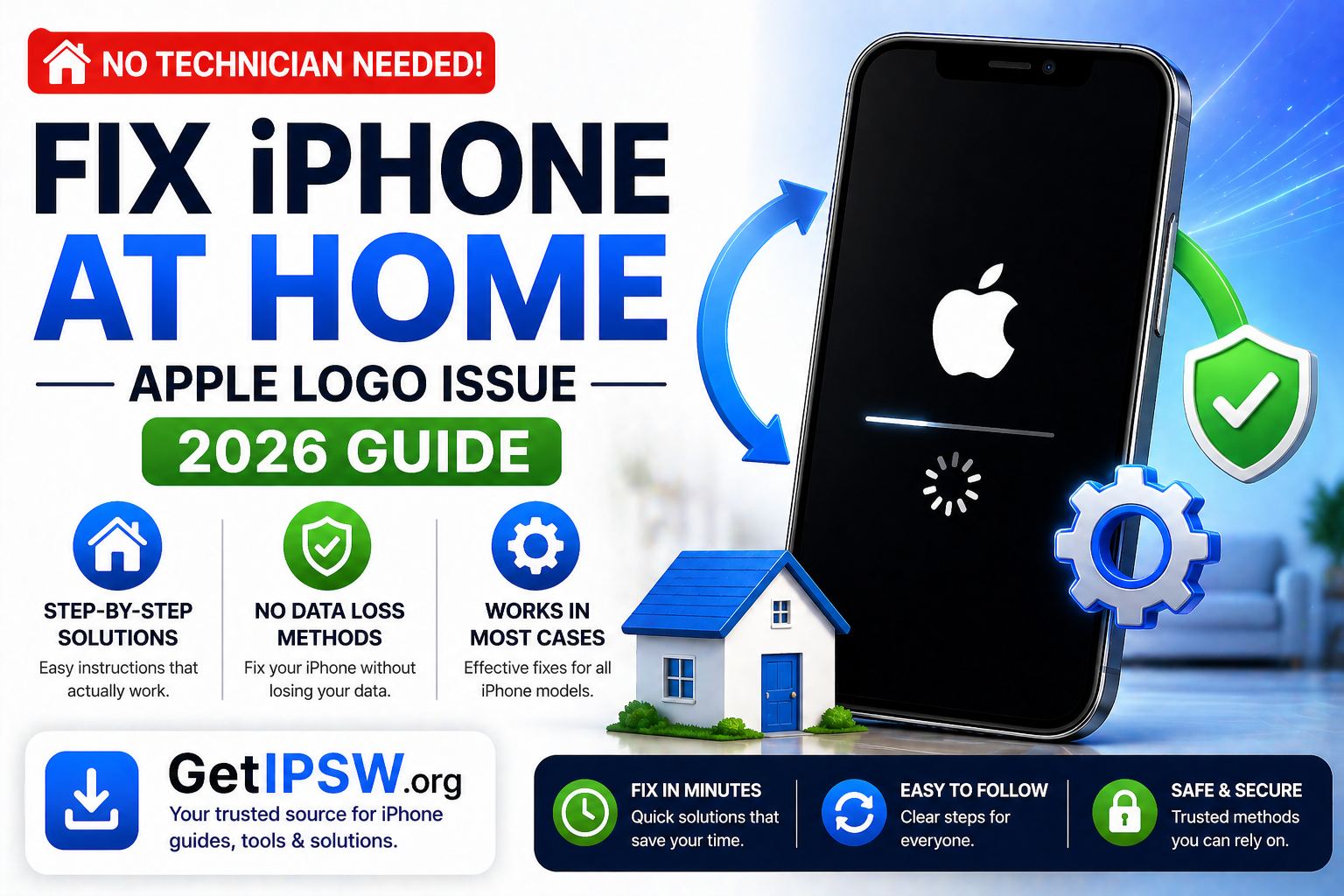
If your iPhone is stuck on the Apple logo and won’t start, it’s usually caused by a software issue such as a failed update, corrupted files, or an interrupted restore.
The good news is that most cases can be fixed at home by following a few proven steps—from simple fixes to advanced recovery methods.
Why Is My iPhone Stuck on the Apple Logo?

Common causes include:
Interrupted iOS update or restore
Data transfer stuck during setup
Corrupted system files
Low storage before reboot
Rare hardware issues
Step 1: Force Restart Your iPhone
Start with the simplest fix.
iPhone 8 and later:
Press and release Volume Up
Press and release Volume Down
Hold the Side button until the Apple logo appears
iPhone 7 / 7 Plus:
Hold Power + Volume Down
iPhone 6s and earlier:
Hold Home + Power
This does not delete your data and often resolves minor glitches.
Step 2: Charge Your iPhone
A low or unstable battery can interrupt boot.
Plug your iPhone into a charger
Wait 15–30 minutes
Try restarting again
Step 3: Use Recovery Mode


If the issue persists, use Recovery Mode.
Steps:
Connect your iPhone to a computer
Open iTunes (Windows) or Finder (Mac)
Enter Recovery Mode
Choose Update (keeps data)
If Update fails, choose Restore (erases data)
Step 4: Use DFU Mode (Advanced)
DFU Mode performs a deeper system restore.
Use it if:
Recovery Mode doesn’t work
Your iPhone keeps looping
Note:
This will erase all data
Requires precise button timing
Step 5: Use System Repair (No Data Loss Option)
A standard iOS repair process can fix system errors without deleting your data.
General approach:
Connect your iPhone to a computer
Use a repair tool
Select a standard repair option
Install firmware and repair system
Step 6: Contact Apple Support
If nothing works, the issue may be hardware-related.
Possible causes:
Battery failure
Internal component damage
Logic board issues
How Long Does It Take to Fix?
Force restart: 1–2 minutes
Recovery Mode: 10–20 minutes
DFU Mode: 15–30 minutes
Frequently Asked Questions
Can I fix this without a computer?
Only for minor issues using a force restart.
Will I lose my data?
No with basic fixes. Data loss happens only with Restore or DFU Mode.
Why did this happen after an update?
Updates can fail due to low storage, poor connection, or interruption.
Final Thoughts
An iPhone stuck on the Apple logo can seem serious, but it’s usually fixable. Start with simple steps, then move to recovery methods if needed.
In most cases, your iPhone can be restored without permanent damage.
Explore more iPhone repair guides and fixes on GetIPSW.
You Might Also Like
Apr 24, 2026
How to Factory Reset an iPhone (Step-by-Step Guide)
Factory resetting an iPhone is one of the most effective ways to fix software issues, erase personal data, or prepare a device for resale. This process restores your iPhone to its original state, just like when it was new.
Read more →
Apr 24, 2026
How to Remove Virus from iPhone (Complete Guide 2026)
iPhones are known for their strong security, but users can still encounter issues that feel like a virus. In reality, most problems come from malicious websites, phishing attempts, or suspicious profiles rather than traditional viruses.
Read more →
May 16, 2026
Signed vs Unsigned IPSW: What It Means and Why It Matters
Learn the difference between signed and unsigned IPSW files, why Apple signing matters, and how to check if an iOS firmware can still be restored.
Read more →