
How to Restore an iPhone Using IPSW File: Complete Step-by-Step Guide
Restoring an iPhone using an IPSW file is one of the most useful methods for manually reinstalling iOS, fixing serious software issues, updating a device from a computer, or performing a clean restore. An IPSW file is the official Apple firmware package used during the update or restore process.
Summary
Restoring an iPhone using an IPSW file is one of the most useful methods for manually reinstalling iOS, fixing serious software issues, updating a device from a computer, or performing a clean restore. An IPSW file is the official Apple firmware package used during the update or restore process.
In this complete guide, you will learn what an IPSW file is, when you should use it, what you need before starting, how to download the correct firmware, how to check the signing status, and how to restore your iPhone using Finder on Mac, Apple Devices app on Windows, iTunes, or Apple Configurator.
Before restoring your iPhone, always create a backup and make sure the IPSW file matches your exact iPhone model. If the firmware is not signed by Apple, the restore will usually fail during verification. You can use getIPSW.org to find official IPSW firmware files, check device compatibility, and verify firmware signing status before restoring.
Apple’s official support documentation explains that restoring an iPhone with a computer erases the device and installs the latest iOS, iPadOS, or iPod software when using the standard restore option. Apple also recommends using Finder on Mac, Apple Devices app on Windows, or iTunes on older systems when restoring a device.
Table of Contents
- What is an IPSW file?
- What does restoring an iPhone mean?
- When should you restore an iPhone using IPSW?
- Update vs restore: what is the difference?
- What you need before starting
- How to download the correct IPSW file
- How to check if the IPSW is signed
- How to restore iPhone using IPSW on Mac
- How to restore iPhone using IPSW on Windows
- How to restore iPhone using Apple Configurator
- How to use recovery mode before restoring
- Common IPSW restore errors and fixes
- Important safety tips
- Recommended internal links for getIPSW
- Frequently asked questions
- Conclusion
What is an IPSW File?
An IPSW file is an Apple firmware package used to install, update, or restore the operating system on Apple devices. For iPhone users, an IPSW file contains the iOS system software required during a manual update or restore.
When you update your iPhone directly from Settings > General > Software Update, your device downloads and installs the update automatically. But when you use an IPSW file, you manually download the full firmware package and select it from a computer.
This method is useful when you want more control over the installation process. It is also commonly used by technicians, developers, repair shops, advanced users, and people who need to reinstall iOS cleanly. If you are looking for official firmware files, you can browse the complete IPSW and OTA firmware database on getIPSW.
Apple Configurator officially supports using .ipsw files by allowing users to drag an IPSW file onto a selected device and then choose whether to update or restore it. This confirms that IPSW files are part of Apple’s official device update and restore workflows.
What Does Restoring an iPhone Mean?
Restoring an iPhone means reinstalling the operating system and returning the device to a clean software state. Depending on the method used, restoring may erase all data on the iPhone.
A restore is different from a normal update. An update usually tries to keep your data while installing a newer version of iOS. A restore usually removes the current system, installs a fresh copy of iOS, and may erase the device.
Apple’s factory restore process explains that after clicking Restore, the computer erases the device and installs the latest iOS, iPadOS, or iPod software. After the restore, the device restarts and can be set up again.
This is why creating a backup before restoring is extremely important. Without a backup, you may lose photos, messages, app data, settings, and other personal information stored on the device.
When Should You Restore an iPhone Using IPSW?
Restoring an iPhone using IPSW can be useful in several situations.
You may want to restore using IPSW if your iPhone is stuck on the Apple logo, repeatedly restarts, has serious software problems, fails to update normally, or needs a clean installation of iOS.
You may also use IPSW when you want to manually install a specific signed iOS version. This can be helpful for users who want to confirm the exact firmware version, build number, file size, and signing status before installation. Before choosing a firmware, you can check the firmware signing status to see whether Apple still allows that version to be installed.
Repair technicians and advanced users often prefer IPSW restore because it gives them more control than a standard over-the-air update.
However, IPSW restore is not always necessary. If your iPhone is working normally and you only want the latest update, the easiest method is usually Settings > General > Software Update.
Update vs Restore: What is the Difference?
Before using an IPSW file, it is important to understand the difference between Update and Restore.
| Option | What it does | Data impact | Best for |
|---|---|---|---|
| Update | Installs iOS while trying to keep user data | Usually keeps data | Normal manual update |
| Restore | Erases the device and installs a clean copy of iOS | Usually deletes data | Serious issues, clean install, recovery |
| Recovery mode restore | Reinstalls iOS when the device cannot start normally | May erase data | Stuck devices, restore errors |
| Apple Configurator restore | Restores device through Apple Configurator | Usually deletes data | Technicians, schools, organizations |
If your iPhone works normally, you may choose Update with the IPSW file. If your device has major software problems, you may choose Restore.
For safety, always back up your iPhone before using either option.
What You Need Before Starting
Before restoring an iPhone using IPSW, prepare everything carefully.
| Requirement | Why it matters |
|---|---|
| A compatible iPhone | IPSW files are device-specific |
| Correct IPSW file | Wrong firmware will fail |
| Signed firmware | Unsigned IPSW usually cannot be installed |
| Mac or Windows PC | IPSW restore requires a computer |
| Finder, Apple Devices app, iTunes, or Apple Configurator | Needed to perform the restore |
| Reliable USB cable | Prevents disconnects during restore |
| Stable internet connection | Required for firmware verification |
| Full backup | Protects your data |
| Enough battery or power | Prevents interruption |
Apple recommends making sure your Mac is up to date, or on PC, using the latest Apple Devices app or iTunes before updating or restoring an iPhone.
If you are using Windows, Apple’s documentation says the Apple Devices app can be used to back up, update, or restore an Apple device.
How to Download the Correct IPSW File
Downloading the correct IPSW file is one of the most important steps. If you download the wrong firmware, the restore will fail.
Step 1: Identify your iPhone model
Open your iPhone and go to:
Settings > General > About
Check your model name and model number. If possible, confirm the technical model identifier. This is important because IPSW files are tied to specific device models.
For example, two iPhones may look similar, but they can require different firmware files depending on hardware variant, region, or generation. If you are not sure which model you have, use the Identifier Lookup tool to match an Apple device identifier with the correct device.
Step 2: Visit getIPSW.org
Open getIPSW.org and search for your iPhone model. You can search by device name, model identifier, iOS version, or build number.
Step 3: Open the device firmware page
Select your iPhone model and open its firmware page. The page should display available IPSW and OTA versions for that device. You can also browse all iPhone firmware downloads directly.
Step 4: Choose the iOS version
Select the iOS version you want to install. Make sure it is compatible with your iPhone. If you already know the iOS version you want, you can also use the Firmware by Version page to browse firmware releases by iOS version.
Step 5: Check the file details
Before downloading, check the version, build number, file size, release date, and signing status.
Step 6: Download the IPSW file
Click the download button and save the IPSW file on your computer. IPSW files are usually large, so make sure you have enough storage space and a stable internet connection.
How to Check if the IPSW is Signed
Before restoring your iPhone, always check whether the IPSW is signed.
A signed IPSW is a firmware version that Apple currently authorizes for installation. An unsigned IPSW is no longer authorized for normal restore. Even if the file is available for download, the restore will usually fail if Apple is no longer signing it.
On getIPSW.org, each firmware page should clearly show the signing status. You can also use the Signing Status tool to check which firmware versions are currently signed for a specific device.
| Signing status | Meaning |
|---|---|
| Signed | Apple currently allows this firmware to be installed |
| Unsigned | Apple no longer allows normal installation |
| Unknown | The status should be checked again before restoring |
Signing status can change at any time. If your goal is to restore or downgrade, do not rely only on the fact that the IPSW file exists. Always confirm that Apple is still signing it.
If you need a deeper explanation, read the guide about signed vs unsigned IPSW files before attempting a restore.
How to Restore iPhone Using IPSW on Mac
On modern macOS versions, you can restore an iPhone using Finder.
Step 1: Back up your iPhone
Before restoring, create a backup using iCloud or Finder. A restore can erase your iPhone, so this step is essential.
Apple’s Mac help documentation recommends backing up a device before restoring so your files and settings are protected.
Step 2: Connect your iPhone to your Mac
Use a reliable USB or USB-C cable. If your iPhone asks whether to trust the computer, tap Trust and enter your passcode.
Step 3: Open Finder
Open Finder and select your iPhone from the sidebar. If your iPhone does not appear, check the cable, unlock the device, and make sure the computer is trusted.
Step 4: Open the device summary page
In Finder, open the iPhone management page. You should see options such as Check for Update, Update, and Restore iPhone.
Step 5: Select the IPSW file manually
Hold the Option key on your Mac keyboard.
While holding Option, click Update or Restore iPhone.
A file selection window will appear. Choose the IPSW file you downloaded from getIPSW.org.
Step 6: Confirm the restore
Finder will verify the firmware with Apple’s servers. If the IPSW is compatible and signed, the restore or update process will begin.
Step 7: Wait for the process to finish
Do not disconnect your iPhone. The device may restart several times. This is normal.
Step 8: Set up your iPhone
After the restore is complete, your iPhone will restart. If you performed a full restore, you can set it up as new or restore from a backup.
How to Restore iPhone Using IPSW on Windows
On Windows, you can use the Apple Devices app or iTunes, depending on your system.
Step 1: Install or update Apple Devices app or iTunes
If you are using a modern Windows setup, use the Apple Devices app. If your system still uses iTunes, make sure iTunes is updated.
Apple says the Apple Devices app on Windows can be used to back up, update, or restore an Apple device.
Step 2: Back up your iPhone
Before restoring, back up your iPhone using iCloud, Apple Devices app, or iTunes.
Step 3: Connect your iPhone to your PC
Use a reliable USB cable. Unlock your iPhone and tap Trust if prompted.
Apple’s update and restore error guidance says that if “Trust this Computer” appears, users should unlock the device and tap Trust.
Step 4: Open Apple Devices app or iTunes
Open the app and select your iPhone when it appears.
In Apple Devices app, open the device page. In iTunes, open the device summary page.
Step 5: Select the IPSW file manually
Hold the Shift key on your Windows keyboard.
While holding Shift, click Update or Restore iPhone.
A file picker window will open. Select the IPSW file you downloaded from getIPSW.org.
Step 6: Confirm the restore
The app will verify the firmware with Apple’s servers. If the IPSW is signed and compatible with your iPhone, the restore process will begin.
Step 7: Wait until the restore is complete
Do not unplug the iPhone during the process. The device may restart more than once.
Step 8: Restore your backup if needed
After the restore, set up your iPhone and restore your backup if you erased the device.
How to Restore iPhone Using Apple Configurator
Apple Configurator is especially useful for technicians, schools, companies, developers, and users who manage multiple Apple devices.
Apple’s documentation explains that in Apple Configurator, users can select a device, drag the .ipsw file onto it, and then choose whether to update or restore the device.
Step 1: Install Apple Configurator
Install Apple Configurator on your Mac from the App Store.
Step 2: Connect your iPhone
Connect your iPhone to the Mac using a reliable USB cable.
Step 3: Open Apple Configurator
Open Apple Configurator and wait for your device to appear in the device window.
Step 4: Drag the IPSW file onto the device
Drag the downloaded IPSW file onto the selected iPhone.
Step 5: Choose update or restore
Apple Configurator will ask whether you want to update or restore the device.
Choose Update if you want to keep data when possible. Choose Restore if you want a clean installation.
Step 6: Wait for the process to complete
Keep the device connected until the update or restore is finished.
How to Use Recovery Mode Before Restoring
Recovery mode is useful when your iPhone cannot start normally, is stuck on the Apple logo, shows the connect-to-computer screen, or cannot be updated or restored normally.
Apple explains that recovery mode may be needed when a computer does not recognize the device, the device is stuck on the Apple logo without a progress bar, or the connect-to-computer screen appears.
Step 1: Connect the iPhone to your computer
Use a USB cable and open Finder, Apple Devices app, or iTunes.
Step 2: Put the iPhone into recovery mode
The button combination depends on your iPhone model.
For iPhone 8 or later, including iPhone SE 2nd generation and later:
- Press and quickly release Volume Up.
- Press and quickly release Volume Down.
- Then press and hold the Side button until the connect-to-computer screen appears.
For iPhone 7 and iPhone 7 Plus:
Press and hold the Side button and Volume Down button together until the connect-to-computer screen appears.
For iPhone 6s or earlier, including iPhone SE 1st generation:
Press and hold the Home button and the Side or Top button together until the connect-to-computer screen appears.
Apple’s support guidance lists these recovery mode button combinations for different iPhone generations.
Step 3: Choose update or restore
When your computer detects the iPhone in recovery mode, you may see options to Update or Restore.
If you are trying to fix the device without erasing data, try Update first. If update does not work, choose Restore.
Step 4: Select IPSW manually if needed
If you want to use a specific IPSW file, use the manual selection shortcut:
- On Mac: hold Option and click Update or Restore.
- On Windows: hold Shift and click Update or Restore.
Then select the IPSW file.
Common IPSW Restore Errors and Fixes
The firmware file is not compatible
This usually means the IPSW file does not match your iPhone model.
To fix it, check your exact model identifier and download the correct firmware from getIPSW.org. You can also use the Identifier Lookup tool if you are unsure which firmware matches your device.
The firmware is unsigned
If Apple is no longer signing the firmware, the restore will usually fail during verification.
To fix it, choose a firmware version that is currently signed. You can verify this using the IPSW signing status checker.
The iPhone disconnects during restore
This can happen because of a bad cable, unstable USB port, or USB hub.
Use another cable, connect directly to the computer, and avoid USB hubs.
Finder, Apple Devices app, or iTunes does not detect the iPhone
Unlock the device, tap Trust, restart the computer, update the app, and try another cable or port.
The restore gets stuck on the Apple logo
Wait for a while, because restores can take time. If it remains stuck, restart the process and consider using recovery mode.
Error codes appear during restore
Apple has official guidance for iOS update and restore errors. The recommended steps include checking the connection, unlocking the device if Trust appears, selecting the device in Finder or Apple Devices app, and following the update process.
Apple servers cannot be contacted
Make sure your internet connection works, disable unstable VPN or firewall settings if they interfere, and try again later.
Apple has a support page for cases where iTunes or the Apple Devices app cannot contact Apple’s software update server.
Important Safety Tips
Before restoring an iPhone using IPSW, follow these safety tips.
Always create a backup before restoring. A restore can erase the device.
Download the IPSW file only for your exact iPhone model.
Check the signing status before downloading or restoring.
Use a reliable USB cable and avoid USB hubs.
Make sure your computer is updated.
Do not disconnect the iPhone during the restore.
Keep your computer connected to power if possible.
If you depend on specific apps, developer tools, enterprise profiles, or jailbreak compatibility, research compatibility before updating or restoring. You can also check the Jailbreaks section if your restore decision depends on jailbreak compatibility.
Do not assume that a downloaded IPSW can be installed. The firmware must normally be signed by Apple.
Recommended Internal Links for getIPSW
When publishing this article, add internal links to your most important pages. This will improve navigation and SEO.
| Anchor text | Suggested destination |
|---|---|
| Download iPhone IPSW files | https://www.getipsw.org/devices/iPhone |
| Check IPSW signing status | https://www.getipsw.org/tools/signing |
| Signed vs unsigned IPSW | https://www.getipsw.org/blog/signed-vs-unsigned-ipsw |
| What is an IPSW file? | https://www.getipsw.org/blog/what-is-an-ipsw-file |
| Latest iOS firmware releases | https://www.getipsw.org/devices |
| Firmware by iOS version | https://www.getipsw.org/versions |
| iPhone model identifier guide | https://www.getipsw.org/tools/identifier |
| iPhone restore errors | https://www.getipsw.org/blog/iphone-restore-errors |
Use these links naturally inside paragraphs. For example:
Before restoring your iPhone, check the IPSW signing status on getIPSW to make sure Apple still allows the firmware to be installed.
Frequently Asked Questions
Can I restore an iPhone using an IPSW file?
Yes. You can restore an iPhone using an IPSW file with Finder on Mac, Apple Devices app on Windows, iTunes, or Apple Configurator, as long as the firmware is compatible with your device and still signed by Apple.
Does restoring with IPSW erase my iPhone?
If you choose Restore iPhone, your device is usually erased and iOS is installed cleanly. If you choose Update, your data is usually preserved, but you should always create a backup first.
Can I install IPSW without a computer?
No. Installing an IPSW file normally requires a computer. If you want to update without a computer, use Settings > General > Software Update.
Why does my IPSW restore fail?
The most common reasons are wrong firmware file, unsigned firmware, bad USB cable, outdated computer software, unstable internet connection, or Apple server verification issues. Before trying again, check the correct device page on getIPSW.org and confirm the signing status.
Can I use an unsigned IPSW to restore my iPhone?
For most users, no. An unsigned IPSW usually cannot be installed through normal Apple restore methods because Apple no longer authorizes that firmware version.
How do I manually select an IPSW file on Mac?
Connect your iPhone, open Finder, select the device, hold the Option key, then click Update or Restore iPhone and choose the IPSW file.
How do I manually select an IPSW file on Windows?
Connect your iPhone, open Apple Devices app or iTunes, select the device, hold the Shift key, then click Update or Restore iPhone and choose the IPSW file.
Is IPSW restore safe?
IPSW restore is safe when you use the correct firmware, check the signing status, back up your device, and follow the restore steps carefully.
Can I downgrade iOS using IPSW?
Yes, but only if the older iOS version is still signed by Apple and compatible with your device. If the older version is unsigned, normal downgrade methods usually fail. Before attempting a downgrade, check the Signing Status page.
What should I do if my iPhone is stuck during restore?
Wait for a while first. If it remains stuck, check your cable, restart your computer, update Finder, Apple Devices app, or iTunes, and try recovery mode.
Conclusion
Restoring an iPhone using an IPSW file is a powerful method for manually reinstalling iOS, fixing software issues, updating a device from a computer, or performing a clean restore. It gives users more control than a normal over-the-air update, but it also requires careful preparation.
Before starting, always back up your iPhone, download the correct IPSW file for your exact model, check whether the firmware is signed, and use a reliable computer and USB cable. If the IPSW is unsigned or incompatible, the restore will usually fail.
With getIPSW.org, users can quickly find the correct iPhone firmware files, check the firmware signing status, review firmware details, and follow safe installation steps before restoring their device.
You Might Also Like
Apr 23, 2026
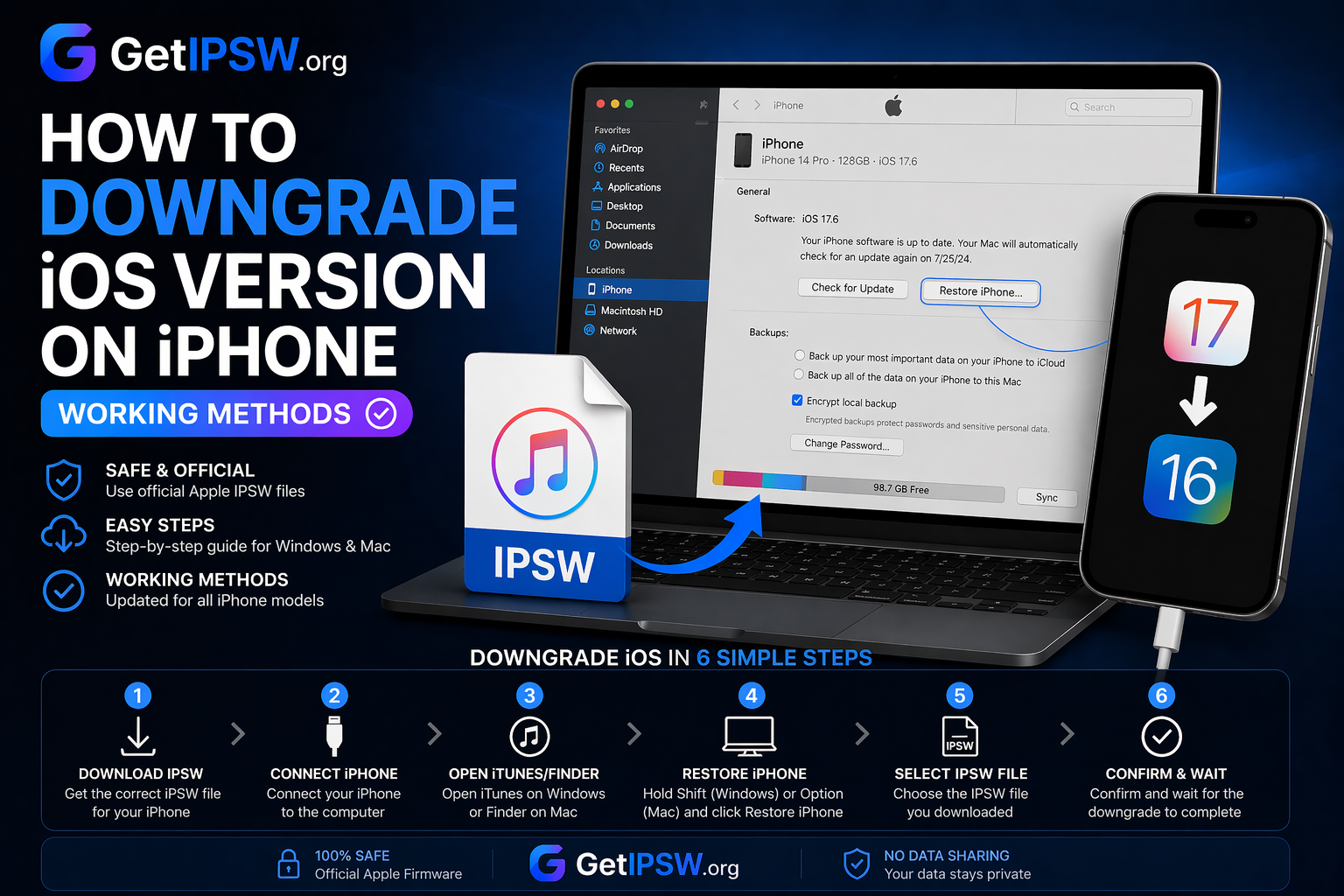
How to Downgrade iOS Version on iPhone (Working Methods)
Looking to downgrade your iPhone to an earlier iOS version? You’re in the right place.
Read more →
Apr 28, 2026
Face ID Not Working? 10 Ways to Fix It Fast
Face ID is one of the most convenient features on iPhone, but it can sometimes stop working or fail to recognize your face. This can be frustrating, especially when you rely on it for unlocking your device or making payments.
Read more →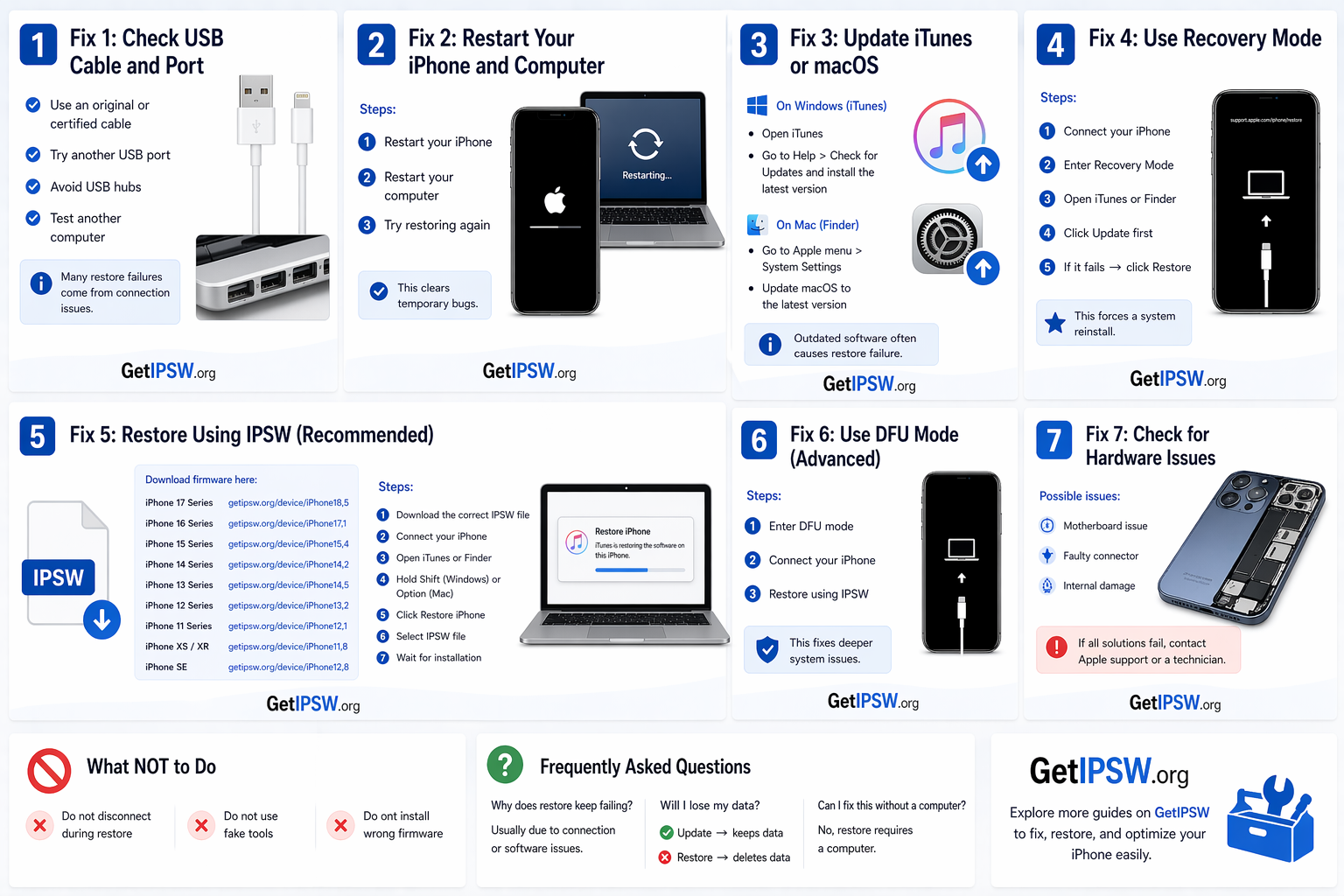
Apr 23, 2026
How to Fix iPhone Black Screen (Step-by-Step Guide)
Is your iPhone screen completely black and not responding? Don’t worry — this is a common issue and can usually be fixed.
Read more →