How to Fix iPhone Black Screen (Step-by-Step Guide)
Is your iPhone screen completely black and not responding? Don’t worry — this is a common issue and can usually be fixed.
How to Fix iPhone Black Screen (Step-by-Step Guide)
Is your iPhone screen completely black and not responding? Don’t worry — this is a common issue and can usually be fixed.
In this guide, you’ll learn step-by-step solutions to fix an iPhone black screen, whether it’s caused by software or hardware problems.
⚠️ Why Is My iPhone Screen Black?
A black screen can be caused by:
System crash
Failed iOS update
Battery issues
Hardware damage
App malfunction
👉 In many cases, the iPhone is still on but not displaying anything.
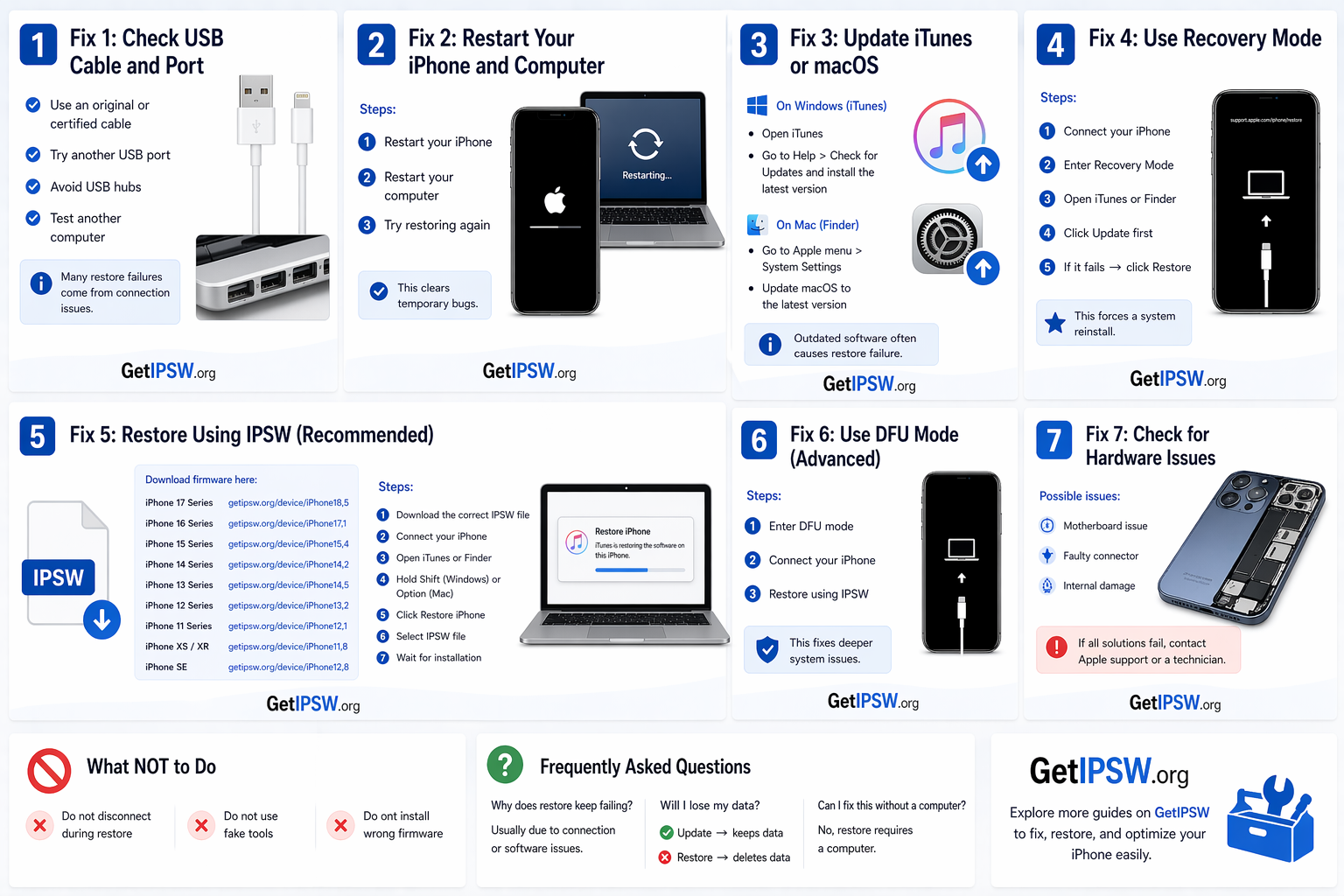
🔧 Fix 1: Force Restart (Quick Fix)
Try this first — it works in many situations.
For iPhone 8 and later:
Press and release Volume Up
Press and release Volume Down
Press and hold the Power button
Release when the Apple logo appears
For iPhone 7 / 7 Plus:
Hold Power + Volume Down until restart
For iPhone 6s / SE (1st gen):
Hold Power + Home button
🔋 Fix 2: Charge Your iPhone
Plug your iPhone into a charger
Wait at least 15–30 minutes
Try turning it on again
👉 Sometimes the battery is completely drained.
🔄 Fix 3: Check the Screen (Simple Test)
Increase brightness
Listen for sounds or vibrations
Call your phone from another device
👉 If it responds, the screen may be faulty.
⚙️ Fix 4: Use Recovery Mode
Connect your iPhone to a computer
Enter Recovery Mode
Open iTunes (Windows) or Finder (Mac)
Click Update first (keeps data)
If it fails → click Restore
⚙️ Fix 5: Restore Using IPSW (Recommended)
👉 This is one of the most effective solutions.
Download firmware here:
iPhone 17 Series – https://www.getipsw.org/device/iPhone18,5
iPhone 16 Series – https://www.getipsw.org/device/iPhone17,1
iPhone 15 Series – https://www.getipsw.org/device/iPhone15,4
iPhone 14 Series – https://www.getipsw.org/device/iPhone14,2
iPhone 13 Series – https://www.getipsw.org/device/iPhone14,5
iPhone 12 Series – https://www.getipsw.org/device/iPhone13,2
iPhone 11 Series – https://www.getipsw.org/device/iPhone12,1
iPhone XS / XR – https://www.getipsw.org/device/iPhone11,8
iPhone SE – https://www.getipsw.org/device/iPhone12,8
Steps:
Download the correct IPSW file
Connect your iPhone
Open iTunes or Finder
Hold Shift (Windows) or Option (Mac)
Click Restore iPhone
Select IPSW file
Wait for installation
🔥 Fix 6: Use DFU Mode (Advanced)
If nothing works:
Enter DFU mode
Connect your iPhone
Restore using IPSW
👉 This fixes deep system issues.
⚠️ Fix 7: Check Hardware
If your screen remains black:
Screen may be damaged
Battery may be faulty
Internal hardware issue
👉 Visit Apple support or a repair technician.
🚫 What NOT to Do
❌ Do not panic
❌ Do not install random apps
❌ Do not open the device yourself
❓ Frequently Asked Questions
Is my iPhone dead?
Not necessarily — it may just be a display or software issue.
Will I lose my data?
“Update” → keeps data
“Restore” → deletes data
Can a black screen fix itself?
Rarely — you should follow the steps above.
🧠 Final Thoughts
A black screen on iPhone can be scary, but most cases are fixable with simple methods.
Start with a force restart, then move to Recovery Mode or IPSW restore if needed.
Explore more guides on GetIPSW to fix, restore, and optimize your iPhone easily.
You Might Also Like

Apr 23, 2026
Tool WipeLocker – How to Use & Recommended Alternatives (2026 Guide)
This guide explains what WipeLocker is, how it works, and — more importantly — the real risks and safer alternatives you should consider.
Read more →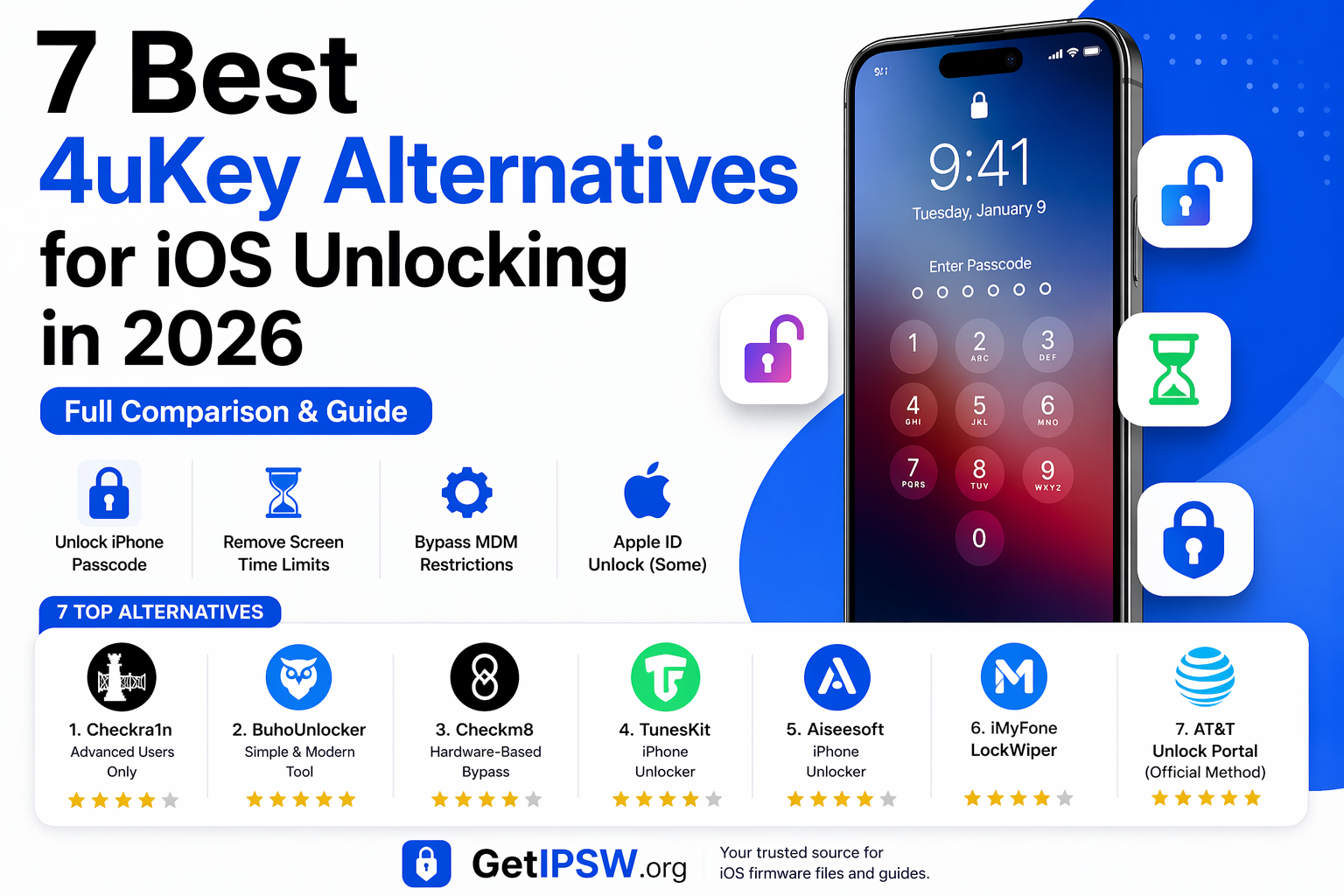
Apr 23, 2026
7 Best 4uKey Alternatives for iOS Unlocking in 2026
Getting locked out of your iPhone can feel like hitting a wall. Whether you forgot your passcode, are dealing with a disabled device, or facing restrictions like Screen Time or MDM, tools like 4uKey are often suggested.
Read more →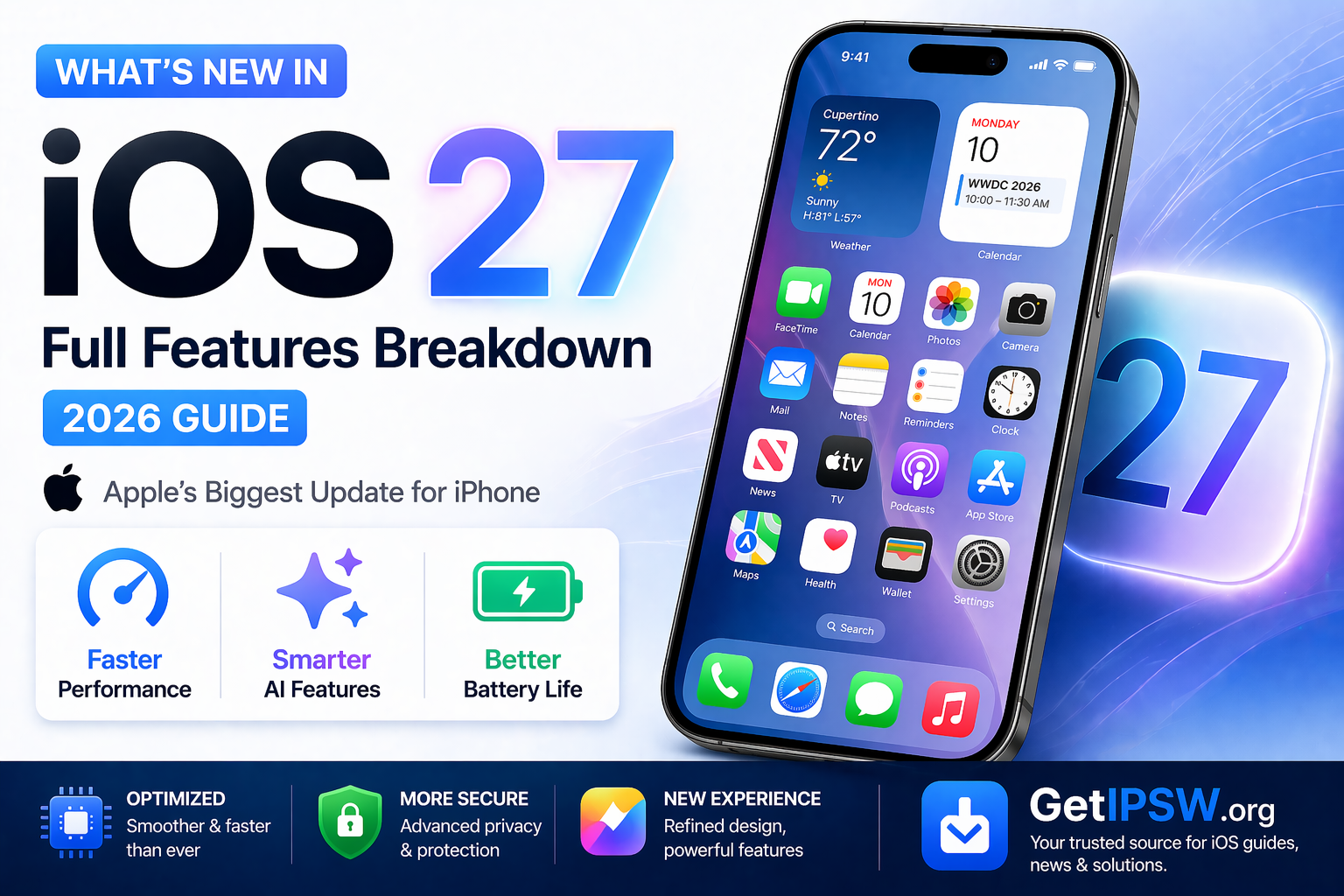
Apr 24, 2026
What’s New in iOS 27? Full Features Breakdown (2026 Guide)
iOS 27 is Apple’s major 2026 software update for iPhone, focusing on performance, efficiency, and smarter features powered by artificial intelligence. Unlike previous visually heavy updates, iOS 27 takes a more refined approach, improving stability while introducing key innovations for future devices.
Read more →