iOS Update Stuck? Fix "Update Requested", "Preparing Update" and "Unable to Verify Update"
The iOS update stays on "Update Requested", "Preparing Update" or "Verifying Update", or fails with "Unable to Verify Update" or "Unable to Install Update". Here is how to unblock it safely.
Updating an iPhone should take 20 to 40 minutes, but sometimes it blocks at one step. Each message points to a different cause. Find yours below.
The steps of an iOS update
- Update Requested: the iPhone has asked Apple's servers and is waiting to start the download.
- Downloading: the update file is downloaded (several gigabytes).
- Preparing Update: the iPhone unpacks and checks the file. This can take 10 to 30 minutes.
- Verifying Update: the iPhone asks Apple to confirm the update is authentic and signed.
- Installing: the screen goes black with the Apple logo and a progress bar.
Right after a major release (for example iOS 27 or a big point release), Apple's servers are overloaded and every step is slower. Patience often solves the problem.
"Update Requested" for a long time
- Connect to a stable Wi-Fi network; large updates may not download on mobile data.
- Leave Settings, then reopen Settings > General > Software Update.
- Restart the iPhone and try again.
- Check Apple System Status for "iOS Software Update".
"Preparing Update" or "Verifying Update" that never ends
- Plug the iPhone into power and wait at least 30 minutes.
- Check free space: below 5 to 10 GB, preparation can fail silently.
- If nothing changes after an hour, delete the update and download it again (see below).
"Unable to Verify Update"
The message says the update "failed verification because you are no longer connected to the internet", even when you are. Causes: an unstable connection, a VPN, a corrupted download, or Apple's servers being busy.
- Turn off any VPN and switch to another Wi-Fi network.
- Delete the downloaded update: Settings > General > iPhone Storage, find iOS 27.x in the list, tap it, then Delete Update.
- Restart the iPhone.
- Go back to Software Update and download it again.
"Unable to Install Update" / "An error occurred installing iOS"
- Free up space (see iPhone storage full).
- Charge to at least 50% or keep the iPhone plugged in.
- Delete the update and download it again, as above.
- If you had a beta installed, turn off beta updates in Software Update > Beta Updates (see leaving the beta safely).
"Unable to Check for Update"
The iPhone cannot contact Apple's update server. Check the internet connection, the date and time (Settings > General > Date & Time > Set Automatically), turn off VPN and content filters, then Reset Network Settings if it continues.
The update does not appear at all
- Your iPhone may not support the new version. Check with our Max OS Version tool.
- In Software Update > Automatic Updates, nothing blocks manual updates, but a profile from your company or school (Settings > General > VPN & Device Management) can delay them.
- Apple sometimes offers the previous major version (for example iOS 26) alongside the new one: scroll down in Software Update to see "Also Available".
The reliable alternative: update with a computer
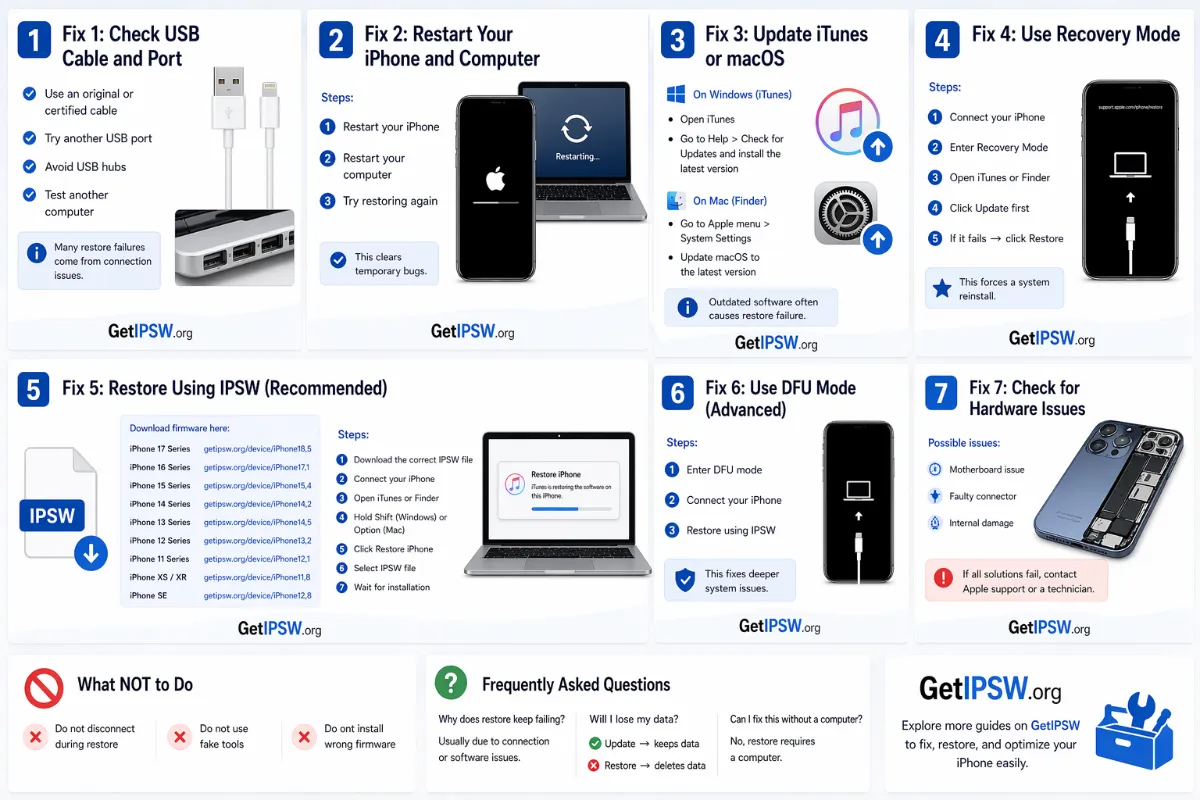
A computer update needs no free space on the iPhone and avoids the Wi-Fi problems.
On a Mac with macOS Catalina or later, use Finder: your iPhone appears in the sidebar. On Windows 10 or 11, install the free Apple Devices app from the Microsoft Store. iTunes still works on older Windows versions and on macOS Mojave or earlier.
- Back up the iPhone (backup guide).
- Connect it to the computer and select it in Finder or the Apple Devices app.
- Click Check for Update, then Download and Update. Choose Update, not Restore: your data stays.
You can also download the IPSW file yourself (faster on slow connections, and you can reuse it), then hold Option (Mac) or Shift (Windows) while clicking Check for Update to select it. Full steps: how to install an IPSW file. Latest firmware: iOS 27.0.1 IPSW.
- iPhone 18 Pro · iPhone 18 Pro Max
- iPhone 17 · iPhone 17 Pro · iPhone 17 Pro Max · iPhone Air · iPhone 17e
- iPhone 16 · iPhone 16 Plus · iPhone 16 Pro · iPhone 16 Pro Max · iPhone 16e
- iPhone 15 · iPhone 15 Plus · iPhone 15 Pro · iPhone 15 Pro Max
- iPhone 14 · iPhone 14 Plus · iPhone 14 Pro · iPhone 14 Pro Max
- iPhone 13 mini · iPhone 13 · iPhone 13 Pro · iPhone 13 Pro Max
- iPhone 12 mini · iPhone 12 · iPhone 12 Pro · iPhone 12 Pro Max
- iPhone 11 · iPhone 11 Pro · iPhone 11 Pro Max
- iPhone SE (2nd gen) · iPhone SE (3rd gen)
Another model? Browse all iPhone firmware or use the Identifier Lookup tool.
The iPhone is stuck on the Apple logo after the update
If the progress bar does not move for more than an hour, put the iPhone in recovery mode and choose Update:
- iPhone 8 and later (including iPhone SE 2nd/3rd generation): press and release Volume Up, press and release Volume Down, then press and hold the Side button. Keep holding when the Apple logo appears and release only when you see the computer-and-cable recovery screen.
- iPhone 7 and 7 Plus: press and hold the Side (or Top) button and Volume Down together until the recovery screen appears.
- iPhone 6s and earlier, iPhone SE (1st generation): press and hold the Home button and the Side (or Top) button together until the recovery screen appears.
More help: iPhone stuck on the Apple logo and how to update iOS safely.
You Might Also Like
Apr 23, 2026
iPhone Black Screen: How to Fix It Step by Step
A black iPhone screen can be a drained battery, a frozen system or a broken display. Here is how to find out which one and fix it.
Read more →
Oct 5, 2026
"This Apple Account Is Locked": How to Unlock It the Official Way
"This Apple Account has been locked for security reasons" or "disabled in the App Store and iTunes": here is why it happens and the official steps to get your account back.
Read more →
Apr 24, 2026
How to Back Up Your iPhone (iCloud and Computer Guide)
Two ways to back up an iPhone: automatically to iCloud or to a Mac or Windows PC. What each one saves, how much space you need and how to check a backup worked.
Read more →