getIPSW
iOS 26.5 IPSW Download: Complete Guide, Compatible iPhones, Signed Status and Installation Steps

iOS 26.5 IPSW Download: Complete Guide, Compatible iPhones, Signed Status and Installation Steps

Download iOS 26.5 IPSW for iPhone. Check compatible devices, build number, signed status, file details, and learn how to install it safely.

Summary

Apple has released iOS 26.5 for compatible iPhone models. This update is part of the iOS 26 release cycle and brings system improvements, bug fixes, security updates, and several feature refinements for iPhone users. If you want to update or restore your iPhone manually, downloading the correct iOS 26.5 IPSW file can be very useful.

In this complete guide, you will learn what iOS 26.5 is, what the IPSW file is used for, how to check the signed status, how to choose the correct firmware for your iPhone, and how to install iOS 26.5 safely using Finder, Apple Devices app, iTunes, or other compatible restore tools.

Before downloading any IPSW file, it is important to confirm your exact iPhone model and check whether Apple is still signing the firmware. A signed firmware can normally be installed, while an unsigned firmware is usually blocked during the restore process.

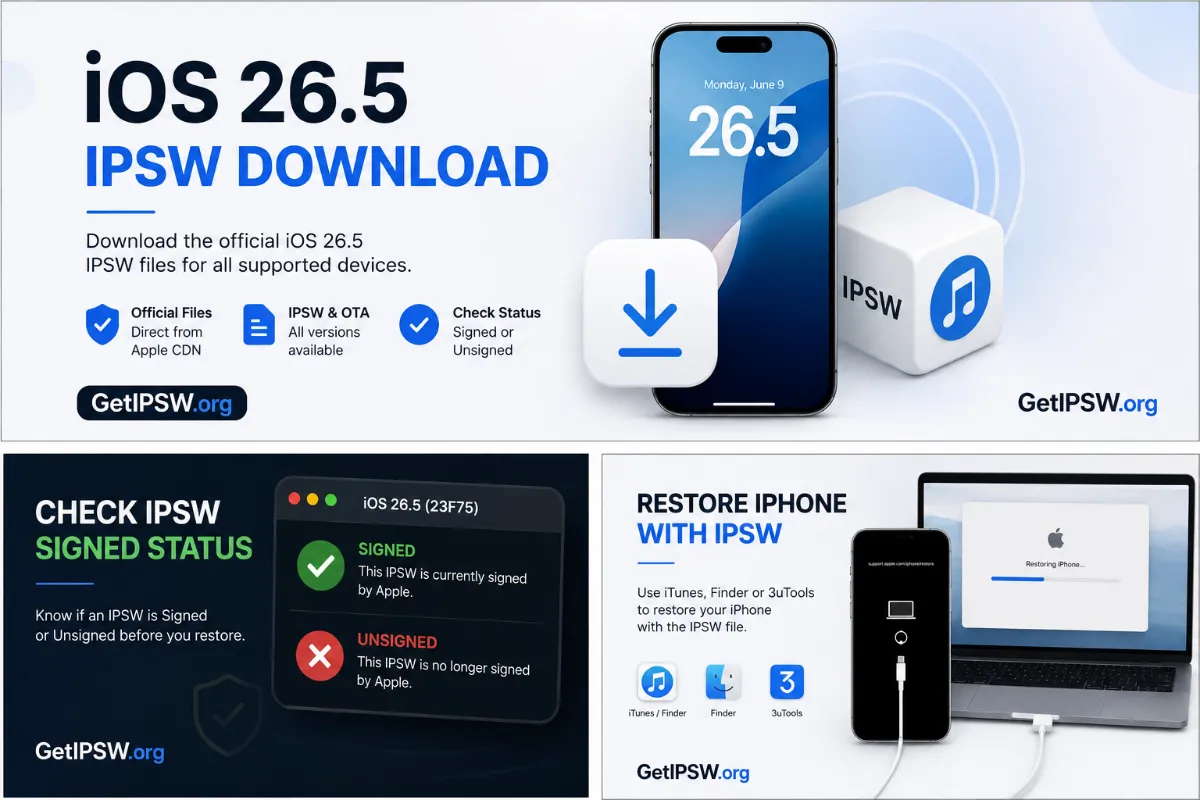
Apple listed iOS 26.5 build 23F77 among its official software releases on May 11, 2026, alongside iPadOS 26.5, macOS 26.5, tvOS 26.5, visionOS 26.5 and watchOS 26.5.


Table of Contents

  1. What is iOS 26.5?
  2. iOS 26.5 release information
  3. What is an IPSW file?
  4. Why download iOS 26.5 IPSW?
  5. What’s new in iOS 26.5?
  6. iOS 26.5 compatible iPhones
  7. How to download iOS 26.5 IPSW
  8. How to check if iOS 26.5 is still signed
  9. Signed vs unsigned IPSW explained
  10. How to install iOS 26.5 IPSW on iPhone
  11. Update vs restore: what is the difference?
  12. Common iOS 26.5 IPSW installation errors
  13. Safety tips before installing IPSW firmware
  14. Frequently asked questions
  15. Conclusion

What is iOS 26.5?

iOS 26.5 is a software update for compatible iPhone models running Apple’s iOS 26 operating system. Like most mid-cycle iOS updates, it is designed to improve the iPhone experience by adding refinements, fixing known issues, strengthening security, and improving system stability.

For most users, iOS 26.5 will appear directly in the Settings app under Software Update. This is the easiest way to install the update. However, some users prefer to download the full IPSW firmware file manually, especially when they need to restore an iPhone, reinstall iOS, fix software issues, or update several devices using the same firmware package.

An IPSW file gives users more control over the installation process. Instead of relying only on an over-the-air update, you can download the complete firmware file and install it from a computer using Finder on macOS, Apple Devices app on Windows, iTunes, or other compatible restore tools.

This method is especially useful for advanced users, technicians, developers, repair shops, and anyone who wants a clean installation of iOS.


iOS 26.5 Release Information

InformationDetails
Software versioniOS 26.5
Build number23F77
Release dateMay 11, 2026
Device familyiPhone
File typeIPSW / OTA
Operating systemiOS
Installation methodsOTA, Finder, Apple Devices app, iTunes
Signing statusCheck live status on getIPSW.org
Official release sourceApple Developer Releases

Apple’s official developer releases page lists iOS 26.5 with build number 23F77 and release date May 11, 2026. The same release cycle also included iPadOS 26.5, macOS 26.5, tvOS 26.5, visionOS 26.5, watchOS 26.5, and updates for older iOS versions such as iOS 18.7.9, iOS 16.7.16 and iOS 15.8.8.


What is an IPSW File?

An IPSW file is an Apple firmware package used to install, update, or restore iOS on an iPhone. The file contains the system software required by the device during the update or restore process.

When you update your iPhone from the Settings app, the process is automatic. Your iPhone downloads the required update files and installs them without needing a computer. But when you use an IPSW file, you manually download the complete firmware package and select it from a computer.

This can be useful when your iPhone is not working correctly, when you want to reinstall iOS cleanly, or when you need to update a device manually. IPSW files are also commonly used by developers, repair technicians, and advanced users who want more control over the firmware installation process.

However, downloading an IPSW file does not automatically mean you can install it. Apple must still be signing that firmware version. If the firmware is no longer signed, normal restore tools will usually reject the installation.


Why Download iOS 26.5 IPSW?

There are several reasons why someone may want to download the iOS 26.5 IPSW file instead of updating directly from the iPhone settings.

First, an IPSW file is useful when you want to restore your iPhone from a computer. If your device is stuck on the Apple logo, experiencing repeated crashes, or having serious software issues, a full restore using IPSW can help reinstall the system.

Second, IPSW files are helpful when you manage multiple iPhones. Instead of downloading the same update repeatedly on each device, you can download the firmware file once and use it when needed.

Third, some users prefer manual updates because they want to verify the firmware version, build number, file size, and signing status before installing anything on their device.

Finally, IPSW files are important for people who want to keep a firmware archive. Even if a firmware becomes unsigned later, users may still want to keep the file for reference, research, or technical documentation.


What’s New in iOS 26.5?

iOS 26.5 is not a complete redesign of iOS, but it includes useful improvements and refinements. According to Apple’s release listing, iOS 26.5 was released as part of a wider update cycle covering iPhone, iPad, Mac, Apple TV, Apple Watch and Apple Vision Pro.

Reports around the release mention improvements such as end-to-end encrypted RCS support where available, a new Pride Luminance wallpaper, Apple Maps updates, and other system refinements.

For most users, the biggest reason to install iOS 26.5 is not only the visible features, but also the stability and security improvements that usually come with Apple software updates. Even when an update appears small, it can include important fixes that improve reliability, app compatibility, battery behavior, connectivity, and overall device performance.

If your iPhone supports iOS 26 and iOS 26.5 is still signed, updating to the latest available version is usually recommended for users who want the newest public release and the latest fixes.


iOS 26.5 Compatible iPhones

The exact iOS 26.5 IPSW file you need depends on your iPhone model identifier. Two iPhones may look similar, but they can require different firmware files depending on the hardware variant, region, or generation.

Before downloading iOS 26.5 IPSW, always confirm your exact device model. On getIPSW.org, you can search for your iPhone model and open its dedicated firmware page to find the correct IPSW file.

Below is a sample compatibility table you can adapt with your live database.

iPhone familyModel identifiersiOS 26.5 IPSW status
iPhone 17 seriesiPhone18,xAvailable on getIPSW
iPhone 16 seriesiPhone17,xAvailable on getIPSW
iPhone 15 seriesiPhone16,xAvailable on getIPSW
iPhone 14 seriesiPhone15,xAvailable on getIPSW
iPhone 13 seriesiPhone14,xAvailable on getIPSW
iPhone 12 seriesiPhone13,xAvailable on getIPSW
Other compatible iPhonesDepends on Apple supportCheck getIPSW live database

You should replace this table with the exact device list from your own database. This is important for SEO because users often search for specific combinations such as iOS 26.5 IPSW for iPhone 15 Pro, iOS 26.5 IPSW for iPhone 14, or iOS 26.5 firmware for iPhone 13.

A precise compatibility table also helps users avoid downloading the wrong firmware file.


How to Download iOS 26.5 IPSW

Downloading iOS 26.5 IPSW is simple, but you must follow the correct steps to avoid choosing the wrong file.

Step 1: Identify your iPhone model

Open your iPhone and go to:

Settings > General > About

Check your model name and model number. If you need more precision, look for the model identifier. The model identifier is very important because IPSW files are tied to specific hardware models.

For example, an iPhone model may be known commercially as “iPhone 15 Pro”, but the firmware system may identify it with a technical identifier such as iPhone16,x.

Step 2: Visit getIPSW.org

Open getIPSW.org in your browser. Use the search bar or browse by device category to find your iPhone model.

You can search by:

Device name
iPhone generation
Model identifier
iOS version
Build number

This makes it easier to locate the exact firmware file for your device.

Step 3: Open your device firmware page

Once you find your iPhone model, open its dedicated firmware page. This page should display all available IPSW and OTA versions for that device.

Look for iOS 26.5 in the firmware list. Make sure the build number matches the expected release, which is 23F77 for iOS 26.5. Apple lists iOS 26.5 with build number 23F77 on its official releases page.

Step 4: Check the signing status

Before downloading the file, check whether iOS 26.5 is signed or unsigned. This is one of the most important details.

If the firmware is signed, you can normally install or restore it using Apple’s restore process. If the firmware is unsigned, you can usually download it for archive purposes, but you will not normally be able to install it through standard methods.

Step 5: Download the IPSW file

Click the download button and save the IPSW file on your computer. IPSW files are usually large, so make sure you have a stable internet connection and enough free storage space.

If getIPSW provides checksums such as SHA-256, SHA-1, or MD5, keep them visible. They can help users verify that the downloaded file is complete and has not been corrupted.


How to Check if iOS 26.5 is Still Signed

The signing status is one of the most important things to check before installing an IPSW file.

A signed firmware is still accepted by Apple’s servers during the restore process. When you install or restore an iPhone, Apple verifies whether the firmware is allowed for that device. If the firmware is still signed, the restore can normally continue.

An unsigned firmware is no longer accepted by Apple for normal installation. Even if you have the IPSW file on your computer, Finder, Apple Devices app, iTunes, or other standard restore tools will usually fail during the verification process.

On getIPSW.org, each firmware page should clearly show the signing status. This helps users know whether the firmware can still be installed or whether it is only useful for archive and reference purposes.

For the best user experience, your iOS 26.5 page should include a clear badge such as:

StatusMeaning
SignedApple currently allows this firmware to be installed
UnsignedApple no longer allows normal installation of this firmware
UnknownThe signing status should be checked again

Because Apple can stop signing a firmware at any time, users should always check the live signing status before downloading or restoring.


Signed vs Unsigned IPSW Explained

Understanding the difference between signed and unsigned IPSW files is essential before downloading iOS firmware.

A signed IPSW is a firmware version that Apple still approves for installation. During the restore process, your computer contacts Apple’s servers to verify the firmware. If Apple is still signing that version, the installation can continue.

An unsigned IPSW is a firmware version that Apple no longer approves for normal installation. In most cases, if you try to restore an unsigned IPSW, the process will fail because Apple’s servers will not authorize it.

This is why the signing status matters more than the download itself. A firmware file can still be available online, but if it is unsigned, most users will not be able to install it.

For example, if iOS 26.5 is still signed, users can normally restore it. If Apple stops signing iOS 26.5 after a newer update is released, users may still download the file, but they usually cannot install it through normal Apple restore methods.


How to Install iOS 26.5 IPSW on iPhone

Before installing iOS 26.5 IPSW, create a backup of your iPhone. This is very important because some restore methods can erase your data.

You can back up your iPhone using iCloud, Finder, Apple Devices app, or iTunes.

Step 1: Back up your iPhone

Before doing anything, back up your iPhone. A backup protects your photos, messages, app data, settings, and other important information.

You can use iCloud backup directly from your iPhone, or you can create a local backup on your computer using Finder, Apple Devices app, or iTunes.

If you choose the Restore iPhone option later, your device may be erased. That is why a backup is strongly recommended.

Step 2: Download the correct iOS 26.5 IPSW file

Go to getIPSW.org and download the iOS 26.5 IPSW file for your exact iPhone model.

Do not download a firmware file for a similar device unless the model identifier matches. Using the wrong IPSW file will usually cause the installation to fail.

Step 3: Connect your iPhone to your computer

Use a reliable USB cable to connect your iPhone to your Mac or Windows PC.

If your iPhone asks whether to trust the computer, tap Trust and enter your passcode. Keep the device connected during the entire process.

Avoid using damaged cables, unstable USB ports, or USB hubs during a firmware restore.

Step 4: Open Finder, Apple Devices app, or iTunes

On recent versions of macOS, use Finder.

On Windows, use the Apple Devices app if available, or iTunes if your system still uses it.

Once the app is open, select your iPhone from the device list. You should see options such as Check for Update, Update, or Restore iPhone.

Step 5: Select the IPSW file manually

To manually select the IPSW file, use the correct keyboard shortcut.

On macOS:

Hold the Option key and click Update or Restore iPhone.

On Windows:

Hold the Shift key and click Update or Restore iPhone.

A file selection window will open. Choose the iOS 26.5 IPSW file you downloaded from getIPSW.org.

Step 6: Confirm the installation

After selecting the IPSW file, your computer will verify the firmware with Apple’s servers.

If iOS 26.5 is still signed and the file is compatible with your device, the installation process will begin.

Do not disconnect your iPhone during the installation. Your device may restart several times. This is normal.

Step 7: Set up your iPhone

After the installation is complete, your iPhone will restart.

If you performed an update, your data may remain on the device. If you performed a full restore, you may need to set up your iPhone again and restore your backup.

Follow the on-screen instructions to complete the setup.


Update vs Restore: What is the Difference?

When installing an IPSW file, users often see two options: Update and Restore. These options are not the same.

OptionWhat it doesData impact
UpdateInstalls the firmware while trying to keep user dataUsually keeps data
RestoreErases the device and installs a clean copy of iOSDeletes data unless restored from backup

The Update option is useful when your iPhone is working normally and you simply want to install iOS 26.5 manually.

The Restore option is better when your iPhone has serious software problems, is stuck in recovery mode, or needs a clean installation.

If you are not sure which option to choose, create a backup first. Then choose the method that best matches your situation.


Common iOS 26.5 IPSW Installation Errors

Installing IPSW firmware is usually simple, but some errors can happen. Most of them are related to compatibility, signing status, connection problems, or corrupted downloads.

The firmware file is not compatible

This error usually means that you downloaded the wrong IPSW file for your iPhone model.

To fix it, go back to getIPSW.org and confirm your exact model identifier. Then download the firmware file that matches your device.

The firmware is no longer signed

If Apple has stopped signing iOS 26.5, the restore process will fail during verification.

In this case, you need to install a firmware version that Apple is currently signing. You can check the live signing status on getIPSW.org before trying again.

The IPSW file is corrupted

If the download was interrupted or incomplete, the IPSW file may be corrupted.

Delete the file and download it again using a stable internet connection. If checksums are available, compare them with the values shown on the firmware page.

The iPhone disconnects during restore

A disconnect during restore can happen because of a bad cable, unstable USB port, or computer issue.

Use another USB cable, connect directly to the computer, avoid USB hubs, and try another USB port if needed.

Finder or iTunes does not detect the iPhone

If your computer does not detect the iPhone, unlock the device, tap Trust This Computer, restart your computer, and update Finder, Apple Devices app, or iTunes.

You can also try another cable or another computer.

The restore process gets stuck

If the restore process appears stuck, wait for a while before disconnecting anything. Firmware installation can take time, especially on older devices or slower computers.

If it remains stuck for too long, restart the computer and try again. In some cases, recovery mode may be required.


Safety Tips Before Installing iOS 26.5 IPSW

Before installing any IPSW firmware, follow these safety tips.

Always back up your iPhone before starting. This is the most important step because a restore can erase your device.

Make sure you download the correct IPSW file for your exact model identifier. Do not rely only on the commercial iPhone name.

Check the signing status before downloading a large file. If the firmware is unsigned, you may not be able to install it.

Use a stable internet connection to avoid corrupted downloads.

Use a reliable USB cable and avoid disconnecting the iPhone during the restore process.

Make sure your computer has enough battery or is connected to power.

Do not interrupt the restore process once it has started.

If you depend on jailbreak tools, enterprise apps, developer tools, or specific app compatibility, research carefully before updating. Once Apple stops signing your previous version, downgrading may no longer be possible through normal methods.


Recommended Internal Links for getIPSW

When publishing this article, add internal links to important pages on your site. This will help users navigate and improve SEO.

Suggested internal links:

Anchor textSuggested destination
Download iOS 26.5 IPSWiOS 26.5 firmware listing page
Check iOS 26.5 signed statusiOS 26.5 signing status page
iPhone firmware downloadsMain iPhone firmware page
What is an IPSW file?Beginner guide article
Signed vs unsigned IPSWSigned status explanation article
Restore iPhone with IPSWStep-by-step restore guide
iPhone model identifierDevice identifier guide

Internal links are important because they help users discover related pages and help search engines understand the structure of your site.


Frequently Asked Questions

Is iOS 26.5 available as an IPSW file?

Yes. iOS 26.5 is available as an IPSW firmware file for compatible iPhone models. You should download the correct file for your exact device model and check the signing status before installing it.

What is the build number of iOS 26.5?

The build number of iOS 26.5 is 23F77. Apple lists iOS 26.5 build 23F77 on its official developer releases page with a release date of May 11, 2026.

Is iOS 26.5 still signed?

The signing status can change at any time. You should check the live iOS 26.5 signing status on getIPSW.org before downloading or restoring the firmware.

Can I install iOS 26.5 IPSW without a computer?

No. Installing an IPSW file normally requires a computer with Finder, Apple Devices app, iTunes, or another compatible restore tool. If you want to update without a computer, use Settings > General > Software Update on your iPhone.

Can I downgrade from iOS 26.5?

You can only downgrade to a firmware version that Apple is still signing. If the older firmware is unsigned, normal downgrade methods will usually not work.

Is it safe to download iOS 26.5 IPSW?

It is safest to use IPSW files that come from Apple’s official servers. On getIPSW.org, you should provide firmware details, signing status, file size, checksums, and direct Apple CDN links when available.

What happens if I download the wrong IPSW file?

If you download the wrong IPSW file, Finder, Apple Devices app, iTunes, or your restore tool will usually reject it because it is not compatible with your iPhone model.

Does restoring with IPSW erase my iPhone?

If you choose Restore iPhone, your device will be erased and iOS will be installed cleanly. If you choose Update, your data is usually preserved, but you should always create a backup before starting.

Why does Apple stop signing old iOS versions?

Apple stops signing older iOS versions to control which firmware versions can be installed on devices. This helps Apple maintain security, compatibility, and update consistency across supported devices.

Can I keep an unsigned IPSW file?

Yes. You can keep an unsigned IPSW file for archive, research, or reference purposes. However, in most cases, you cannot install it through normal Apple restore methods once it is unsigned.


Conclusion

iOS 26.5 is an important update for compatible iPhone users who want the latest improvements, system refinements, and security fixes. Downloading the iOS 26.5 IPSW file gives you more control over the update or restore process, especially if you need to reinstall iOS, fix software problems, or manually update a device from a computer.

Before downloading, always confirm your exact iPhone model, check the build number, verify the signing status, and create a full backup. A signed IPSW can normally be installed, while an unsigned IPSW is usually blocked during the restore process.

With getIPSW.org, you can quickly find the correct iOS 26.5 IPSW file, review firmware details, check whether the firmware is signed, and follow safe installation steps for your iPhone.

© 2026 getIPSW. Firmware data provided by ipswdl.com API. Not affiliated with Apple Inc.