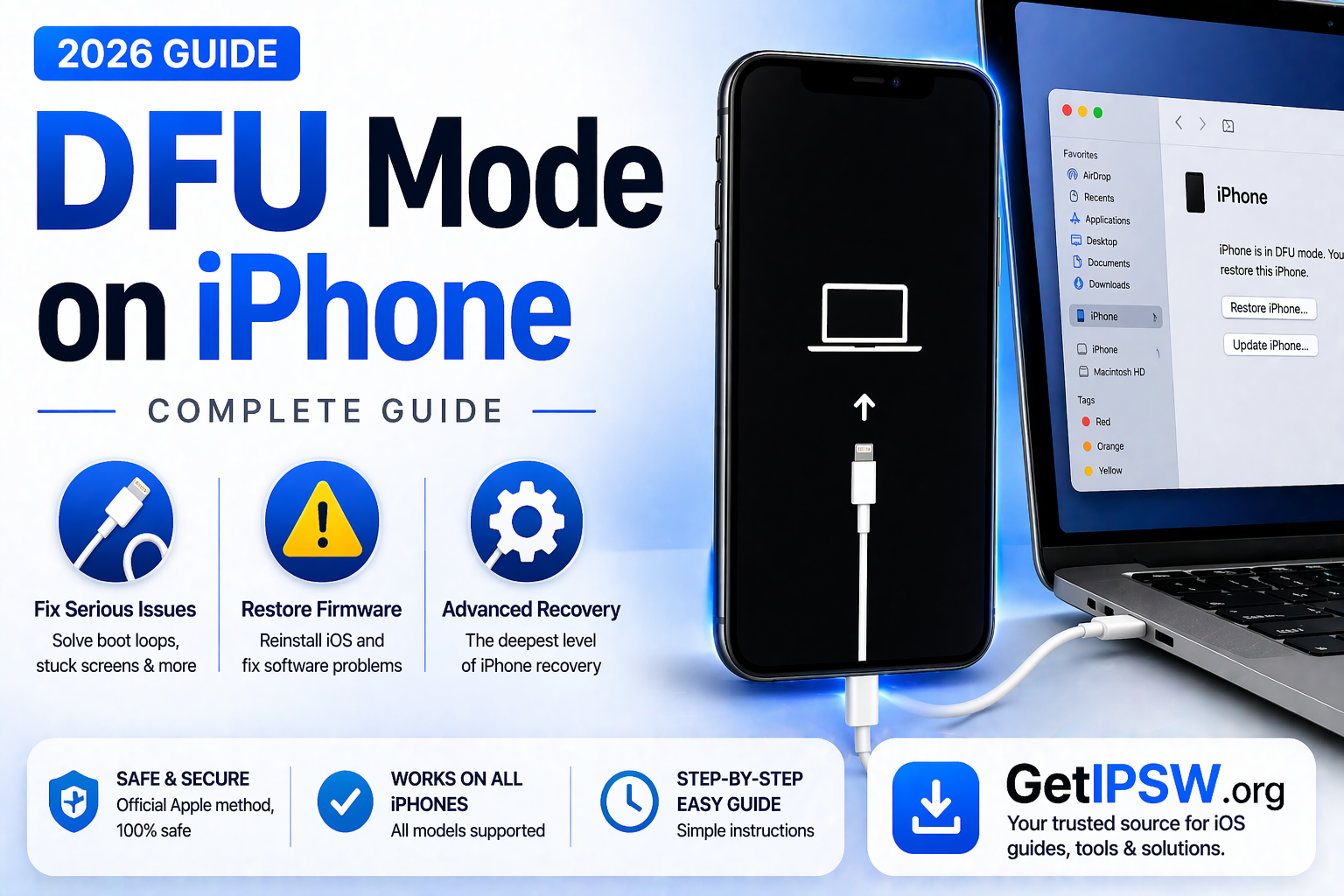
How to Enter DFU Mode on Any iPhone (Complete Guide 2026)
DFU Mode (Device Firmware Update mode) is one of the most advanced recovery states on iPhone. It allows your device to communicate with a computer without loading the operating system or bootloader.
This makes DFU mode extremely useful for fixing serious software issues, restoring firmware, or recovering a device that is completely unresponsive.
What Is DFU Mode?


DFU Mode is a special state where your iPhone’s screen remains completely black, but the device is still recognized by a computer.
It is different from Recovery Mode because:
It bypasses the iOS system
It allows deeper firmware-level operations
It is used for advanced troubleshooting
When Should You Use DFU Mode?
You should use DFU Mode if:
Your iPhone is stuck on the Apple logo
The device is in a boot loop
A normal restore fails
You need a complete firmware reinstall
The device is not responding at all
DFU Mode is often the last step before considering hardware repair.
Before You Start
Before entering DFU Mode:
Install the latest version of iTunes (Windows) or use Finder (Mac)
Use a reliable USB cable
Ensure your iPhone has enough battery
Backup your data if possible
How to Enter DFU Mode (iPhone 8 and Later)


Follow these steps carefully:
Connect your iPhone to your computer
Press and release Volume Up
Press and release Volume Down
Press and hold the Side button until the screen turns black
While holding the Side button, press and hold the Volume Down button for 5 seconds
Release the Side button but continue holding Volume Down for about 10 seconds
If done correctly:
The screen stays black
Your computer detects the device
How to Enter DFU Mode (iPhone 7 / 7 Plus)


Connect your iPhone to your computer
Press and hold Power + Volume Down together
After 8 seconds, release the Power button
Keep holding Volume Down for 10 seconds
How to Enter DFU Mode (iPhone 6s and Earlier)


Connect your iPhone to your computer
Press and hold Home + Power button
After 8 seconds, release Power
Continue holding Home for 10 seconds
How to Know If DFU Mode Is Successful


You will know DFU Mode is active if:
The screen is completely black
iTunes or Finder detects the device
You see a message prompting you to restore
If you see a logo or cable screen, you are in Recovery Mode, not DFU Mode.
How to Exit DFU Mode
If you want to exit DFU Mode:
For iPhone 8 and later:
Press Volume Up → Volume Down → Hold Power until Apple logo appears
For iPhone 7:
Hold Power + Volume Down
For iPhone 6s:
Hold Home + Power
Important Notes
DFU Mode will erase your device if you restore it
It should be used only when necessary
Incorrect timing may fail to enter DFU Mode
Always follow steps carefully
Frequently Asked Questions
Is DFU Mode safe?
Yes, when used correctly, it is safe and widely used for troubleshooting.
Will DFU Mode delete data?
Only if you perform a restore.
What is the difference between DFU and Recovery Mode?
DFU Mode is deeper and more advanced than Recovery Mode.
Final Thoughts
DFU Mode is a powerful tool for fixing serious iPhone issues. While it may seem complex at first, following the correct steps makes the process straightforward.
Use DFU Mode only when necessary and always proceed carefully.
Explore more iPhone guides and firmware tutorials on GetIPSW.
You Might Also Like
Apr 28, 2026
iPhone Running Slow After Update? Speed It Up in Minutes (2026 Guide)
If your iPhone is stuck on the Apple logo and won’t start, it’s usually caused by a software issue such as a failed update, corrupted files, or an interrupted restore.
Read more →
Apr 24, 2026
How to Factory Reset an iPhone (Step-by-Step Guide)
Factory resetting an iPhone is one of the most effective ways to fix software issues, erase personal data, or prepare a device for resale. This process restores your iPhone to its original state, just like when it was new.
Read more →
Apr 28, 2026
iPhone Camera Not Working? Full Troubleshooting Guide (2026)
If your iPhone camera is not working, showing a black screen, blurry images, or crashing when opened, you’re not alone. This issue can affect any iPhone model and is usually caused by software glitches, settings conflicts, or hardware problems.
Read more →