
Signed vs Unsigned IPSW: What It Means and Why It Matters
Learn the difference between signed and unsigned IPSW files, why Apple signing matters, and how to check if an iOS firmware can still be restored.
Summary
When downloading iPhone firmware, you will often see two important labels: signed and unsigned. These labels determine whether an IPSW file can normally be installed on an iPhone, iPad, or other Apple device.
A signed IPSW is a firmware version that Apple currently allows users to install or restore. An unsigned IPSW is a firmware version that Apple no longer authorizes through the standard restore process. This difference is extremely important because downloading an IPSW file does not automatically mean you can install it.
In this complete guide, you will learn what signed and unsigned IPSW files mean, how Apple firmware signing works, why signing status changes, how to check whether a firmware is still signed, and what users should know before trying to update, restore, or downgrade an iPhone.
Table of Contents
- What is an IPSW file?
- What does signed IPSW mean?
- What does unsigned IPSW mean?
- Signed vs unsigned IPSW comparison table
- Why does Apple sign firmware?
- Why does Apple stop signing older iOS versions?
- What happens during an IPSW restore?
- Can you install an unsigned IPSW?
- Can you downgrade iOS with IPSW?
- How to check if an IPSW is signed
- Why signing status matters before downloading
- Common errors caused by unsigned IPSW files
- Best practices before restoring firmware
- Recommended internal links for getIPSW
- Frequently asked questions
- Conclusion
What is an IPSW File?
An IPSW file is an Apple firmware package used to update, restore, or reinstall software on Apple devices such as iPhone, iPad, Apple TV, Apple Watch, and other supported products.
For iPhone users, an IPSW file contains the iOS system software required during the update or restore process. When you update directly from Settings > General > Software Update, your device handles most of the process automatically. But when you download an IPSW file manually, you can select the firmware file from a computer and install it using Finder, Apple Devices app, iTunes, Apple Configurator, or other compatible tools.
Apple Configurator, for example, allows users to drag an .ipsw file onto a selected device and then choose whether to update or restore it. This confirms that IPSW files are official firmware packages used in Apple device management and restore workflows.
IPSW files are useful for technicians, developers, repair shops, advanced users, and anyone who needs to manually update or restore a device. However, one important rule must always be understood: an IPSW file must normally be signed by Apple before it can be installed.
What Does Signed IPSW Mean?
A signed IPSW is a firmware file that Apple currently authorizes for installation on a specific device.
When you restore or update an iPhone using an IPSW file, the restore tool does not simply install the file directly. The process includes a verification step with Apple’s servers. If Apple is still signing that firmware version for your device, the installation can continue.
In simple terms, a signed IPSW means:
| Signed IPSW means | Explanation |
|---|---|
| Apple currently authorizes it | The firmware is accepted during restore verification |
| It can normally be installed | Finder, Apple Devices app, iTunes, or compatible tools can restore it |
| It is usually safe for standard restore | The firmware is still approved for that device |
| It may be useful for update or downgrade | As long as the target version is still signed |
| Signing status can change | Apple can stop signing it later |
For example, if iOS 26.5 is signed for your iPhone model, you can normally download the correct IPSW file and restore or update your device using a computer.
The key point is that signing is not only about the file existing online. It is about whether Apple’s servers currently approve that firmware for installation.
What Does Unsigned IPSW Mean?
An unsigned IPSW is a firmware version that Apple no longer authorizes for normal installation.
The IPSW file may still be available for download. It may still have the correct file name, build number, and device identifier. But if Apple has stopped signing that firmware, the standard restore process will usually fail during verification.
In simple terms, an unsigned IPSW means:
| Unsigned IPSW means | Explanation |
|---|---|
| Apple no longer authorizes it | The firmware is rejected during restore verification |
| It usually cannot be restored | Standard tools will normally block the installation |
| It may still be downloadable | Availability does not mean installability |
| It can be useful for archive | Users may keep it for research or reference |
| It may cause restore errors | The process can fail when Apple verification happens |
IPSW.me, a well-known firmware tracking website, explains on firmware pages that signed IPSW files can be restored using Finder, the Apple Devices app, iTunes, or idevicerestore, while unsigned IPSWs cannot currently be restored through normal methods.
This is why users should always check the signing status before downloading a large firmware file.
Signed vs Unsigned IPSW Comparison Table
| Feature | Signed IPSW | Unsigned IPSW |
|---|---|---|
| Apple authorization | Approved by Apple | No longer approved by Apple |
| Standard restore | Usually possible | Usually not possible |
| Finder support | Yes, if compatible | Usually rejected |
| Apple Devices app support | Yes, if compatible | Usually rejected |
| iTunes support | Yes, if compatible | Usually rejected |
| Downgrade use | Possible only if target version is signed | Not normally possible |
| Download availability | Usually available | May still be available |
| Best use | Update, restore, reinstall, downgrade while allowed | Archive, research, reference |
| Risk of restore error | Lower | Higher |
| Requires correct device model | Yes | Yes, but still not enough |
The most important difference is simple: a signed IPSW can normally be installed, while an unsigned IPSW usually cannot be installed through standard Apple restore methods.
Why Does Apple Sign Firmware?
Apple signs firmware to control which software versions can be installed on its devices. This system helps Apple maintain security, compatibility, and reliability across supported devices.
Firmware signing allows Apple to verify that the software being installed is authorized for that specific device. During a restore, the device and restore tool communicate with Apple’s servers. If the firmware version is approved, the restore can continue. If it is not approved, the restore fails.
This system helps prevent users from installing outdated, vulnerable, or incompatible firmware versions. It also helps Apple ensure that devices run software versions that meet current security and stability standards.
From a user perspective, firmware signing may feel restrictive because it limits downgrades. But from a platform security perspective, it helps reduce exposure to older software versions that may contain known vulnerabilities.
Apple maintains official security release pages where it lists security updates and software releases for its platforms, showing how important system updates are in Apple’s software ecosystem.
Why Does Apple Stop Signing Older iOS Versions?
Apple usually stops signing older iOS versions after a newer update has been released for some time. The exact timing can vary. Sometimes Apple stops signing an older version quickly, and sometimes it keeps more than one version signed for a while.
There are several reasons why Apple may stop signing older firmware versions.
First, Apple wants users to stay on newer versions that include the latest security patches. Older versions may contain vulnerabilities that have already been fixed in newer releases.
Second, newer versions often include bug fixes, compatibility improvements, and system stability updates. Keeping users on newer firmware helps reduce fragmentation.
Third, Apple may want to prevent widespread downgrading to versions with known issues or exploitable weaknesses.
Fourth, firmware signing helps Apple control the restore process and ensure that devices receive software versions appropriate for their hardware.
For users, this means that the downgrade window is usually limited. If you want to move from a newer iOS version to an older one, the older version must still be signed. Once Apple stops signing it, normal downgrade methods usually stop working.
What Happens During an IPSW Restore?
When you install an IPSW file, the process involves more than simply copying software to your iPhone.
A typical IPSW restore process works like this:
| Step | What happens |
|---|---|
| 1 | You download the IPSW file for your exact device model |
| 2 | You connect your device to a computer |
| 3 | You select the IPSW file in Finder, Apple Devices app, iTunes, or another tool |
| 4 | The restore tool checks the firmware compatibility |
| 5 | Apple’s servers verify whether the firmware is still signed |
| 6 | If approved, the restore continues |
| 7 | If rejected, the restore fails |
| 8 | The device installs the firmware and restarts |
Apple’s support documentation explains that when an iPhone cannot update or restore normally, users may need to use recovery mode and restore the device with a computer. Apple also recommends making sure the Mac is updated, or on PC, using the latest Apple Devices app or iTunes.
This restore workflow is why signing status matters so much. Even if the IPSW file is correct and fully downloaded, Apple’s verification step can still block the installation if the firmware is no longer signed.
Can You Install an Unsigned IPSW?
For most users, the answer is no. An unsigned IPSW usually cannot be installed through standard Apple restore methods.
If you try to install an unsigned IPSW using Finder, Apple Devices app, iTunes, or similar tools, the restore process will usually fail when the firmware is verified. This happens because Apple’s servers no longer approve that firmware version for your device.
Some advanced discussions online mention special cases involving saved blobs, older devices, jailbreak-related workflows, or research tools. However, these methods are not standard, are not available for most modern devices, and can be risky or unreliable.
For a public guide on getIPSW.org, the safest and clearest answer is:
If an IPSW is unsigned, you should assume that it cannot normally be installed.
This keeps the information accurate and avoids misleading users into thinking that every downloaded firmware file can be restored.
Can You Downgrade iOS with IPSW?
Yes, but only under specific conditions.
You can downgrade iOS with an IPSW file only if the target firmware version is still signed by Apple and compatible with your device. If the target version is unsigned, normal downgrade methods usually will not work.
For example, if your iPhone is running iOS 26.5 and Apple is still signing iOS 26.4.2 for your device, you may be able to downgrade using the correct iOS 26.4.2 IPSW file. But if Apple has stopped signing iOS 26.4.2, the downgrade will normally fail.
Before attempting a downgrade, users should check three things:
| Requirement | Why it matters |
|---|---|
| Correct device model | IPSW files are device-specific |
| Signed target firmware | Apple must still authorize the restore |
| Backup compatibility | Backups from newer iOS versions may not restore to older versions |
Downgrading can also erase data, cause app compatibility issues, or prevent restoring a backup made on a newer iOS version. Users should always create a backup before attempting any firmware restore or downgrade.
How to Check if an IPSW is Signed
The easiest way to check whether an IPSW is signed is to use a firmware database like getIPSW.org.
On getIPSW.org, each firmware page should clearly show the signing status for a specific device and firmware version. A good firmware page should include the device name, model identifier, iOS version, build number, release date, file size, download link, checksums, and signing status.
To check if an IPSW is signed, follow these steps:
Step 1: Identify your device model
Open your iPhone and go to:
Settings > General > About
Check your model name and model number. If possible, confirm the technical model identifier because IPSW files are device-specific.
Step 2: Open getIPSW.org
Go to getIPSW.org and search for your device. You can search by iPhone name, model identifier, iOS version, or build number.
Step 3: Select the firmware version
Open the firmware page for the iOS version you want to download or install.
Step 4: Check the signing badge
Look for a label such as Signed, Unsigned, or Unknown.
Step 5: Confirm before restoring
If the firmware is signed, you can normally proceed with installation if the file matches your device. If it is unsigned, you should not expect a normal restore to work.
A clear signing badge helps users avoid wasting time downloading large firmware files that cannot be installed.
Why Signing Status Matters Before Downloading
IPSW files are often several gigabytes in size. Downloading the wrong file or downloading an unsigned firmware can waste time, bandwidth, and storage space.
Signing status matters because it tells you whether the firmware can normally be installed.
If you only want to archive the file, unsigned firmware may still be useful. But if your goal is to update, restore, or downgrade an iPhone, the firmware must normally be signed.
For getIPSW.org, this is one of the most important user experience points. Every firmware page should make the signing status highly visible before the download button.
A strong firmware page should answer these questions immediately:
| User question | Page should show |
|---|---|
| Is this firmware signed? | Signed or unsigned badge |
| Is it for my device? | Device name and model identifier |
| What version is it? | iOS version and build number |
| How large is the file? | File size |
| Is the file official? | Apple CDN link when available |
| Can I verify it? | SHA-256, SHA-1, or MD5 checksums |
When these details are clear, users trust the page more and are less likely to make mistakes.
Common Errors Caused by Unsigned IPSW Files
Trying to restore an unsigned IPSW can lead to different errors depending on the tool, device, and firmware version. The message may not always clearly say “unsigned firmware”, but the cause is often related to Apple’s verification step.
The firmware is not compatible
This error can happen when the IPSW file does not match the device model. However, users may confuse this with signing problems. Always check both the model identifier and the signing status.
The restore could not be completed
This can happen when the restore process fails during verification or installation. If the file is unsigned, the restore will usually not continue.
The device is not eligible for the requested build
This type of error often means Apple is not allowing that firmware version for the device. It may happen when the firmware is unsigned or not valid for the device.
iTunes or Finder rejects the firmware
If the IPSW is unsigned, standard Apple restore tools may reject it during the restore process.
The restore fails after extraction
Sometimes the tool extracts the IPSW file first, then fails later when it contacts Apple’s servers for authorization.
The best way to avoid these errors is to check the signing status before starting.
Best Practices Before Restoring Firmware
Before restoring any IPSW file, users should follow a few important safety steps.
First, create a full backup. A restore can erase the device, and even an update can fail unexpectedly. Backups protect photos, messages, settings, app data, and other important information.
Second, confirm the exact device model. IPSW files are not universal. A file made for one iPhone model may not work on another.
Third, check the signing status. If the firmware is unsigned, do not expect a normal restore to work.
Fourth, use a stable USB cable and avoid disconnecting the device during the restore process.
Fifth, make sure your computer software is up to date. Apple recommends using an updated Mac, or on PC, the latest Apple Devices app or iTunes when restoring a device.
Sixth, understand the difference between Update and Restore. Updating usually tries to keep your data, while restoring can erase the device and install a clean copy of iOS.
Apple’s Mac help documentation also emphasizes the importance of backing up an iPhone, iPad, or iPod touch before restoring, because backups protect files and settings from loss.
Recommended Internal Links for getIPSW
When publishing this article, add internal links to important pages on your site. This will improve navigation, strengthen SEO, and help users move from educational content to firmware pages.
| Anchor text | Suggested destination |
|---|---|
| Download signed IPSW files | Main signed firmware page |
| Check iOS signing status | Live signing status page |
| iPhone firmware downloads | Main iPhone firmware category |
| What is an IPSW file? | Beginner IPSW guide |
| How to restore iPhone with IPSW | Restore guide article |
| iOS downgrade guide | Downgrade explanation article |
| iPhone model identifier guide | Device identifier article |
| Latest iOS firmware releases | Latest firmware page |
For better SEO, use natural internal links inside paragraphs, not only in a table. For example:
Before downloading any firmware, check the live iOS signing status on getIPSW to confirm whether the IPSW can still be installed.
Frequently Asked Questions
What is a signed IPSW?
A signed IPSW is a firmware version that Apple currently authorizes for installation on a specific device. If the IPSW is signed and compatible with your device, it can normally be installed using Finder, Apple Devices app, iTunes, or another compatible restore tool.
What is an unsigned IPSW?
An unsigned IPSW is a firmware version that Apple no longer authorizes for normal installation. The file may still be available for download, but standard restore tools will usually reject it during verification.
Can I restore an unsigned IPSW?
For most users, no. An unsigned IPSW usually cannot be restored through normal Apple tools because Apple’s servers no longer approve that firmware version.
Can I downgrade iOS using IPSW?
Yes, but only if the iOS version you want to downgrade to is still signed by Apple and compatible with your device. If the target firmware is unsigned, the downgrade will normally fail.
Does signed mean the IPSW file is safe?
Signed means Apple currently authorizes that firmware for installation. It does not replace basic safety checks. You should still download firmware from reliable sources, confirm the device model, and verify file details when possible.
Can an IPSW become unsigned after I download it?
Yes. Downloading the file does not lock the signing status. Apple can stop signing a firmware later, and once that happens, the file usually cannot be installed through normal restore methods.
Why does Apple stop signing iOS versions?
Apple usually stops signing older versions to keep users on newer releases with updated security fixes, bug fixes, and compatibility improvements.
How do I know if my IPSW is signed?
Open the firmware page on getIPSW.org and check the signing status badge. The page should show whether the firmware is signed, unsigned, or unknown.
Is an unsigned IPSW useless?
Not completely. An unsigned IPSW may still be useful for archive, research, documentation, or technical reference. However, it is usually not useful for normal installation.
Should I download an unsigned IPSW?
Only download an unsigned IPSW if you need it for archive or reference. If your goal is to restore or downgrade your iPhone, you should download a signed IPSW.
Conclusion
Understanding the difference between signed and unsigned IPSW files is essential before downloading iPhone firmware.
A signed IPSW is a firmware version that Apple currently allows users to install or restore. An unsigned IPSW is a firmware version that Apple no longer authorizes through the normal restore process. This means that a firmware file can still exist online, but if it is unsigned, most users will not be able to install it.
Before downloading any IPSW file, always confirm your device model, check the iOS version and build number, verify the signing status, and create a backup if you plan to update or restore your device.
With getIPSW.org, users can quickly find iPhone firmware files, check whether an IPSW is signed or unsigned, review firmware details, and make safer decisions before updating, restoring, or downgrading their Apple devices.
You Might Also Like

May 16, 2026
iOS 26.5 Features: What’s New in Apple’s Latest iPhone Update
Discover the new iOS 26.5 features, including encrypted RCS messaging, Pride Luminance wallpaper, Suggested Places in Maps, security fixes, and more.
Read more →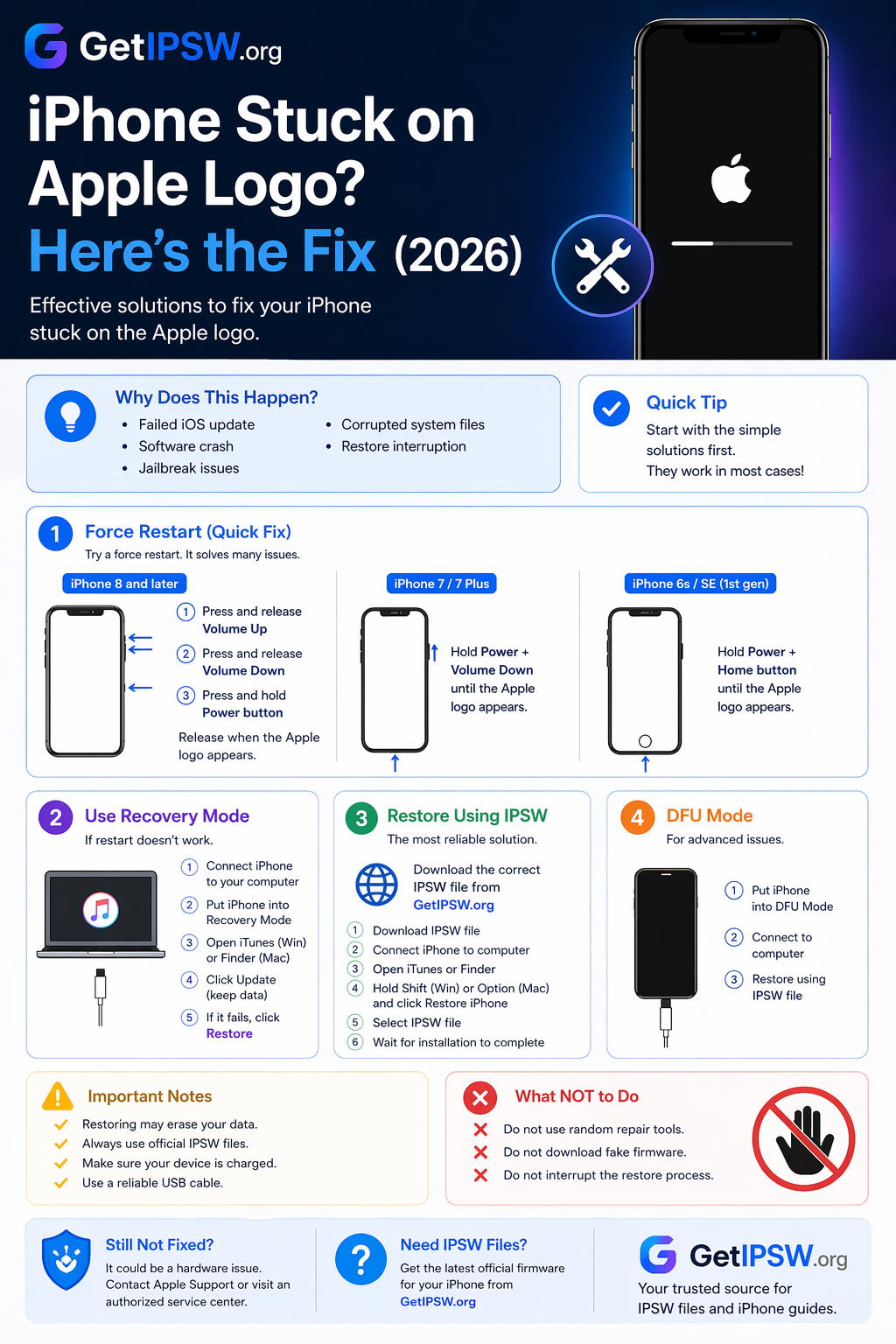
Apr 23, 2026
iPhone Stuck on Apple Logo? Here’s the Fix (2026)
Is your iPhone stuck on the Apple logo and won’t start? Don’t worry — this is a common issue, and in most cases, it can be fixed.
Read more →
Apr 24, 2026
How to Update iOS Safely Without Losing Data (2026 Guide)
Updating iOS is essential to keep your iPhone secure, fast, and compatible with the latest apps. However, many users worry about losing their data during the update process.
Read more →