How to Screen Record on iPhone With Sound (and Your Voice)
Record your iPhone screen with internal sound or your microphone, for tutorials, gaming clips or bug reports. Here is how to add the control, record, edit and fix recordings without sound.
Screen recording is perfect to show someone how to change a setting, to keep a video call memory, or to record a bug for a repairer. iPhone does it without any app.
1. Add Screen Recording to Control Center
- Open Control Center (swipe down from the top-right corner).
- Press and hold an empty area, tap Add a Control.
- Search for Screen Recording and add it.
On older iOS versions: Settings > Control Center and tap + next to Screen Recording.
2. Record
- Tap the Screen Recording button (a circle). A 3-second countdown starts.
- A red indicator appears at the top while recording.
- To stop, tap the red indicator and confirm, or tap the button again in Control Center.
The video is saved in Photos.
3. Record your voice
Press and hold the Screen Recording button, then turn Microphone on. Your voice is recorded with the screen, ideal for tutorials.
Why there is no sound
- Silent mode: some apps play no sound in silent mode, so the recording has no internal audio. Turn silent mode off.
- Protected content: Netflix, Disney+, some music apps and video calls in certain apps block recording of their audio or video for copyright or privacy reasons. This is normal.
- Microphone off if you wanted your voice.
- Bluetooth headphones: try without them.
The button is greyed out
Screen Recording can be blocked by Screen Time: Settings > Screen Time > Content & Privacy Restrictions > Content Restrictions > Screen Recording must be allowed. On a work iPhone, a management profile can also block it.
Edit the recording
In Photos, open the video, tap Edit to trim the beginning and end, crop, or rotate.
Storage
A screen recording can weigh hundreds of MB per minute. Delete them after sharing: free up iPhone storage.
Related: full-page screenshots, sound problems.
You Might Also Like
Apr 23, 2026
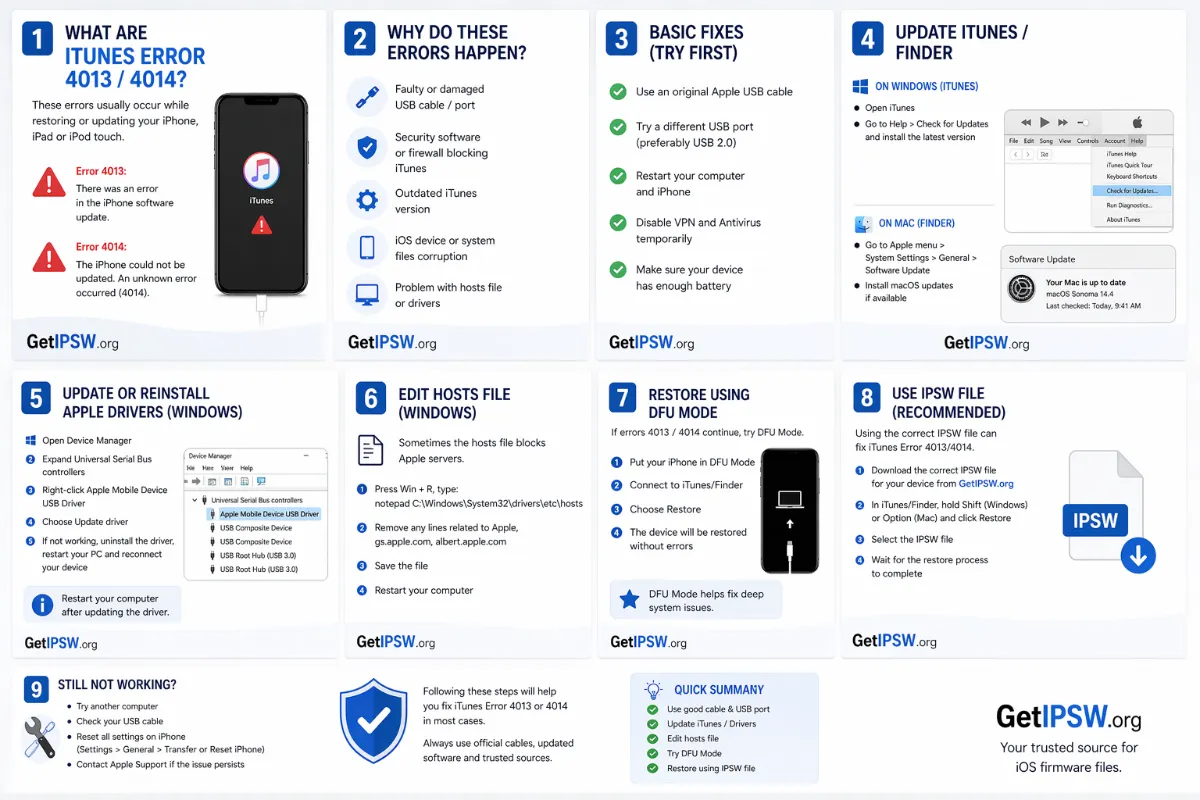
How to Fix iPhone Error 4013 and 4014 When Updating or Restoring
Errors 4013 and 4014 mean the iPhone lost its connection to the computer during an update or restore. Here is how to fix them, from the simplest step to hardware checks.
Read more →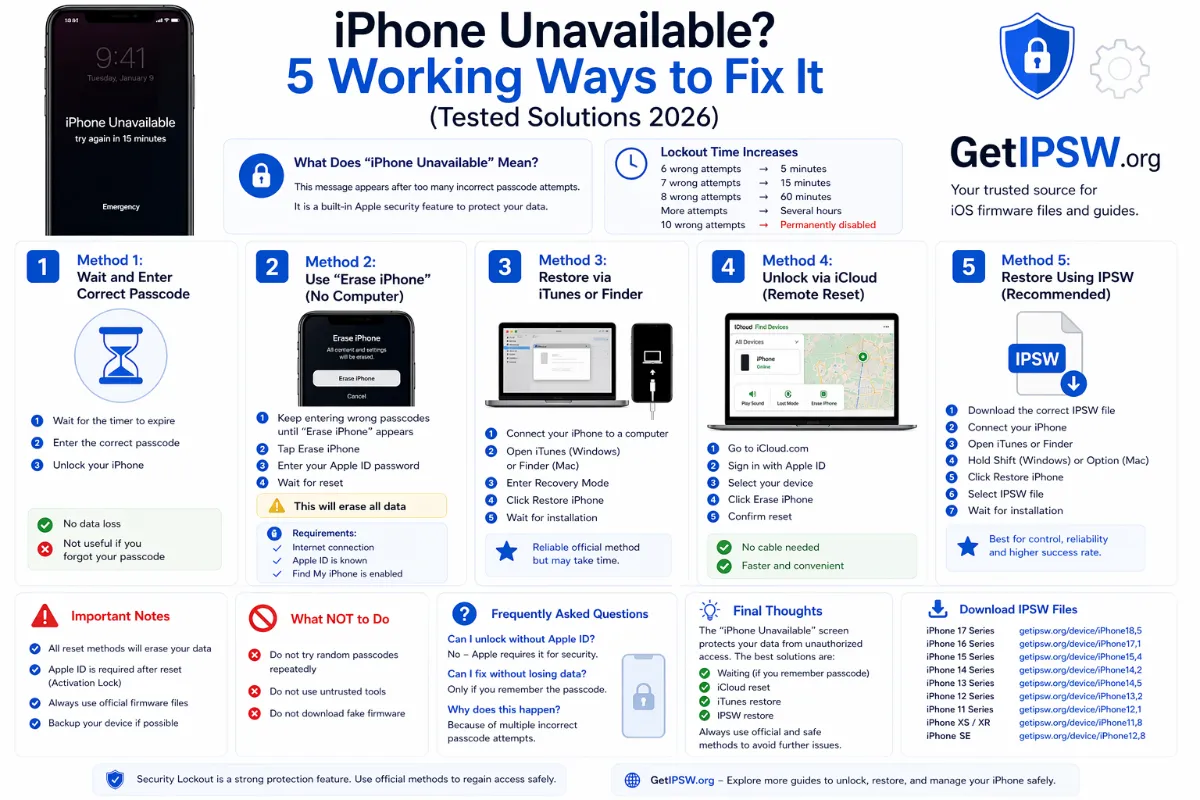
Apr 23, 2026
iPhone Unavailable? 4 Official Ways to Fix It
'iPhone Unavailable' means too many wrong passcodes. Here are the four official ways to get back into your iPhone, and which one keeps your data.
Read more →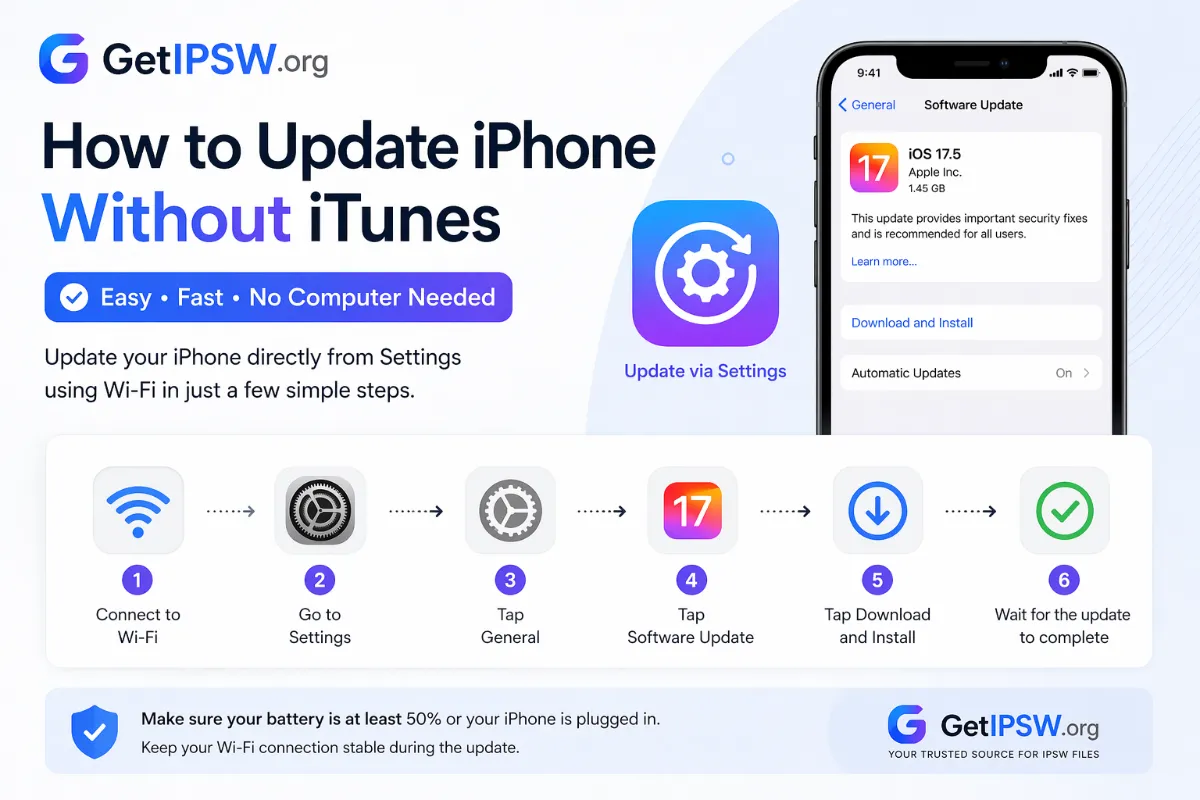
Apr 23, 2026
How to Update iPhone Without iTunes (Wi-Fi, Cellular or Finder)
You no longer need iTunes to update an iPhone. Update over Wi-Fi or cellular data from Settings, or use Finder or the Apple Devices app when an update fails.
Read more →