How to Update iPhone Without iTunes (Wi-Fi, Cellular or Finder)
You no longer need iTunes to update an iPhone. Update over Wi-Fi or cellular data from Settings, or use Finder or the Apple Devices app when an update fails.
iTunes used to be the only way to update an iPhone. Today, almost everyone updates directly from the iPhone, and on computers iTunes has been replaced by Finder on Mac and the Apple Devices app on Windows.
Method 1: Update from Settings (recommended)
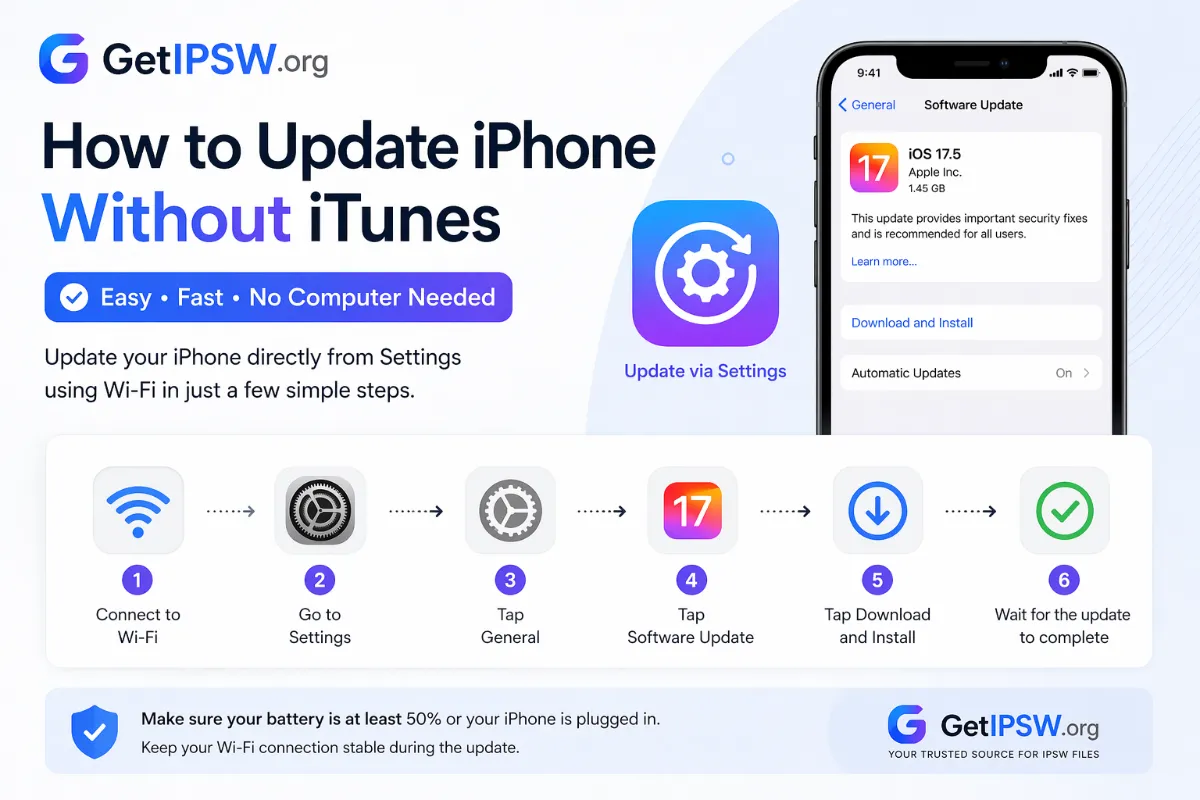
- Plug in your iPhone or make sure the battery is above 50%.
- Connect to Wi-Fi. On 5G iPhones (iPhone 12 and later) you can also update over cellular data: go to Settings > Cellular > Cellular Data Options and allow more data on 5G.
- Open Settings > General > Software Update.
- Tap Update Now or Download and Install, then enter your passcode.
The iPhone restarts by itself when installation finishes. Your data stays in place.
Choosing between two updates
Sometimes Apple offers two choices, for example iOS 26.7.1 and iOS 27. The top option is the one recommended for your iPhone; the other appears under "Also Available". Read iOS 26.7.1 or iOS 27 if you are unsure.
Method 2: Update with Finder or the Apple Devices app
Use a computer when the update fails on the iPhone, when you do not have enough free storage, or when your connection is too slow for a large download.
On a Mac with macOS Catalina or later, use Finder: your iPhone appears in the sidebar. On Windows 10 or 11, install the free Apple Devices app from the Microsoft Store. iTunes still works on older Windows versions and on macOS Mojave or earlier.
- Connect the iPhone with a USB cable and tap Trust on the iPhone if asked.
- Select the iPhone and click Check for Update, then Download and Update.
- To use an IPSW file you already downloaded, hold Option (Mac) or Shift (Windows) while clicking Check for Update, then choose the file.
Updating from a computer does not need free space on the iPhone, because the computer prepares the installation.
Download the IPSW file
- iPhone 18 Pro · iPhone 18 Pro Max
- iPhone 17 · iPhone 17 Pro · iPhone 17 Pro Max · iPhone Air · iPhone 17e
- iPhone 16 · iPhone 16 Plus · iPhone 16 Pro · iPhone 16 Pro Max · iPhone 16e
- iPhone 15 · iPhone 15 Plus · iPhone 15 Pro · iPhone 15 Pro Max
- iPhone 14 · iPhone 14 Plus · iPhone 14 Pro · iPhone 14 Pro Max
- iPhone 13 mini · iPhone 13 · iPhone 13 Pro · iPhone 13 Pro Max
- iPhone 12 mini · iPhone 12 · iPhone 12 Pro · iPhone 12 Pro Max
- iPhone 11 · iPhone 11 Pro · iPhone 11 Pro Max
- iPhone SE (2nd gen) · iPhone SE (3rd gen)
Another model? Browse all iPhone firmware or use the Identifier Lookup tool.
Common problems
The update does not appear
- Check that your model supports the version with our Max OS Version tool.
- Restart the iPhone and check again.
- Look in Settings > General > VPN & Device Management. A beta profile or a company profile can hide or delay public updates.
"Unable to install update"
- Free up storage: an update needs several gigabytes. Delete large videos or unused apps.
- Delete the downloaded update in Settings > General > iPhone Storage, then download it again.
- Use Method 2 with a computer.
The update is stuck
"Preparing update" can take 20 minutes or more. If nothing changes for over an hour, force restart the iPhone and try again. If the iPhone stays on the Apple logo, see iPhone stuck on Apple logo.
You Might Also Like
Oct 15, 2026
How to Share Your Location on iPhone With Family and Friends (Find My Guide)
Share your live location with family, check that your kids arrived at school, or find a friend in a crowd. Here is how to use Find My and Messages to share location safely.
Read more →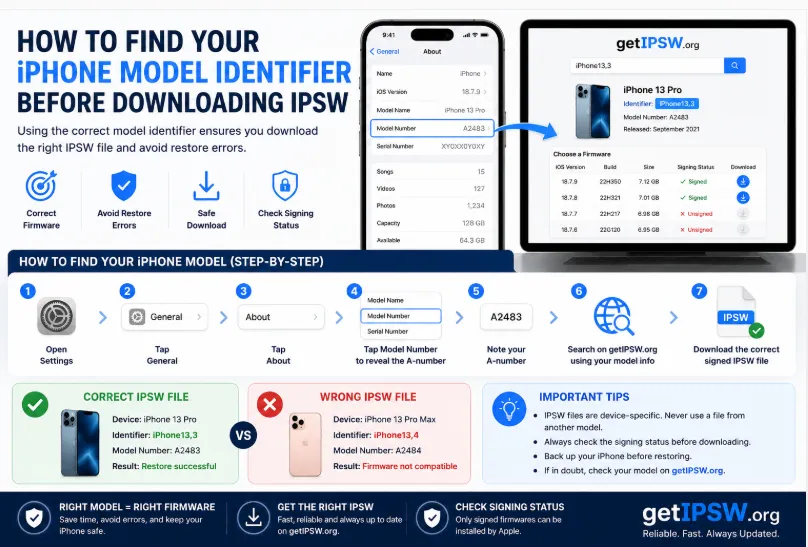
May 17, 2026
How to Find Your iPhone Model Identifier Before Downloading IPSW
IPSW files are made for one exact model identifier, such as iPhone15,4. Here are four easy ways to find yours, even if the iPhone does not turn on.
Read more →
Oct 10, 2026
iOS 27.2 Beta IPSW Download: How to Install It on iPhone (and Go Back)
iOS 27.2 is in beta and expected later in October 2026. Here is how to download the official iOS 27.2 beta IPSW, install it safely, what to expect, and how to return to iOS 27 if something goes wrong.
Read more →