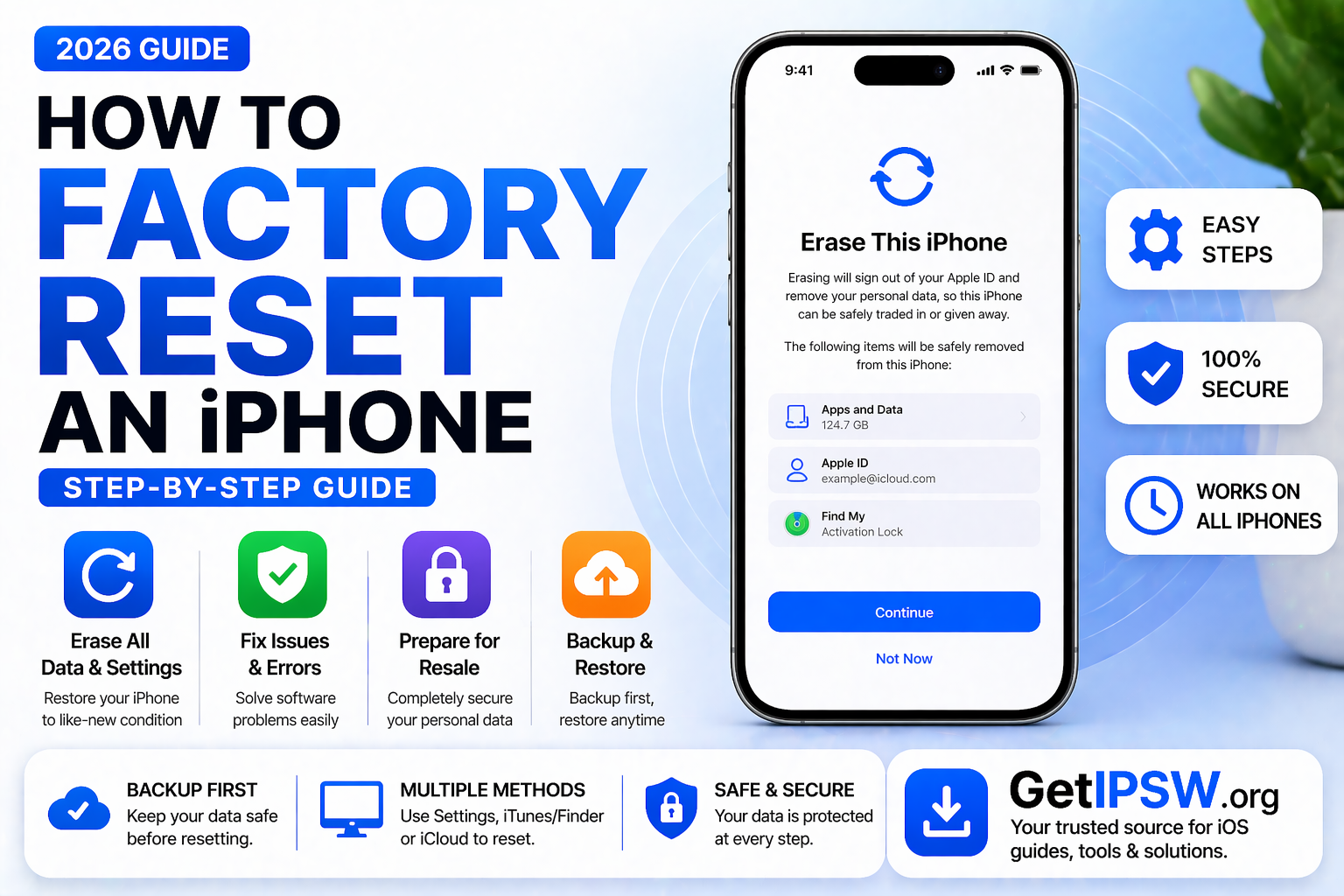
How to Factory Reset an iPhone (Step-by-Step Guide)
Factory resetting an iPhone is one of the most effective ways to fix software issues, erase personal data, or prepare a device for resale. This process restores your iPhone to its original state, just like when it was new.
In this guide, you’ll learn how to factory reset an iPhone step by step, using different methods depending on your situation.
What Is a Factory Reset?


A factory reset erases all data and settings from your iPhone, including:
Apps and app data
Photos and videos
Apple ID settings
System preferences
After the reset, your iPhone will restart and display the setup screen.
When Should You Factory Reset Your iPhone?
You may need to reset your iPhone if:
The device is slow or buggy
You are selling or giving it away
You forgot your passcode
You want a clean system reinstall
Before You Start
Before performing a factory reset, make sure to:
Backup your data (iCloud or computer)
Sign out of your Apple ID (recommended)
Ensure your iPhone has enough battery
Connect to Wi-Fi if needed
Method 1: Factory Reset via Settings (Easiest Way)
This is the most common method.
Steps:
Open Settings
Tap General
Select Transfer or Reset iPhone
Tap Erase All Content and Settings
Enter your passcode
Confirm the reset
Your iPhone will begin the reset process and restart automatically.
Method 2: Factory Reset Using iTunes or Finder


Use this method if your iPhone is not working properly.
Steps:
Connect your iPhone to a computer
Open iTunes (Windows) or Finder (Mac)
Select your device
Click Restore iPhone
Confirm the action
This will erase your device and reinstall the latest iOS version.
Method 3: Factory Reset via iCloud (Remote Reset)


This method works if you don’t have physical access to your iPhone.
Steps:
Go to iCloud.com
Sign in with your Apple ID
Click Find My
Select your iPhone
Click Erase iPhone
Confirm the process
Your iPhone will be reset remotely.
What Happens After Reset?


After resetting:
Your iPhone restarts
You see the “Hello” setup screen
You must sign in with your Apple ID (if enabled)
You can restore from backup or set up as new
Important Notes
Factory reset deletes all data permanently
Apple ID may still be required (Activation Lock)
Always backup before resetting
Make sure you know your Apple ID credentials
Frequently Asked Questions
Does factory reset remove Apple ID?
No, Activation Lock will still require your Apple ID.
Can I reset without a passcode?
Yes, using iTunes or iCloud.
How long does it take?
Usually between 5 and 15 minutes.
Final Thoughts
Factory resetting your iPhone is a simple but powerful solution for many issues. Whether you are troubleshooting problems or preparing your device for a new owner, following the correct steps ensures a smooth process.
Always make sure your data is backed up before proceeding.
Explore more iPhone guides and tutorials on GetIPSW.
You Might Also Like
Apr 23, 2026
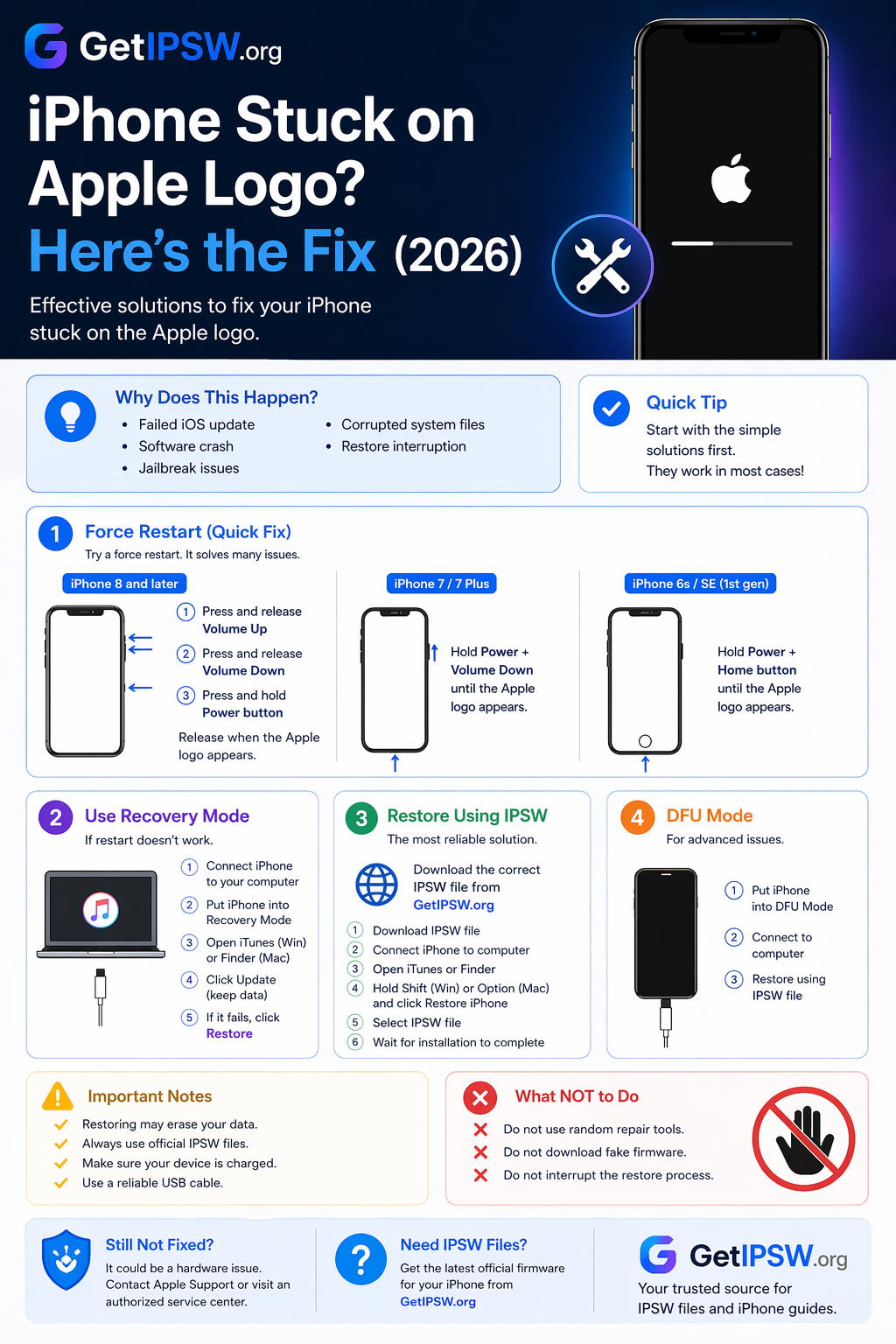
iPhone Stuck on Apple Logo? Here’s the Fix (2026)
Is your iPhone stuck on the Apple logo and won’t start? Don’t worry — this is a common issue, and in most cases, it can be fixed.
Read more →
May 16, 2026
How to Restore an iPhone Using IPSW File: Complete Step-by-Step Guide
Restoring an iPhone using an IPSW file is one of the most useful methods for manually reinstalling iOS, fixing serious software issues, updating a device from a computer, or performing a clean restore. An IPSW file is the official Apple firmware package used during the update or restore process.
Read more →
Apr 24, 2026
Best New Features in macOS Tahoe
macOS Tahoe is one of Apple’s most important desktop updates in recent years. Instead of focusing only on design, it combines a visual refresh with powerful productivity tools, AI integration, and deeper ecosystem connectivity.
Read more →