
How to Find Your iPhone Model Identifier Before Downloading IPSW
Learn how to find your iPhone model identifier before downloading an IPSW file, avoid wrong firmware errors, and choose the correct iOS firmware safely.
Summary
Before downloading an IPSW file for your iPhone, you must know your exact iPhone model. This is one of the most important steps because IPSW firmware files are device-specific. If you download the wrong firmware, Finder, Apple Devices app, or iTunes may show errors such as “The firmware file is not compatible” or “This device isn’t eligible for the requested build.”
Your iPhone model name, model number, and model identifier help you choose the correct IPSW file. For example, an iPhone 14, iPhone 14 Plus, iPhone 14 Pro, and iPhone 14 Pro Max do not always use the same firmware package. Even devices that look similar can require different IPSW files.
In this complete guide, you will learn what an iPhone model identifier is, how it differs from the model number, how to find your iPhone model in Settings, how to check the A-number on the device, how to use getIPSW.org to choose the right firmware, and how to avoid downloading the wrong IPSW file.
Before downloading any firmware, you can search for your device directly on getIPSW.org:
You can also browse all iPhone firmware downloads here:
https://www.getipsw.org/devices/iPhone
Table of Contents
What is an iPhone model identifier?
Model name vs model number vs model identifier
Why the model identifier matters for IPSW
How to find your iPhone model in Settings
How to find the A-number on your iPhone
How to identify an iPhone if it will not turn on
How to use getIPSW to choose the correct firmware
Common mistakes when choosing IPSW files
What happens if you download the wrong IPSW?
iPhone model identifier examples
IPSW compatibility checklist
How to check signing status after choosing firmware
Best practices before downloading IPSW
Frequently asked questions
Conclusion
What Is an iPhone Model Identifier?
An iPhone model identifier is a technical device code used to distinguish one iPhone hardware model from another. It is usually written in a format such as iPhone10,3, iPhone11,8, iPhone12,1, iPhone13,2, iPhone14,5, or iPhone15,2.
This identifier is important because firmware files are built for specific hardware. A firmware package that works for one model may not work for another.
For normal users, the model name may be enough when updating from Settings. But when downloading IPSW manually, the model identifier becomes more important because firmware pages often use technical identifiers to match the correct file.
A user may say, “I have an iPhone 13,” but the firmware database may show device identifiers such as iPhone14,5 or other related identifiers depending on the exact model. That is why checking carefully matters.
If you are not sure which iPhone model you have, you can use the getIPSW Identifier Lookup tool:
https://www.getipsw.org/tools/identifier
Model Name vs Model Number vs Model Identifier
Many users confuse the model name, model number, and model identifier. They are related, but they are not the same thing.
Model name: iPhone 13
Meaning: Commercial name shown to users
Model number: A2482, A2631, A2633
Meaning: Hardware or regional model number
Part number: MLML3LL/A
Meaning: Sales configuration code
Model identifier: iPhone14,5
Meaning: Technical identifier used for firmware matching
iOS version: iOS 26.5
Meaning: Software version installed on the device
Build number: 23F77
Meaning: Specific software build
The model name is the name most users recognize. The model number often starts with the letter A and can identify hardware variants. The model identifier is commonly used in firmware databases and technical tools.
When downloading IPSW, the safest approach is to confirm both the device name and the identifier shown on the firmware page.
Why the Model Identifier Matters for IPSW
The model identifier matters because IPSW files are not universal.
An IPSW file contains firmware components designed for specific Apple hardware. If the file does not match your device, the restore process can fail before installation begins.
For example, if a user downloads firmware for the wrong iPhone generation, Finder or iTunes may reject the file. If a user downloads firmware for an iPad instead of an iPhone, the file will not work. If a user downloads a firmware package for a similar but different iPhone model, the restore can fail with a compatibility error.
This is one of the most common reasons users see this message:
“The firmware file is not compatible.”
The problem is not always the computer, cable, or iTunes. In many cases, the problem is simply that the IPSW file does not match the device.
That is why getIPSW helps users check the device name, model identifier, iOS version, build number, and signing status before downloading.
If you already have a restore error, read this guide:
https://www.getipsw.org/blog/ipsw-restore-failed-common-errors-fixes
How to Find Your iPhone Model in Settings
The easiest way to find your iPhone model is through the Settings app.
Step 1: Open Settings
Unlock your iPhone and open the Settings app.
Step 2: Go to General
Tap General.
Step 3: Open About
Tap About.
Step 4: Check Model Name
Look for Model Name. This shows the commercial name of your iPhone, such as iPhone 13, iPhone 14 Pro, or iPhone XR.
Step 5: Check Model Number
Look for Model Number. You may first see a part number such as MLML3LL/A. Tap it once, and it should change to an A-number such as A2482.
Step 6: Use the model information on getIPSW
After finding your model name and model number, go to getIPSW.org and search for the correct device:
This process helps reduce the risk of downloading the wrong IPSW file.
How to Find the A-Number on Your iPhone
The A-number is another way to identify your iPhone hardware model. It usually looks like A1865, A1901, A1984, A2482, or A2650.
On many iPhone models, you can find the A-number in Settings by tapping the model number field. On some older models, the A-number may also be printed on the back of the device or inside the SIM tray area.
The A-number is useful because it can help identify regional hardware variants. However, for IPSW downloads, you should still confirm the firmware page and device identifier carefully.
A good firmware page should help users match the following details:
iPhone model name: Device name on the firmware page
A-number: Supported model numbers
Model identifier: Technical identifier
iOS version: Firmware version
Build number: Firmware build
Signing status: Whether Apple still allows the firmware to be installed
This gives users more confidence before downloading.
How to Identify an iPhone If It Will Not Turn On
Sometimes users need to restore an iPhone because it will not start normally. In that case, they may not be able to open Settings.
If the iPhone will not turn on, you can still try several methods.
First, check the physical device. Some older iPhones have the model number printed on the back. Newer models may show identifying details in the SIM tray area, depending on the model and region.
Second, check the original box if you still have it. The box may show the model name, part number, serial number, and other identifiers.
Third, check previous receipts, Apple ID device list, repair documents, or purchase records.
Fourth, connect the iPhone to a computer. Finder, Apple Devices app, iTunes, or Apple Configurator may detect the device name or serial number if the device can enter recovery mode.
Fifth, use recovery mode if the device is stuck. Recovery mode may be needed when a computer does not recognize the device, the device is stuck on the Apple logo, or the recovery screen appears.
Once you identify the device, use getIPSW.org to select the correct firmware:
https://www.getipsw.org/devices/iPhone
How to Use getIPSW to Choose the Correct Firmware
getIPSW.org should be used as a firmware lookup tool before downloading any IPSW file.
Step 1: Open getIPSW.org
Go to:
Step 2: Search for your iPhone
Search using your iPhone name, model identifier, iOS version, or build number.
Step 3: Select the correct device
Choose the device page that matches your iPhone. Make sure the model name and identifier are correct.
You can also start from the iPhone firmware page:
https://www.getipsw.org/devices/iPhone
Step 4: Select the firmware version
Choose the iOS version you want to download.
Step 5: Check the signing status
Before downloading, confirm whether the firmware is signed or unsigned.
You can check signing status here:
https://www.getipsw.org/tools/signing
Step 6: Review file details
Check the file size, build number, release date, and checksums if available.
Step 7: Download the IPSW
Download the IPSW only after confirming that it matches your device and your purpose.
This process helps users avoid restore errors and wasted downloads.
Common Mistakes When Choosing IPSW Files
Many IPSW restore problems start before the restore even begins. They happen when users choose the wrong firmware file.
Mistake 1: Choosing only by device appearance
Two iPhones can look similar but require different firmware files. Do not rely only on appearance.
Mistake 2: Confusing iPhone generations
An iPhone 13, iPhone 13 mini, iPhone 13 Pro, and iPhone 13 Pro Max are different devices. Their firmware files may not be the same.
Mistake 3: Downloading iPad firmware for iPhone
IPSW files exist for iPhone, iPad, Apple TV, and other devices. Make sure you are downloading iPhone firmware if you are restoring an iPhone.
Mistake 4: Ignoring signing status
Even if the IPSW is correct, it may fail if Apple is no longer signing it.
Before restoring, always check the signing status:
https://www.getipsw.org/tools/signing
Mistake 5: Using an old saved IPSW without checking
A firmware file downloaded months ago may no longer be signed. Always check current signing status before restoring.
Mistake 6: Confusing model number and part number
In Settings, the model number field may first show a part number ending in letters like LL/A. Tap it to reveal the A-number.
What Happens If You Download the Wrong IPSW?
If you download the wrong IPSW file, the restore process will usually fail.
The error may appear immediately when you select the file, or it may appear after the restore tool extracts the firmware. The exact message depends on the tool and situation.
Common results include:
Problem: Firmware file is not compatible
What it means: Wrong device firmware
Problem: Device is not eligible
What it means: Wrong build or unsigned firmware
Problem: Restore cannot continue
What it means: Verification failed
Problem: iPhone not recognized
What it means: Connection or recovery issue
Problem: Restore fails after extraction
What it means: Wrong file, unsigned file, or server issue
The best fix is not to force the restore. Instead, confirm the exact iPhone model and download the correct IPSW.
If the firmware is correct but still fails, check the signing status, USB cable, computer software, and internet connection.
For a full troubleshooting guide, read:
https://www.getipsw.org/blog/ipsw-restore-failed-common-errors-fixes
iPhone Model Identifier Examples
Here are examples of how iPhone model identifiers can look. This table is only for understanding the format. Users should always verify their exact device on getIPSW before downloading firmware.
iPhone 6s: iPhone8,1
iPhone 6s Plus: iPhone8,2
iPhone SE 1st generation: iPhone8,4
iPhone 7: iPhone9,1 / iPhone9,3
iPhone 7 Plus: iPhone9,2 / iPhone9,4
iPhone 8: iPhone10,1 / iPhone10,4
iPhone 8 Plus: iPhone10,2 / iPhone10,5
iPhone X: iPhone10,3 / iPhone10,6
iPhone XR: iPhone11,8
iPhone XS: iPhone11,2
iPhone XS Max: iPhone11,4 / iPhone11,6
iPhone 11: iPhone12,1
iPhone 11 Pro: iPhone12,3
iPhone 11 Pro Max: iPhone12,5
iPhone SE 2nd generation: iPhone12,8
iPhone 12: iPhone13,2
iPhone 12 mini: iPhone13,1
iPhone 12 Pro: iPhone13,3
iPhone 12 Pro Max: iPhone13,4
iPhone 13: iPhone14,5
iPhone 13 mini: iPhone14,4
iPhone 13 Pro: iPhone14,2
iPhone 13 Pro Max: iPhone14,3
iPhone SE 3rd generation: iPhone14,6
iPhone 14: iPhone14,7
iPhone 14 Plus: iPhone14,8
iPhone 14 Pro: iPhone15,2
iPhone 14 Pro Max: iPhone15,3
Because Apple releases new devices over time, getIPSW should always be used to confirm the latest device and firmware information:
https://www.getipsw.org/devices
IPSW Compatibility Checklist
Before downloading an IPSW file, use this checklist.
Correct device type
Make sure iPhone firmware is selected if you are restoring an iPhone.
Correct model name
Avoid choosing the wrong generation or similar device.
Correct model identifier
The firmware must match the hardware.
Correct iOS version
The iOS version must support your device.
Correct build number
The build number confirms the exact firmware release.
Signed status
Unsigned firmware usually cannot be restored normally.
File size
The file size helps detect incomplete downloads.
Checksum
Checksums help verify file integrity when available.
Backup created
A backup protects user data before restore.
If any of these details are unclear, do not start the restore yet.
How to Check Signing Status After Choosing Firmware
After selecting the correct firmware, the next step is checking whether it is signed.
A signed IPSW is currently approved by Apple for installation. An unsigned IPSW is no longer approved through normal restore methods.
On getIPSW.org, the signing status should be visible on the firmware page. You can also use the live signing status tool:
https://www.getipsw.org/tools/signing
Signing status: Signed
Meaning: Apple currently allows normal installation
Signing status: Unsigned
Meaning: Apple no longer allows normal installation
Signing status: Unknown
Meaning: Check again before restoring
This matters because downloading the correct IPSW is not enough. The firmware must also be signed if you want to restore or downgrade normally.
For example, if you choose the correct iPhone 13 firmware but Apple has stopped signing that iOS version, Finder or iTunes will usually reject it during verification.
If you want to understand the difference between signed and unsigned firmware, read this guide:
https://www.getipsw.org/blog/signed-vs-unsigned-ipsw
Best Practices Before Downloading IPSW
Before downloading any IPSW file, follow these best practices.
First, identify your exact iPhone model from Settings or device records.
Second, use getIPSW.org to select the correct device page.
Third, check the firmware version and build number.
Fourth, confirm the signing status before downloading.
Fifth, make sure you have enough storage space because IPSW files can be several gigabytes.
Sixth, use a stable internet connection to avoid incomplete downloads.
Seventh, create a backup before installing or restoring.
Eighth, avoid downloading firmware from random sources that do not clearly show device compatibility and signing status.
If your goal is to restore manually, follow this complete tutorial:
https://www.getipsw.org/blog/how-to-restore-iphone-using-ipsw-file
If your goal is to downgrade iOS, always check signing status first:
https://www.getipsw.org/tools/signing
Frequently Asked Questions
What is an iPhone model identifier?
An iPhone model identifier is a technical code used to identify a specific iPhone hardware model. It usually looks like iPhone14,5 or iPhone15,2 and helps match the correct IPSW firmware file.
Is the model identifier the same as the model number?
No. The model number often starts with A, such as A2482, while the model identifier uses a format such as iPhone14,5. Both can help identify your device, but they are not the same.
How do I find my iPhone model number?
Open Settings > General > About and look for Model Number. Tap the field once if it shows a part number ending in letters such as LL/A. It should change to an A-number.
Why does IPSW need the exact iPhone model?
IPSW files are device-specific. If the firmware does not match your iPhone hardware, the restore can fail with a compatibility error.
What happens if I download the wrong IPSW?
Finder, Apple Devices app, or iTunes may reject the file and show an error such as “The firmware file is not compatible.”
Can I use one IPSW file for different iPhone models?
Usually no. You should always download the IPSW file made for your exact iPhone model and identifier.
Can I restore if the IPSW is unsigned?
For most users, no. An unsigned IPSW usually cannot be installed through normal Apple restore methods.
How do I know which IPSW file I need?
Find your iPhone model name and model number, then search for your device on getIPSW.org. Open the correct device page and choose a signed firmware version.
Does the A-number matter for IPSW?
Yes, it can help identify your hardware variant. However, you should still confirm the device page and firmware compatibility before downloading.
Should I back up before installing IPSW?
Yes. If you choose Restore, your iPhone may be erased. Always back up important data before updating or restoring.
Where can I download iPhone IPSW files?
You can browse iPhone IPSW files here:
https://www.getipsw.org/devices/iPhone
Where can I check if an IPSW is signed?
You can check the signing status here:
https://www.getipsw.org/tools/signing
Conclusion
Finding your iPhone model identifier before downloading an IPSW file is one of the best ways to avoid restore errors. IPSW files are not universal, and choosing the wrong firmware can cause compatibility problems, failed restores, wasted downloads, and confusion.
Before downloading, check your iPhone model name, model number, and device identifier. Then use getIPSW.org to choose the correct firmware, confirm the iOS version and build number, and check whether the IPSW is still signed by Apple.
With the correct model information and signing status, users can download firmware more safely and avoid common IPSW restore problems.
Start by searching your device here:
Browse iPhone firmware downloads here:
https://www.getipsw.org/devices/iPhone
Check IPSW signing status here:
https://www.getipsw.org/tools/signing
You Might Also Like
Apr 23, 2026
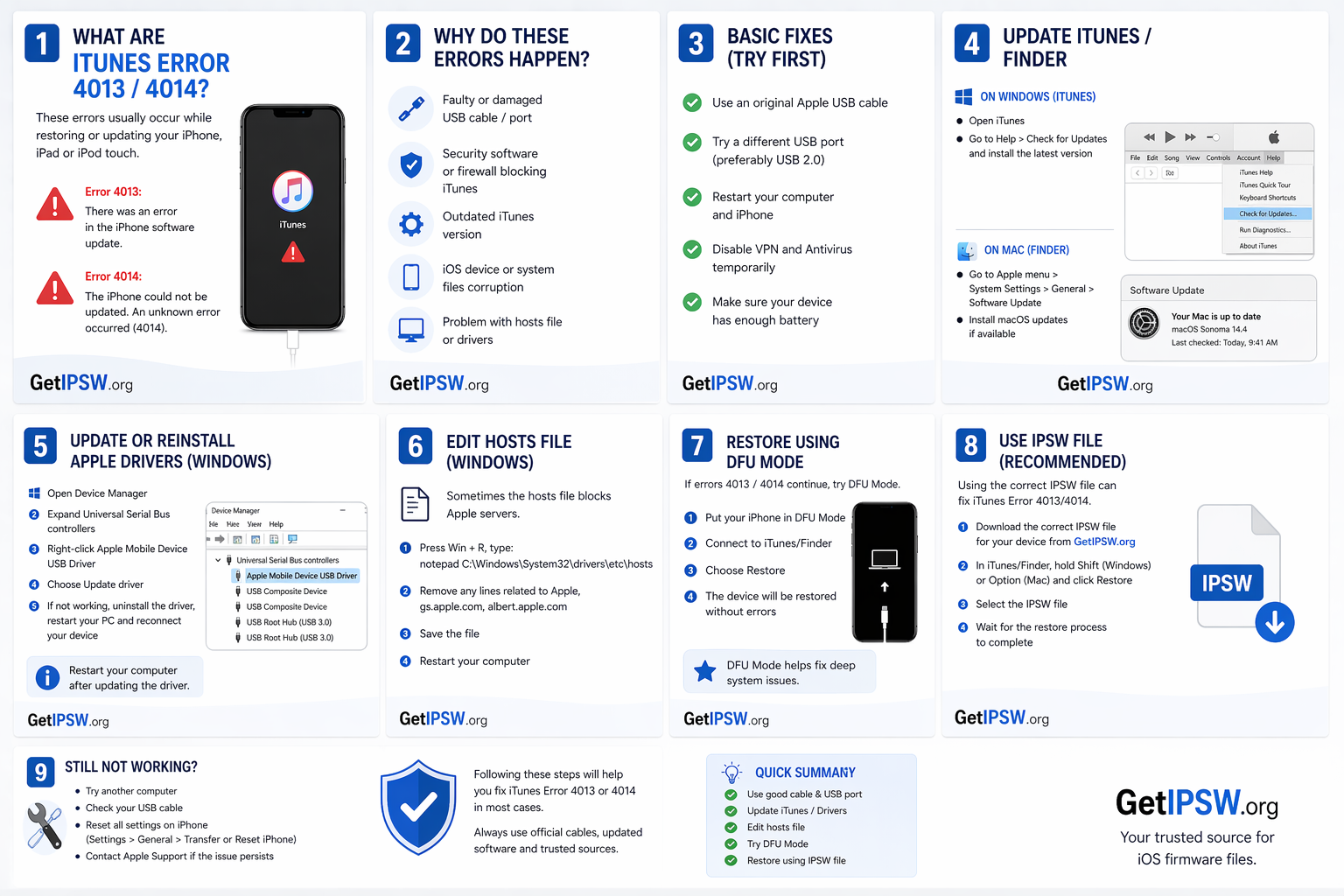
Fix iTunes Error 4013 / 4014 (2026)
Are you facing iTunes error 4013 or 4014 while restoring your iPhone? You’re not alone.
Read more →
Apr 23, 2026
iPhone Passcode Expired? Here’s How to Fix It (Complete Guide 2026)
If your iPhone displays the message “iPhone unlock passcode has expired”, it can be confusing and frustrating. In most cases, this issue is not critical and can be resolved with a few simple steps.
Read more →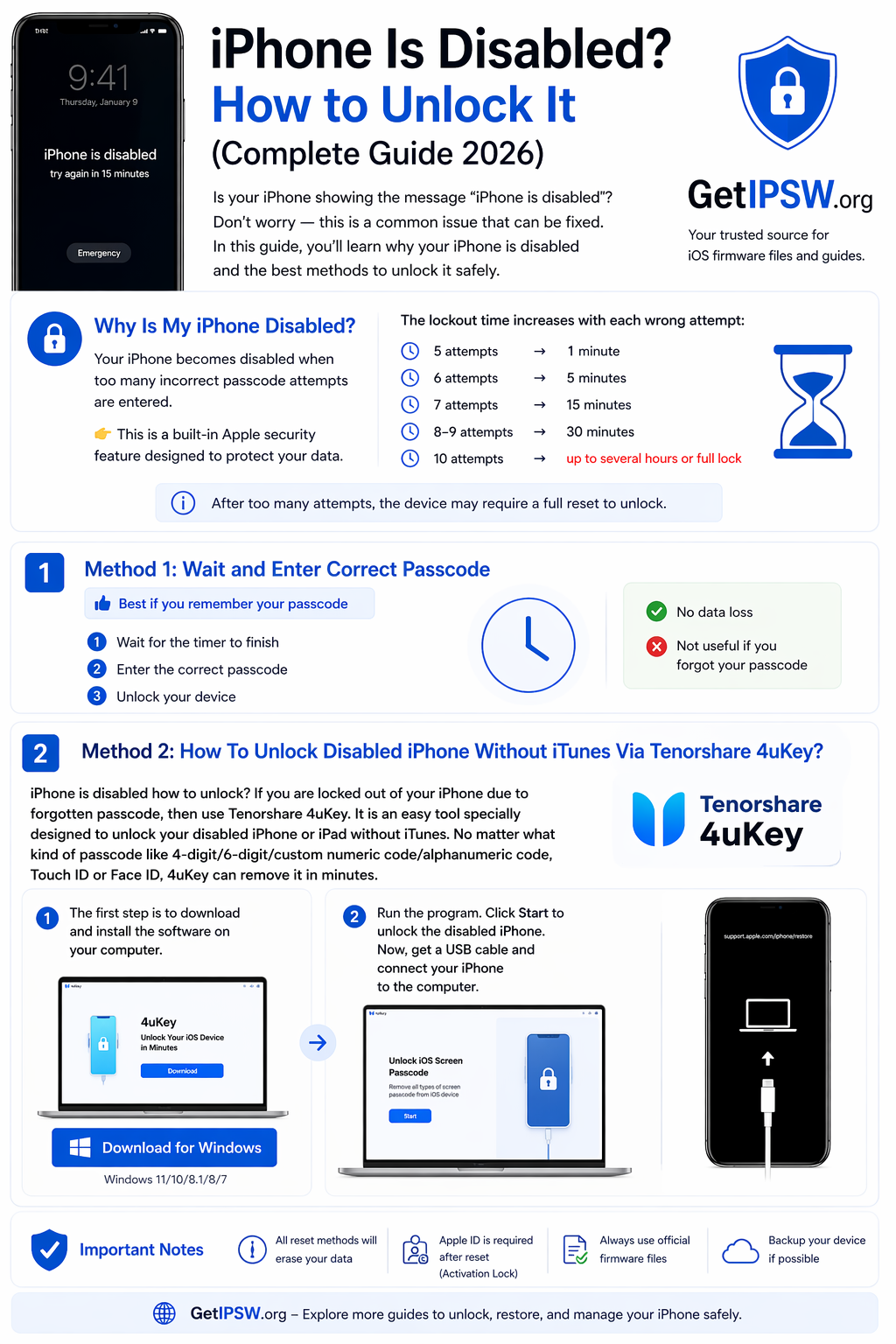
Apr 23, 2026
iPhone Is Disabled? How to Unlock It (Complete Guide 2026)
In this guide, you’ll learn why your iPhone is disabled and the best methods to unlock it safely.
Read more →