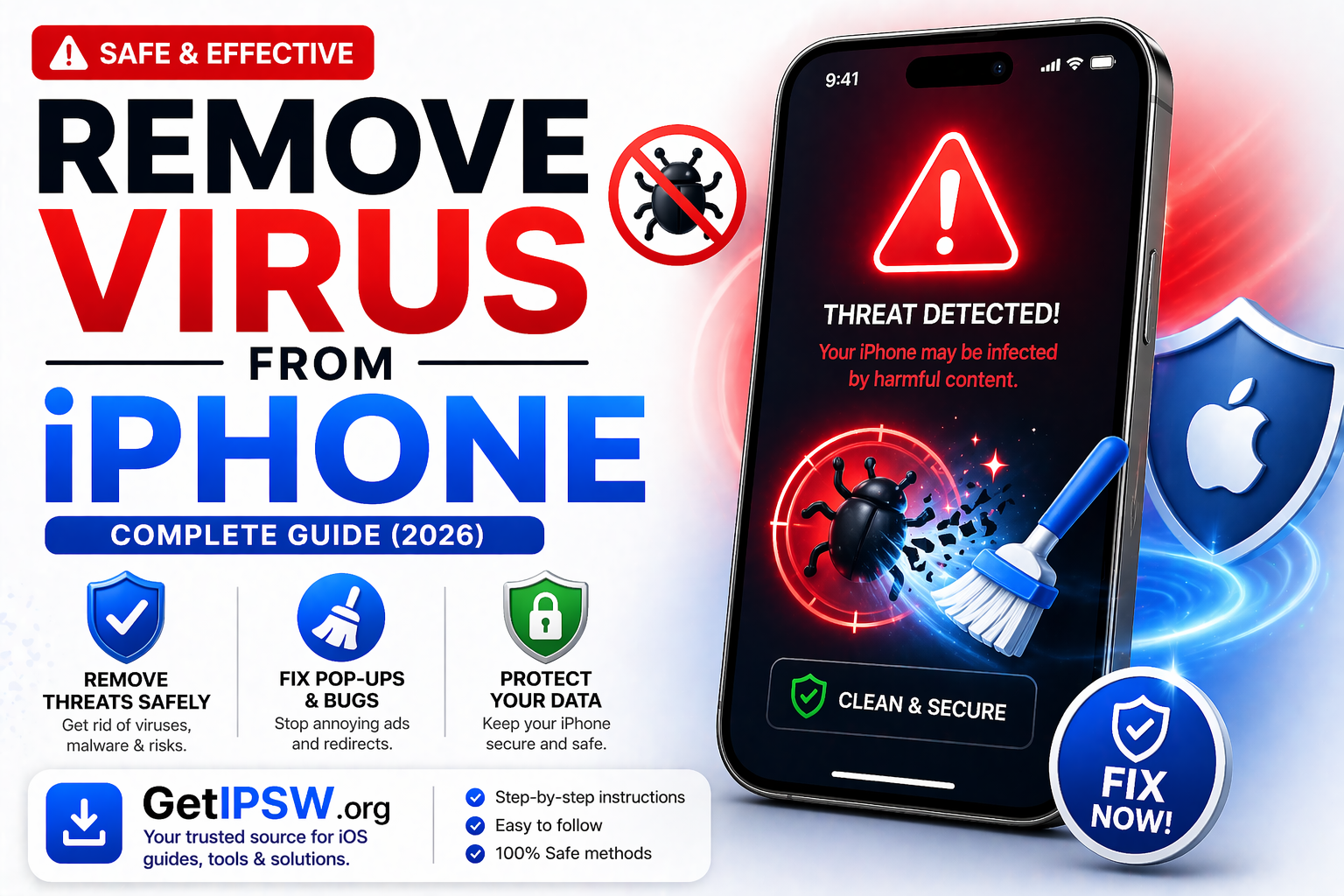
How to Remove Virus from iPhone (Complete Guide 2026)
iPhones are known for their strong security, but users can still encounter issues that feel like a virus. In reality, most problems come from malicious websites, phishing attempts, or suspicious profiles rather than traditional viruses.
In this guide, you’ll learn how to identify and remove threats from your iPhone safely.
Can iPhones Really Get Viruses?


iPhones do not get viruses in the traditional sense like computers. However, they can still be affected by:
Malicious websites
Fake pop-ups and scam alerts
Unauthorized profiles
Phishing attacks
These can interfere with your device and compromise your data.
Signs Your iPhone May Be Infected
Common warning signs include:
Frequent pop-up ads
Unexpected redirects in Safari
Battery draining faster than usual
Unknown apps or profiles
Device overheating or slowing down
👉 These issues are often caused by software or web-based threats.
Step 1: Clear Safari Data


Malicious scripts often come from websites.
Steps:
Go to Settings
Tap Safari
Select Clear History and Website Data
Confirm
This removes cookies and cached data that may cause pop-ups.
Step 2: Remove Suspicious Apps
Check for apps you don’t recognize.
Steps:
Go to your Home Screen
Look for unknown apps
Tap and hold → Delete
👉 Only install apps from the App Store to stay safe.
Step 3: Delete Unknown Profiles


Profiles can control your device settings.
Steps:
Go to Settings → General → VPN & Device Management
Check for unknown profiles
Tap and remove them
Step 4: Restart Your iPhone
A simple restart can stop background processes.
Steps:
Turn off your iPhone
Wait a few seconds
Turn it back on
Step 5: Update iOS
Keeping iOS updated is essential.
Steps:
Go to Settings → General → Software Update
Install the latest version
👉 Updates fix security vulnerabilities.
Step 6: Reset All Settings (If Needed)
If issues persist:
Steps:
Go to Settings → General
Tap Transfer or Reset iPhone
Select Reset All Settings
👉 This does not delete your data but resets system settings.
Step 7: Factory Reset (Last Option)
If nothing works:
Backup your data
Erase your iPhone
Set it up as new
👉 This removes all potential threats.
What You Should Avoid
Do not install unknown apps
Do not click suspicious links
Do not trust “virus detected” pop-ups
Do not install third-party antivirus apps unnecessarily
Frequently Asked Questions
Do I need antivirus on iPhone?
No, iOS security is strong enough.
Are pop-ups real viruses?
No, they are usually scams.
Will resetting remove everything?
Yes, a factory reset removes all threats.
Final Thoughts
Most “virus” issues on iPhone are not real infections but rather scams or misconfigurations. By following the steps above, you can quickly secure your device and remove any unwanted threats.
Keeping your iPhone updated and avoiding suspicious content is the best way to stay protected.
Explore more iPhone security guides on GetIPSW.
You Might Also Like
Apr 25, 2026
iPhone Overheating? Causes and Easy Fixes You Need to Know (2026 Guide)
If your iPhone gets unusually hot, it can affect performance, battery life, and long-term device health. While occasional warmth is normal, frequent overheating is a sign that something isn’t right.
Read more →
Apr 23, 2026
iPhone Passcode Expired? Here’s How to Fix It (Complete Guide 2026)
If your iPhone displays the message “iPhone unlock passcode has expired”, it can be confusing and frustrating. In most cases, this issue is not critical and can be resolved with a few simple steps.
Read more →
Apr 27, 2026
WiFi Not Working on iPhone? Complete Fix Guide (All iOS Versions)
If your iPhone WiFi is not working, keeps disconnecting, or won’t connect at all, you’re not alone. This issue can affect any iPhone model and iOS version.
Read more →