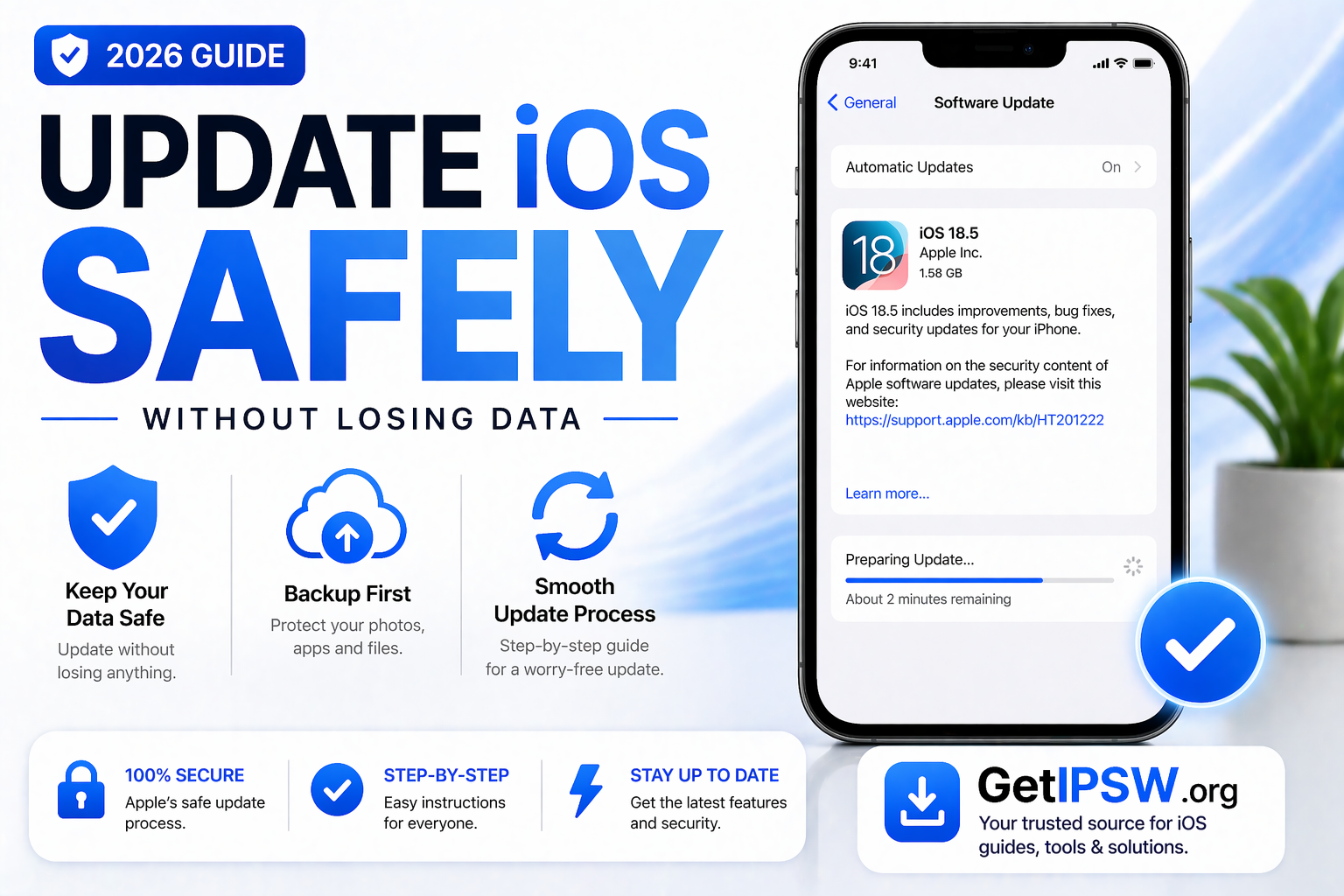
How to Update iOS Safely Without Losing Data (2026 Guide)
Updating iOS is essential to keep your iPhone secure, fast, and compatible with the latest apps. However, many users worry about losing their data during the update process.
The good news is that iOS updates are designed to preserve your data. Still, following the right steps ensures a safe and smooth upgrade.
In this guide, you’ll learn how to update iOS safely without losing any data.
What Happens During an iOS Update?


When you update iOS:
The system installs a new version of iOS
Your apps, photos, and files remain intact
Settings and data are preserved
Unlike a factory reset, an update does not erase your device.
Why Data Loss Can Sometimes Happen


Although rare, data loss can occur due to:
Interrupted update (battery or connection issues)
Software glitches
Insufficient storage
Corrupted system files
👉 That’s why preparation is important.
Step 1: Backup Your iPhone (Most Important)


Before updating, always create a backup.
Option 1: iCloud Backup
Go to Settings
Tap your name → iCloud
Tap iCloud Backup
Tap Back Up Now
Option 2: Computer Backup
Connect your iPhone to a computer
Open iTunes or Finder
Click Back Up Now
👉 This ensures your data is safe in case something goes wrong.
Step 2: Check Storage Space


Make sure you have enough storage for the update.
Steps:
Go to Settings → General → iPhone Storage
Check available space
👉 If storage is low:
Delete unused apps
Remove large files
Clear cache
Step 3: Ensure Stable Battery and Internet


For a safe update:
Charge your iPhone (at least 50%)
Connect to a stable Wi-Fi network
👉 Avoid updating using mobile data or low battery.
Step 4: Update iOS via Settings (Recommended)


This is the easiest method.
Steps:
Go to Settings
Tap General → Software Update
Tap Download and Install
Enter your passcode
Wait for installation
Your iPhone will restart automatically after the update.
Step 5: Alternative Method Using Computer


If the update fails or you prefer more control:
Steps:
Connect your iPhone to a computer
Open iTunes (Windows) or Finder (Mac)
Select your device
Click Check for Update
Click Update (not Restore)
👉 This updates iOS without deleting your data.
What NOT to Do During Update
Do not disconnect your iPhone
Do not interrupt the update
Do not force restart unless necessary
Do not install unofficial firmware
👉 Interruptions can cause system issues.
What to Do If Something Goes Wrong


If your iPhone has issues after update:
Restart your device
Use Recovery Mode
Restore from backup
👉 Your backup ensures you don’t lose data.
Frequently Asked Questions
Will updating iOS delete my data?
No, updates are designed to keep your data.
Is it safe to update without backup?
Not recommended. Always create a backup.
How long does an update take?
Usually between 10 and 30 minutes.
Final Thoughts
Updating iOS is safe and important for your device’s performance and security. By following the right steps—especially backing up your data—you can update your iPhone without any risk of losing important information.
Taking a few minutes to prepare can save you from major issues later.
Explore more iPhone guides and tutorials on GetIPSW.
You Might Also Like
Apr 28, 2026
iPhone Camera Not Working? Full Troubleshooting Guide (2026)
If your iPhone camera is not working, showing a black screen, blurry images, or crashing when opened, you’re not alone. This issue can affect any iPhone model and is usually caused by software glitches, settings conflicts, or hardware problems.
Read more →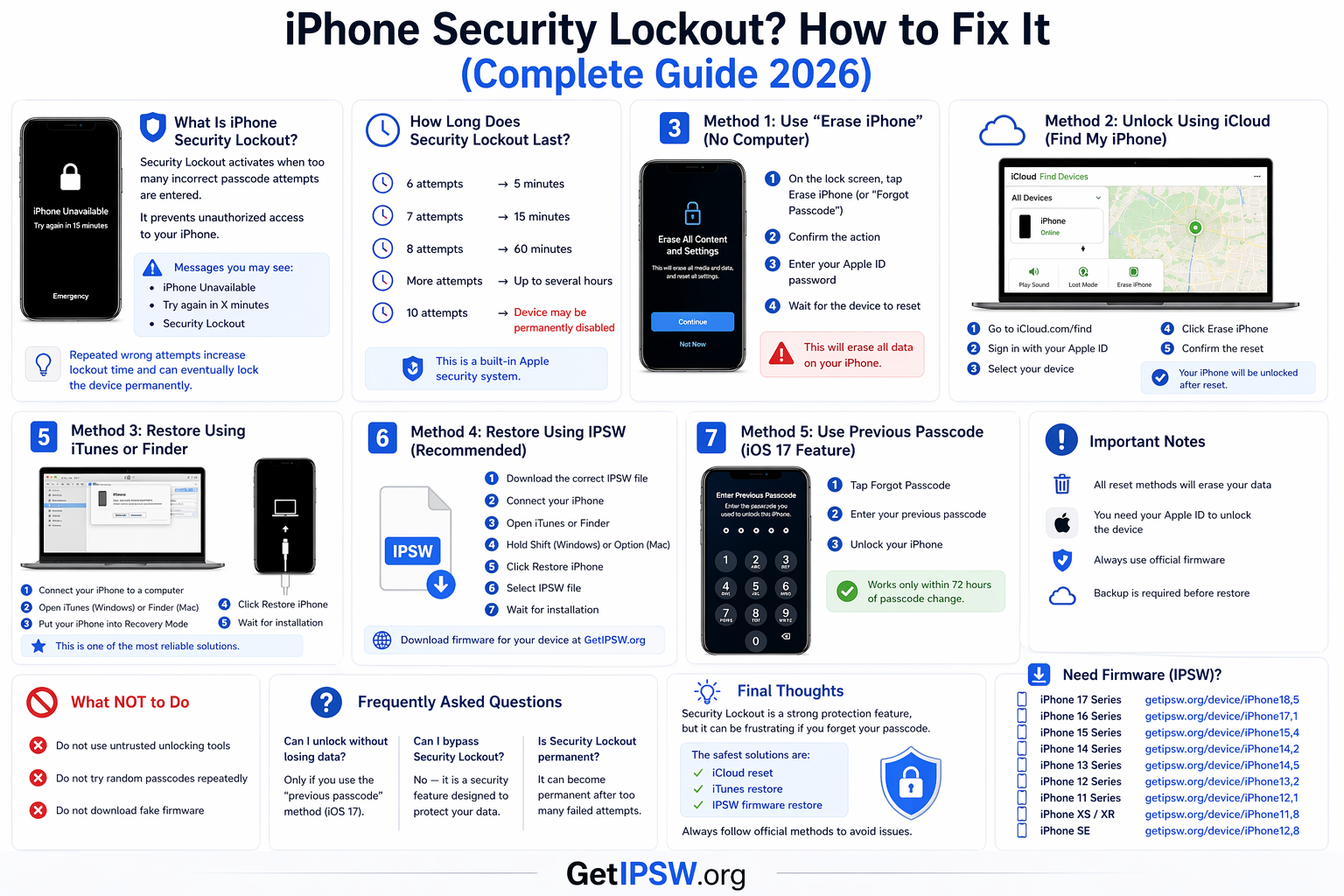
Apr 23, 2026
iPhone Security Lockout? How to Fix It (Complete Guide 2026)
In this guide, you’ll learn what Security Lockout means and how to fix it using safe and effective methods.
Read more →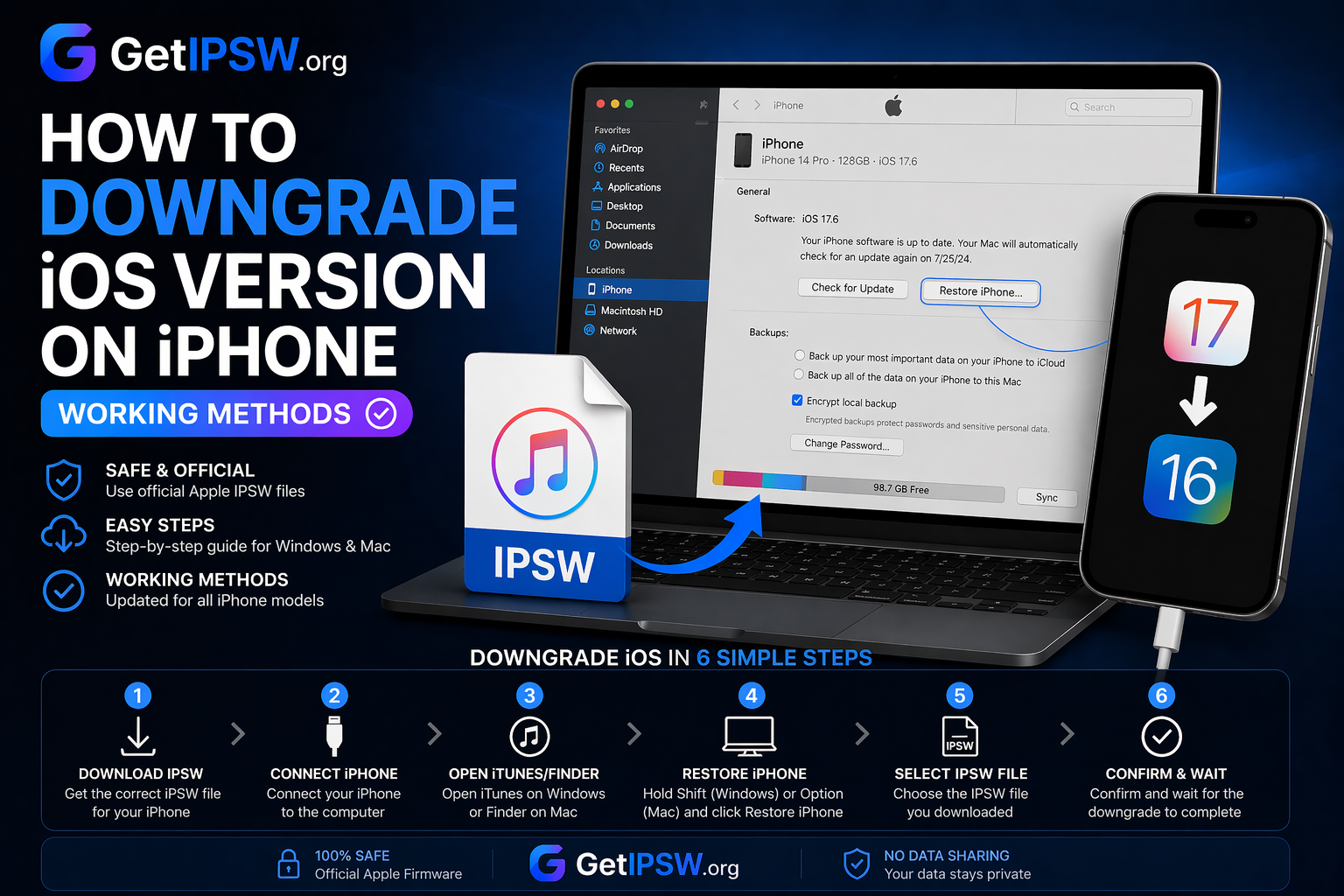
Apr 23, 2026
How to Downgrade iOS Version on iPhone (Working Methods)
Looking to downgrade your iPhone to an earlier iOS version? You’re in the right place.
Read more →