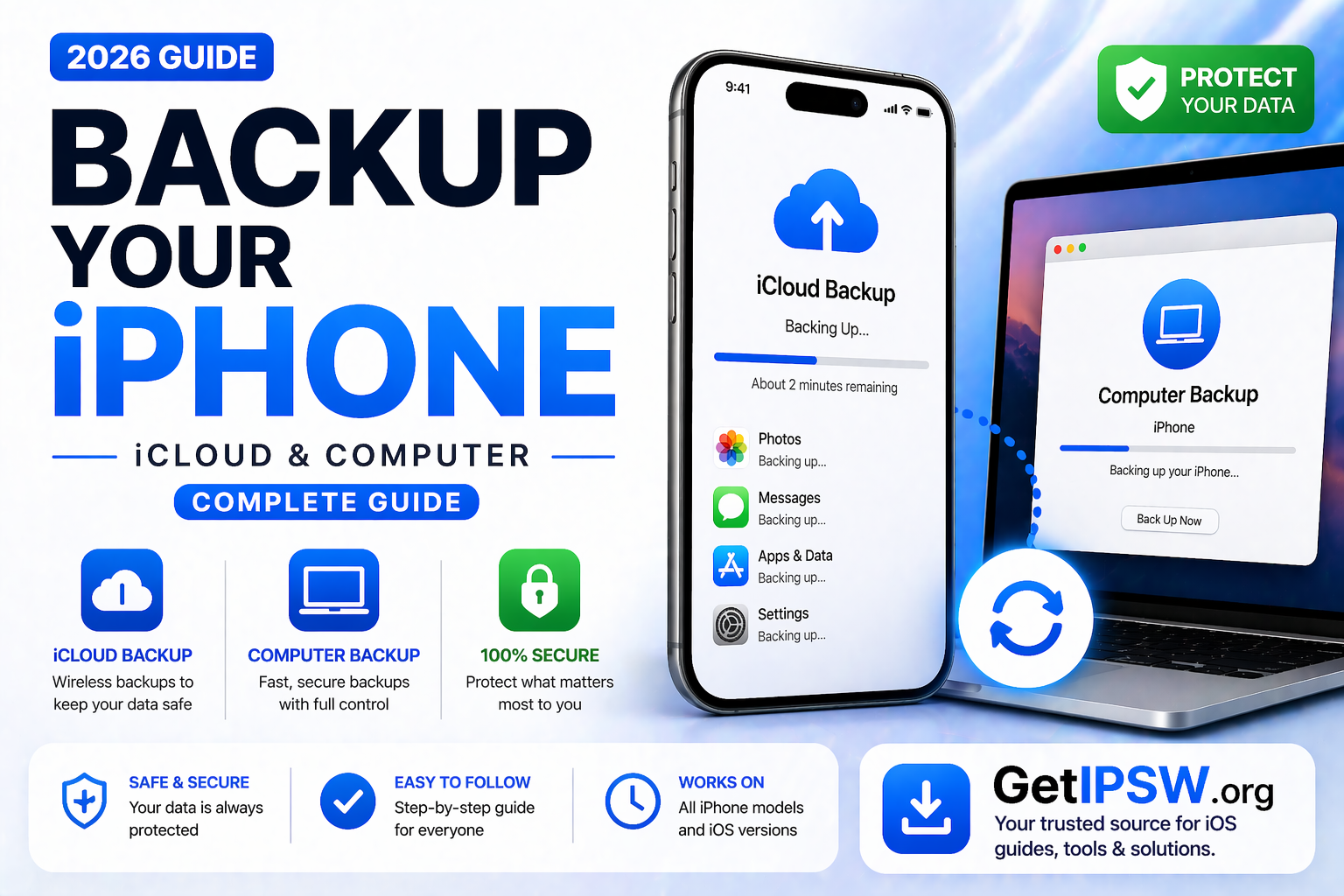
How to Backup Your iPhone (iCloud & Computer Guide 2026)
Backing up your iPhone is one of the most important steps to protect your data. Whether you’re updating iOS, resetting your device, or switching to a new iPhone, having a backup ensures that your photos, messages, and apps are safe.
In this guide, you’ll learn how to back up your iPhone using both iCloud and a computer, along with best practices to keep your data secure.
What Is an iPhone Backup?

An iPhone backup is a copy of your device’s data stored either in iCloud or on your computer.
It typically includes:
Photos and videos
Messages and call history
App data
Device settings
This allows you to restore everything if something goes wrong.
Method 1: Backup iPhone Using iCloud


iCloud is the easiest way to back up your iPhone wirelessly.
Steps:
Open Settings
Tap your name at the top
Go to iCloud → iCloud Backup
Turn on iCloud Backup
Tap Back Up Now
Requirements:
Wi-Fi connection
Enough iCloud storage
Device connected to power (recommended)
Advantages:
Automatic backups
Accessible anywhere
No computer needed
Method 2: Backup iPhone to Computer (Mac or Windows)


Backing up to a computer gives you more control and can include encrypted data.
Steps (Mac – Finder):
Connect your iPhone to your Mac
Open Finder
Select your iPhone
Click Back Up Now
Steps (Windows – iTunes):
Connect your iPhone
Open iTunes
Select your device
Click Back Up Now
Optional:
Enable Encrypt Local Backup to save passwords and health data
Advantages:
Faster backup
No storage limits (depends on your computer)
Can store sensitive data
iCloud vs Computer Backup
| Feature | iCloud Backup | Computer Backup |
|---|---|---|
| Storage | Limited (5GB free) | Depends on your PC |
| Automation | Automatic | Manual |
| Speed | Slower | Faster |
| Security | Encrypted | Encrypted (optional) |
| Accessibility | Anywhere | Local only |
👉 Best approach: Use both methods for maximum safety.
How to Check If Backup Was Successful


On iPhone:
Go to Settings → iCloud → iCloud Backup
Check Last Successful Backup
On Computer:
Open Finder or iTunes
Check backup date and time
What to Do If Backup Fails


If your backup fails:
Check your internet connection
Ensure enough storage
Restart your iPhone
Update iOS
Best Practices for iPhone Backup
Backup regularly
Use both iCloud and computer backups
Keep your Apple ID secure
Verify backups periodically
Frequently Asked Questions
How often should I back up my iPhone?
At least once a week, or before major updates.
Does backup include everything?
Most data is included, but some items like Face ID settings are not.
Can I use backup on a new iPhone?
Yes, during setup you can restore from backup.
Final Thoughts
Backing up your iPhone is simple but essential. Whether you use iCloud for convenience or a computer for full control, having a backup ensures your data is always protected.
Taking a few minutes to back up today can save you from losing important data later.
Explore more iPhone guides and tutorials on GetIPSW.
You Might Also Like
Apr 28, 2026
iPhone Touch Screen Not Responding? Try These Solutions (2026 Guide)
If your iPhone touch screen is not responding, lagging, or freezing, it can make your device almost unusable. This issue can happen on any iPhone model and is usually caused by software glitches, screen problems, or temporary system bugs.
Read more →
Apr 24, 2026
How to Enter DFU Mode on Any iPhone (Complete Guide 2026)
DFU Mode (Device Firmware Update mode) is one of the most advanced recovery states on iPhone. It allows your device to communicate with a computer without loading the operating system or bootloader.
Read more →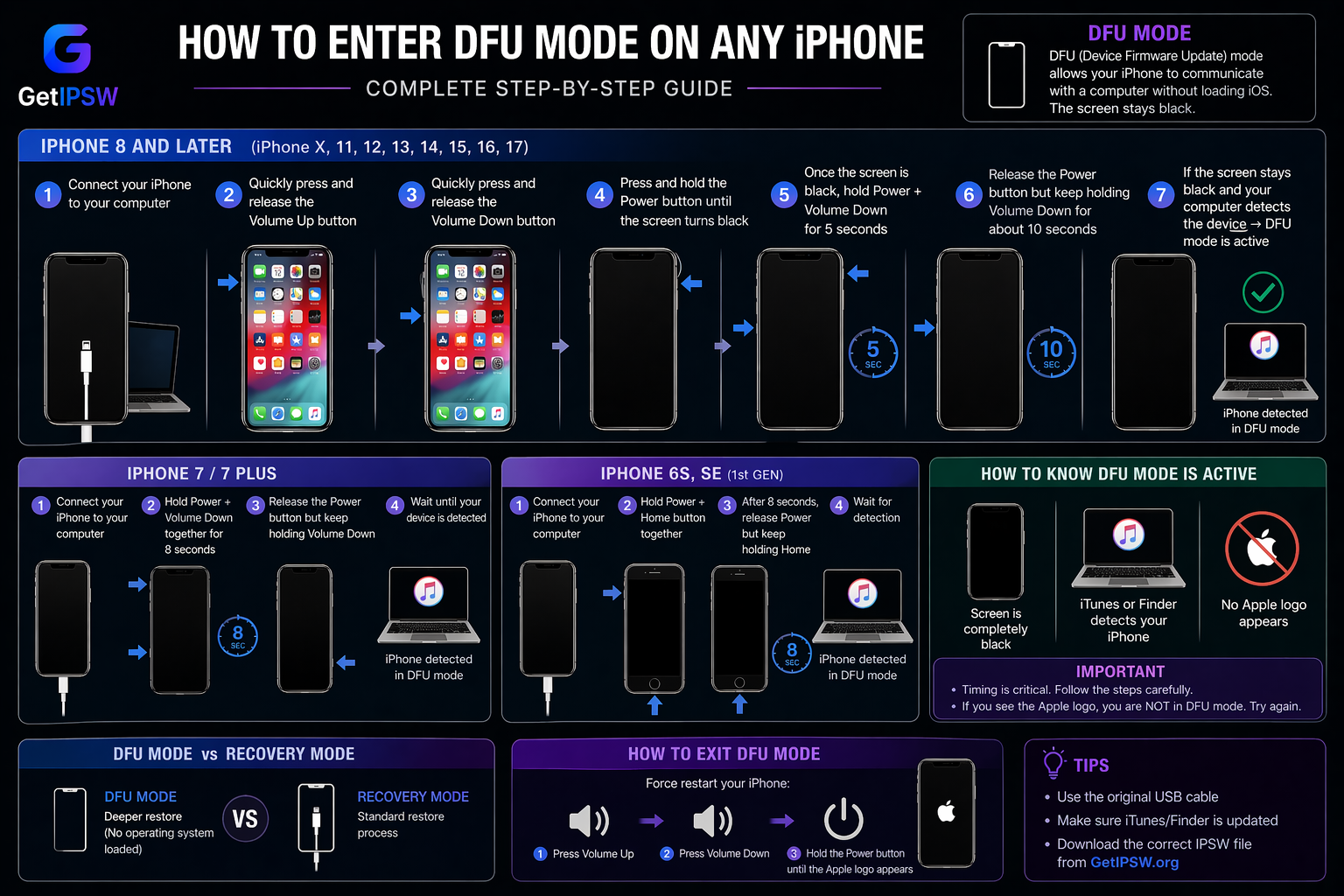
Apr 22, 2026
How to Enter DFU Mode on Any iPhone
Looking to enter DFU mode on your iPhone? You’re in the right place
Read more →