How to Transfer WhatsApp from Android to iPhone (Official Free Method)
Switching from Android to iPhone without losing your WhatsApp chats, photos and voice notes is possible for free with Apple's Move to iOS app. Here are the requirements, the steps and the common errors.
For years, switching from Android to iPhone meant losing your WhatsApp history. That is no longer the case: Apple's free Move to iOS app can transfer your chats, photos, videos, voice notes and groups directly to the new iPhone. No paid software is needed.
Why a Google Drive backup is not enough
On Android, WhatsApp backs up to Google Drive. On iPhone, it restores from iCloud. The two systems are not compatible: an iPhone cannot read a Google Drive backup. That is why you must use the direct transfer described below.
Requirements
- An Android phone with Android 5 or later, with the Move to iOS app installed from Google Play.
- An iPhone with iOS 15.5 or later that is new or erased: the transfer happens during the iPhone's initial setup.
- The same phone number on the new iPhone as on the old Android phone.
- The latest version of WhatsApp on Android.
- Both phones plugged into power and connected to the same Wi-Fi network (or the Android phone connected to the iPhone's network created during setup).
- Enough free space on the iPhone for all your chats and media.
If your iPhone is already set up, you must erase it first (how to factory reset an iPhone). Back up anything already on it before.
Step-by-step transfer
- Turn on the new iPhone and follow the setup until the Apps & Data or Transfer Your Apps & Data screen.
- Choose From Android. The iPhone shows a 6- or 10-digit code.
- On the Android phone, open Move to iOS, accept the terms and enter the code.
- On the Transfer Data screen, tick WhatsApp (and the other data you want: contacts, photos, messages).
- WhatsApp opens on Android: tap Start and wait while it prepares the data. You are signed out of WhatsApp on Android when it is ready.
- Go back to Move to iOS and tap Continue. Keep both phones close together and do not use them until the transfer is complete.
- When the iPhone is set up, install WhatsApp from the App Store.
- Open WhatsApp, sign in with the same phone number, and tap Start when it offers to import the transferred chats.
What is transferred
- Individual and group chats, photos, videos, voice notes and documents.
- Account information, profile photo, groups and communities.
- Settings.
Not transferred: status updates and payment messages. The data stays on the Android phone until you delete WhatsApp or erase the phone. Chats transferred cannot be merged later with chats already on another iPhone.
Common problems and fixes
WhatsApp does not appear in Move to iOS
Update WhatsApp on Android and check that the iPhone runs iOS 15.5 or later. Restart the transfer from the beginning.
The transfer stops or is very slow
- Turn off mobile data on Android and disable any battery saver or app that controls Wi-Fi (for example Smart Network Switch on Samsung).
- Do not use the Android phone during the transfer and keep both phones on power.
- Free up space on the iPhone if the WhatsApp folder is large.
The iPhone is already set up
Move to iOS only works during initial setup. Erase the iPhone or use a paid tool (such as Wondershare MobileTrans or iMyFone iTransor) that can transfer to an iPhone that is already set up. Read reviews carefully and never give these tools your Apple Account password.
Chats are missing after the transfer
Check that you signed in to WhatsApp on the iPhone with the same phone number. A different number cannot import the chats.
After the transfer
- Turn on iCloud backup in WhatsApp: Settings > Chats > Chat Backup. Turn off Include Videos to save space (see iCloud storage full).
- Transfer the rest of your data and settings: how to transfer data to a new iPhone.
- Only erase the old Android phone after checking that everything is on the iPhone.
Official reference: Apple: Move from Android to iPhone or iPad.
You Might Also Like
Oct 6, 2026
App Store Not Downloading Apps? "Unable to Download App" and "Waiting" Fixes
Apps stuck on "Waiting", "Unable to Download App", requests for payment information on free apps, or an app not available in your country: here is how to fix App Store download problems.
Read more →
Apr 23, 2026
iPhone Won't Restore? 8 Fixes That Work
If Finder or the Apple Devices app cannot restore your iPhone, the cause is usually the firmware, the connection or the restore mode. Here are eight fixes in order.
Read more →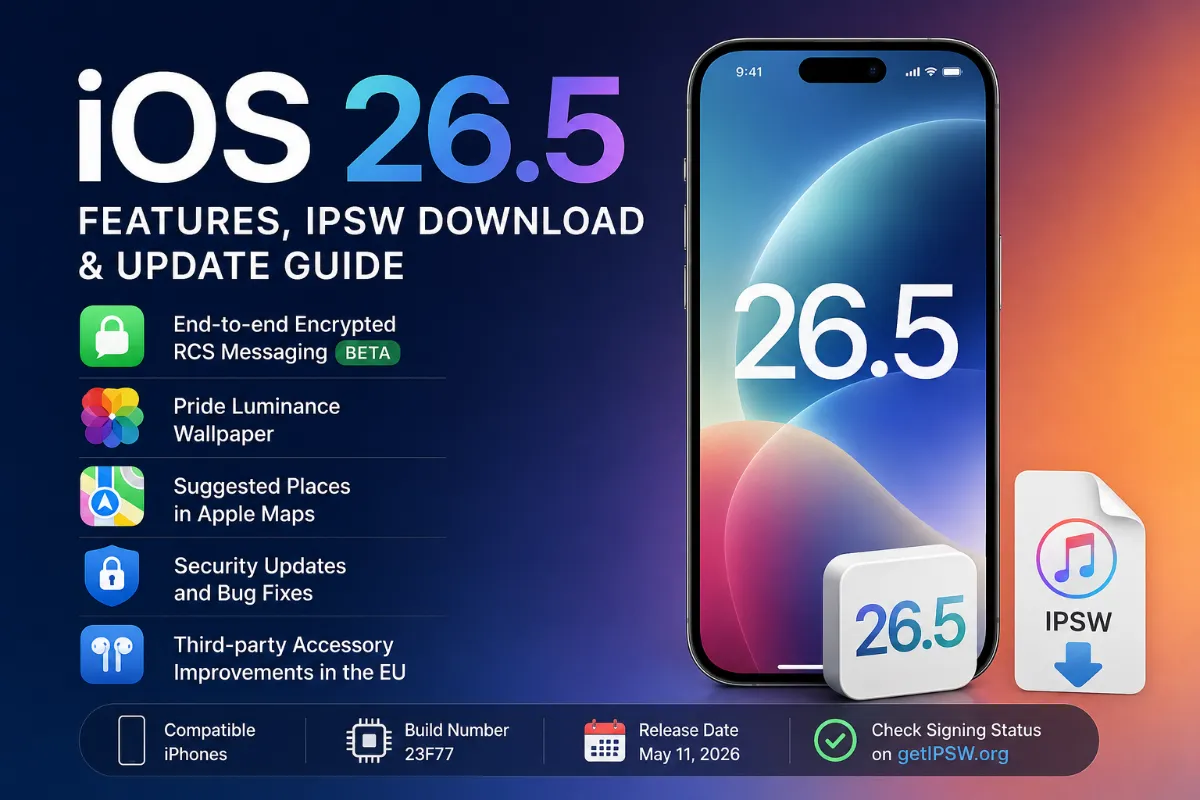
May 16, 2026
iOS 26.5 Features: What Was New in Apple's May 2026 iPhone Update
iOS 26.5 brought encrypted RCS messaging in beta, a Pride Luminance wallpaper and Suggested Places in Maps. Here is what changed and what it means now that iOS 27 is out.
Read more →