How to Scan Documents With Your iPhone (Free, PDF, Signatures and OCR)
No scanner needed: your iPhone can scan documents to clean PDFs, sign them and make the text searchable. Here is how with Notes and Files, plus tips for perfect scans.
Applications, school files, receipts, contracts: many procedures require scanned documents. Your iPhone produces clean, straight PDF scans in seconds, for free.
Method 1: With the Files app
- Open Files and go to the folder of your choice.
- Tap the ⋯ button (top right) and choose Scan Documents.
- Place the document on a contrasting surface. The iPhone detects the edges and captures automatically.
- Scan the next pages, then tap Save. A multi-page PDF is created.
Method 2: With Notes
- Open Notes, create a note.
- Tap the camera / paperclip icon and choose Scan Documents.
- Scan, then tap Save. Share as PDF from the note.
Tips for perfect scans
- Good light, no shadow from your hand or phone.
- A dark table under a white sheet helps edge detection.
- Choose Color, Grayscale, Black & White or Photo filters before saving; black & white makes small, readable files for forms.
- Adjust the corners manually if the crop is wrong.
Sign a document
Open the PDF in Files, tap the Markup (pen) icon, then + > Add Signature. Draw your signature once, it is saved for next time.
Copy the text (OCR)
Text in scans and photos can be selected with Live Text: copy text from a photo or scan.
Reduce the file size for upload
Websites often limit uploads to 1 or 2 MB. Use the Black & White filter and fewer pages, or export pages as JPG. Need another format? convert HEIC to JPG.
Privacy
For ID cards and passports, keep scans in a locked note or a folder, and delete them from Recently Deleted after sending. Lock the Notes app if needed: lock apps with Face ID.
You Might Also Like
Apr 24, 2026
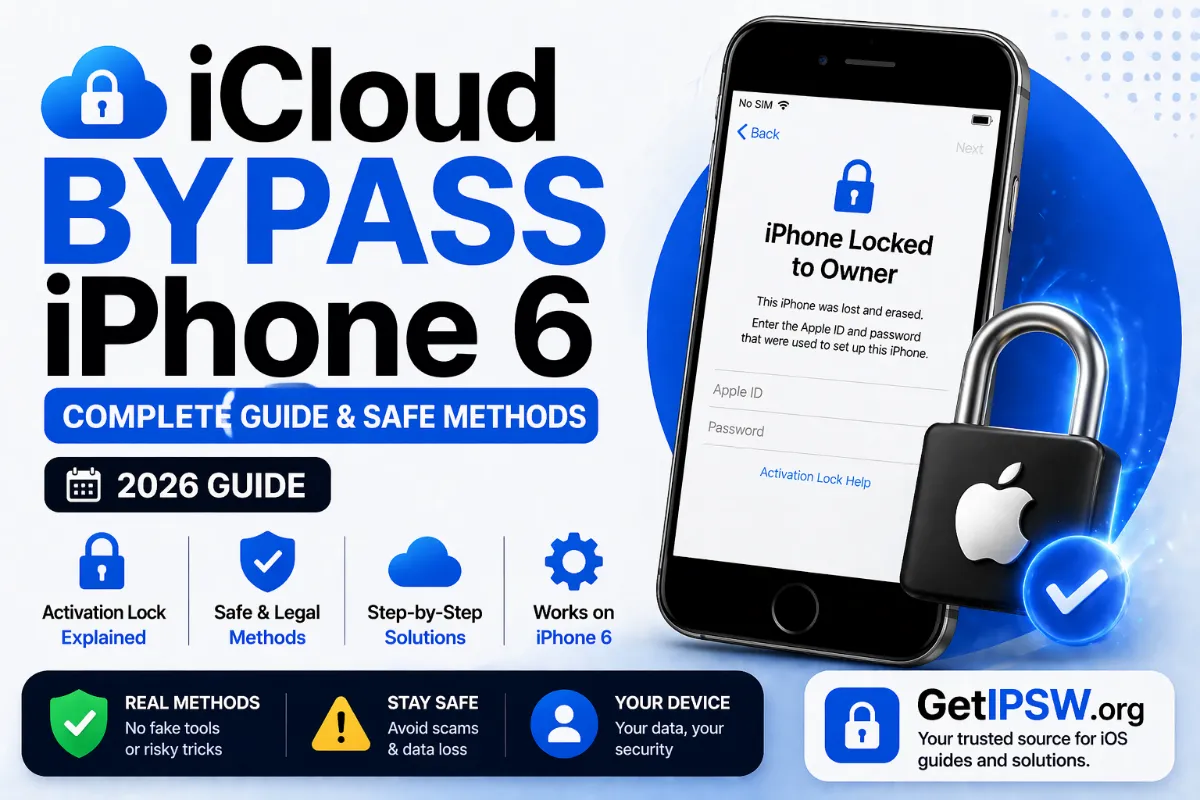
iPhone Activation Lock (iPhone 6 and Later): How to Remove It Legitimately
'iPhone Locked to Owner' means Activation Lock is on. Here is how the owner removes it, what a buyer should do, and how Apple can help with proof of purchase.
Read more →
Oct 5, 2026
Forgot Your Screen Time Passcode? How to Reset It Without Erasing Your iPhone
The Screen Time passcode is separate from your iPhone passcode. If you forgot it, you can reset it in a minute with your Apple Account, no erase needed. Here is how, including for a child's iPhone.
Read more →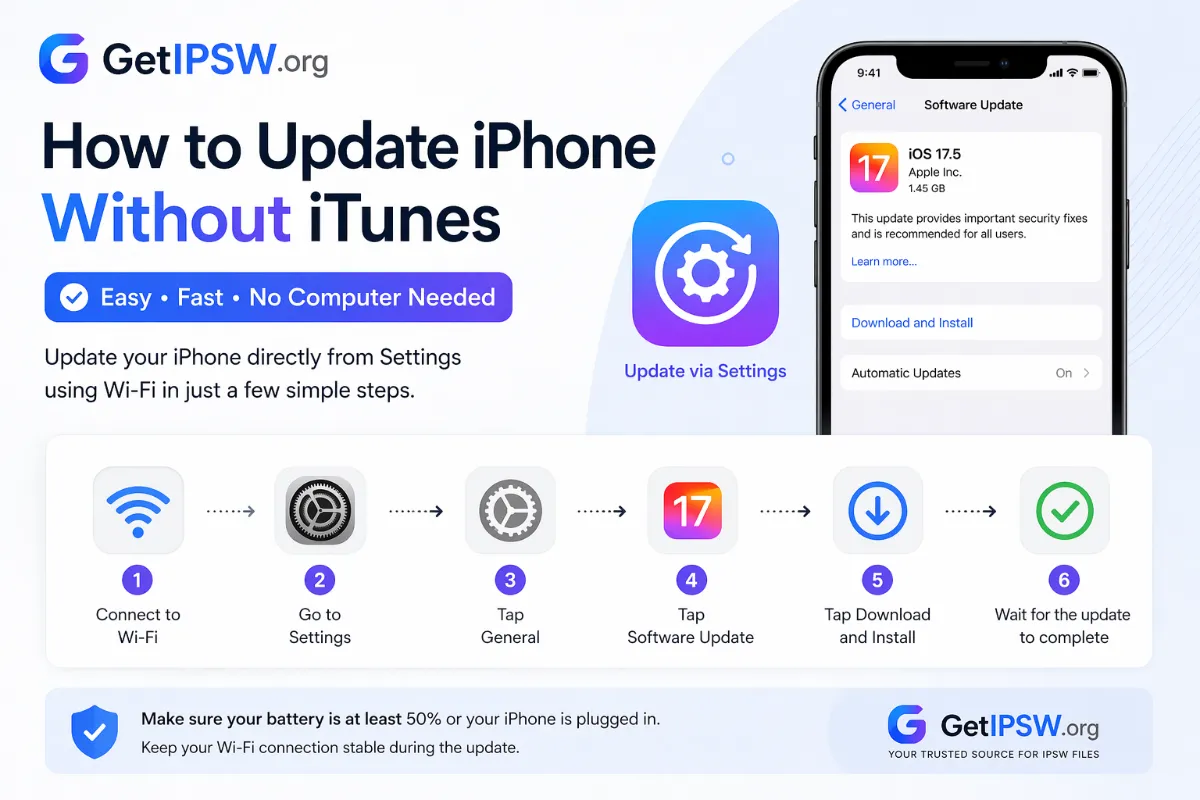
Apr 23, 2026
How to Update iPhone Without iTunes (Wi-Fi, Cellular or Finder)
You no longer need iTunes to update an iPhone. Update over Wi-Fi or cellular data from Settings, or use Finder or the Apple Devices app when an update fails.
Read more →