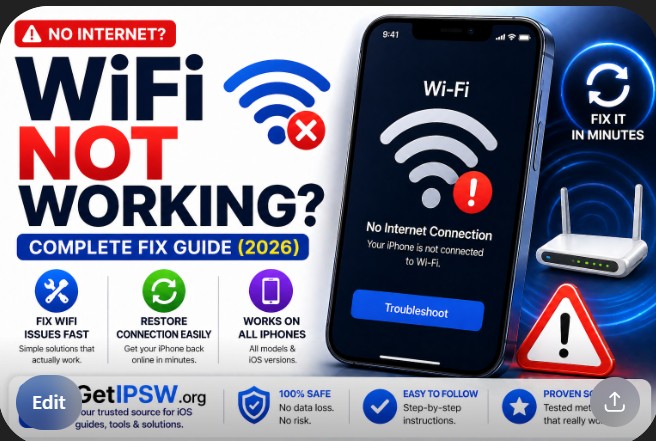
WiFi Not Working on iPhone? Complete Fix Guide (All iOS Versions)
If your iPhone WiFi is not working, keeps disconnecting, or won’t connect at all, you’re not alone. This issue can affect any iPhone model and iOS version.
The good news is that most WiFi problems are caused by simple settings or minor software issues—and can be fixed quickly.
This guide walks you through all the effective solutions step by step.
Why Is My iPhone WiFi Not Working?


Common causes include:
Incorrect network settings
Temporary iOS bugs
Router or internet issues
VPN or configuration conflicts
Hardware problems (rare)
1. Turn WiFi Off and On
Start with the simplest fix.
Steps:
Go to Settings → WiFi
Turn WiFi OFF
Wait 5–10 seconds
Turn it back ON
2. Restart Your iPhone
Restarting can fix temporary system glitches.
👉 Turn your iPhone off, wait a few seconds, then turn it back on.
3. Restart Your Router
The issue may come from your network.
👉 Unplug your router, wait 30 seconds, and plug it back in.
4. Forget and Reconnect to WiFi


Steps:
Go to Settings → WiFi
Tap your network name
Tap Forget This Network
Reconnect and enter the password
5. Turn Off Airplane Mode
Make sure Airplane Mode is disabled.
Go to Settings → Airplane Mode
Turn it OFF
6. Disable VPN
VPNs can interfere with WiFi connections.
Go to Settings → VPN
Turn it OFF
7. Reset Network Settings
This is one of the most effective fixes.
Steps:
Go to Settings → General
Tap Transfer or Reset iPhone
Select Reset → Reset Network Settings
👉 This will remove saved WiFi passwords.
8. Update iOS


Software updates often fix connectivity issues.
Steps:
Go to Settings → General → Software Update
Install the latest version
9. Check Location Services (Networking)
Steps:
Go to Settings → Privacy & Security → Location Services → System Services
Enable Networking & Wireless
10. Reset All Settings (Last Option)
If nothing works:
Go to Settings → General → Transfer or Reset iPhone
Tap Reset All Settings
👉 This will not delete your data.
When It Might Be a Hardware Problem
You may need repair if:
WiFi is greyed out permanently
No networks appear
Signal is extremely weak
👉 Contact Apple Support if this happens.
Frequently Asked Questions
Why does my WiFi keep disconnecting?
Usually due to weak signal or network conflicts.
Will resetting network settings fix it?
Yes, in most cases.
Can iOS updates fix WiFi issues?
Yes, updates often resolve bugs.
Final Thoughts
WiFi problems on iPhone are common but usually easy to fix. Start with simple steps like restarting and reconnecting, then move to advanced solutions if needed.
In most cases, your connection will be restored within minutes.
Explore more iPhone troubleshooting guides on GetIPSW.
You Might Also Like

Apr 24, 2026
Apple Intelligence Explained: How It Works on iPhone (2026 Guide)
Apple Intelligence is Apple’s new approach to artificial intelligence, deeply integrated into iOS to enhance everyday tasks while preserving user privacy. Unlike traditional cloud-based AI systems, Apple focuses on on-device processing combined with secure cloud computing.
Read more →
May 16, 2026
iOS 15.8.8, iOS 16.7.16 and iOS 18.7.9: Why Apple Still Updates Older iPhones
Learn why Apple released iOS 15.8.8, iOS 16.7.16 and iOS 18.7.9 for older iPhones, which devices are supported, and how to download IPSW files safely.
Read more →
Apr 23, 2026
How to Fix iPhone Black Screen (Step-by-Step Guide)
Is your iPhone screen completely black and not responding? Don’t worry — this is a common issue and can usually be fixed.
Read more →