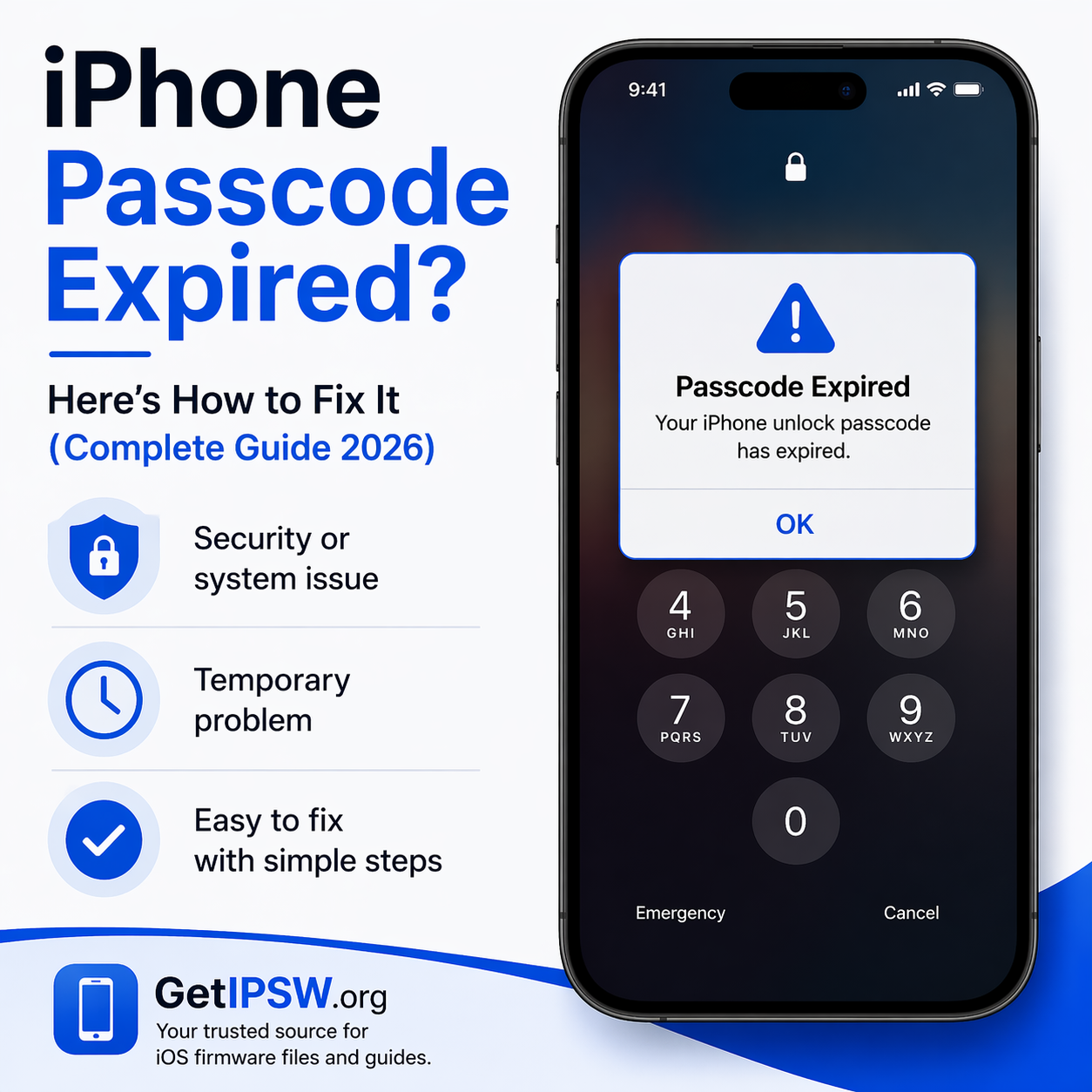
iPhone Passcode Expired? Here’s How to Fix It (Complete Guide 2026)
If your iPhone displays the message “iPhone unlock passcode has expired”, it can be confusing and frustrating. In most cases, this issue is not critical and can be resolved with a few simple steps.
iPhone Passcode Expired? Here’s How to Fix It (Complete Guide 2026)
If your iPhone displays the message “iPhone unlock passcode has expired”, it can be confusing and frustrating. In most cases, this issue is not critical and can be resolved with a few simple steps.
This guide explains why this message appears and walks you through the most effective ways to fix it safely.
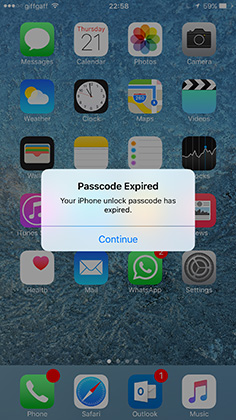
⚠️ Why Does iPhone Say “Passcode Expired”?
The “passcode expired” message usually appears due to a system or security-related issue. In some cases, it can be triggered by temporary software glitches, while in others it may be related to device management policies (especially on work or school devices).
Sometimes, the problem occurs after an iOS update or when the system detects unusual behavior. It may also appear if the device hasn’t been updated for a long time or if there is a minor system instability.
👉 The good news is that this issue is often temporary and does not mean your iPhone is permanently locked.
🔧 Method 1: Force Restart Your iPhone
One of the simplest and most effective ways to fix this issue is to perform a force restart. This action clears temporary system errors that may be causing the passcode problem.
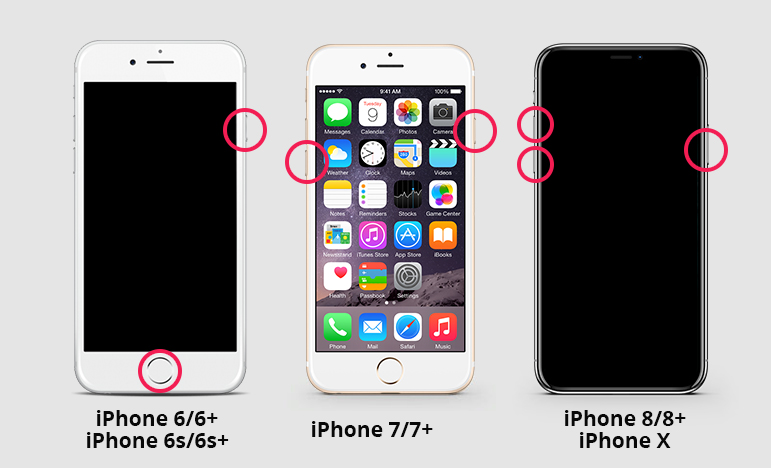
To force restart your iPhone:
Press and release the Volume Up button
Press and release the Volume Down button
Press and hold the Power button
Release it when the Apple logo appears
This process refreshes the system and often resolves minor bugs instantly. As noted in the source, a force restart is commonly used to fix temporary issues like passcode errors
🔄 Method 2: Update Your iPhone to the Latest iOS Version
If the issue persists, updating your device is the next step. Software updates often include bug fixes and security improvements that can resolve system-related errors.
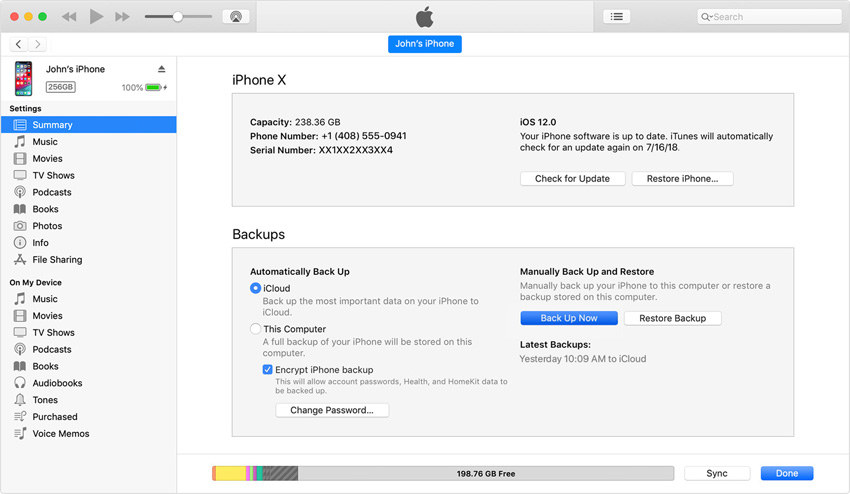
To update your iPhone using a computer:
Connect your iPhone to your computer using a USB cable
Open iTunes (on Windows) or Finder (on Mac)
Select your device when it appears
Click on Check for Update
Choose Download and Update
Before starting the update, it is strongly recommended to create a backup of your data. This ensures that your information is safe in case anything goes wrong during the process
Updating your iPhone not only fixes bugs but also improves overall performance and stability.
🌐 Method 3: Reset Your iPhone Using iCloud
If you are unable to unlock your iPhone or the issue continues, you can reset the device using iCloud. This method works remotely and does not require physical access to your phone’s screen.
To reset your iPhone using iCloud:
Go to the iCloud website from another device
Sign in using your Apple ID
Click on All Devices
Select your iPhone
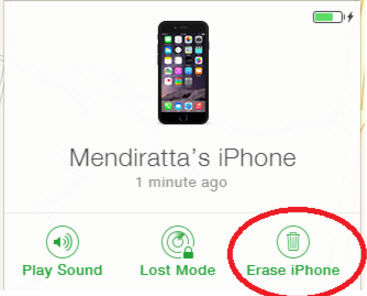
Click Erase iPhone and confirm
This process will erase all data and settings on your device, including the expired passcode. After the reset, you can set up your iPhone again and create a new passcode
👉 This method should be used as a last resort because it deletes all data.
🔐 Method 4: Change Your Passcode (If You Still Have Access)
If your iPhone is still accessible, the easiest solution is to simply change your passcode.
Here’s how to do it:
Open Settings
Go to Face ID & Passcode (or Touch ID & Passcode)
Enter your current passcode
Tap Change Passcode
Set a new passcode
This can immediately resolve the issue if it is related to security settings or passcode policies.
If you have forgotten the passcode for your iPhone, Tenorshare 4uKey
software can prove as a saviour! It helps you out in unlocking your
iPhone passcode as well as the Apple ID in just a few steps. It is a
very effective software and is recommended by many. Read on the
following steps to make use of this amazing software for resetting your
passcode in case your iPhone unlock passcode has expired.
-Firstly, you need to install the tool in your laptop, computer or Mac. In order to get started, select "Unlock Lock Screen Passcode".
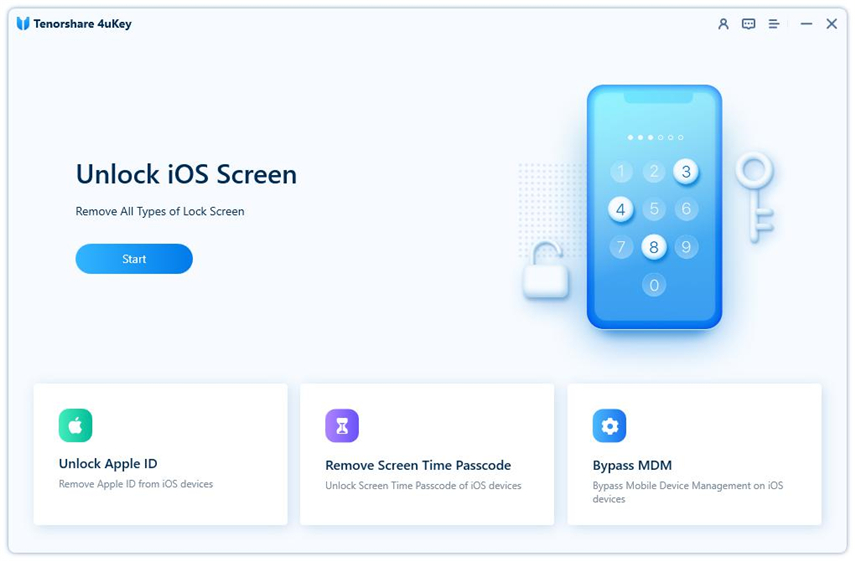
The moment you connect the computer with your iPhone, it will be detected automatically by the software. Choose ‘Start’ option.
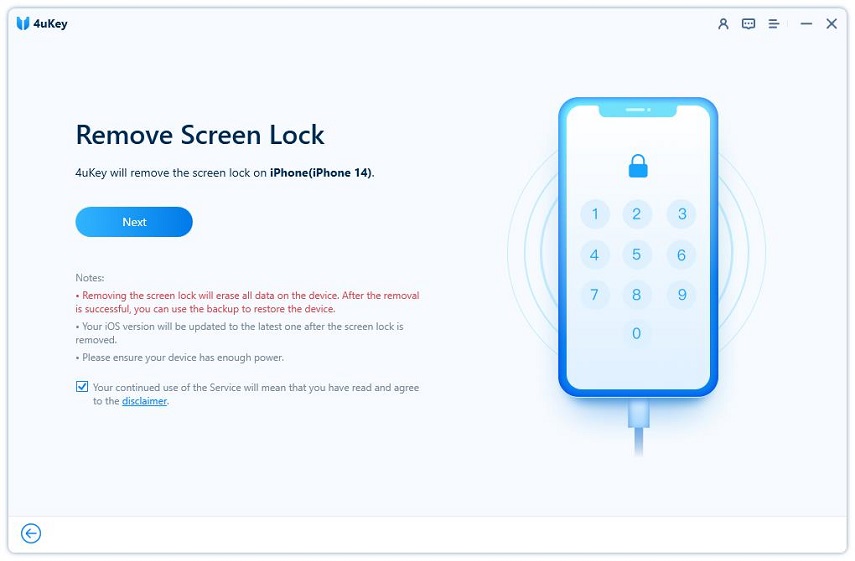
In this step, you are going to download the latest firmware package. Click on ‘Download’ option.
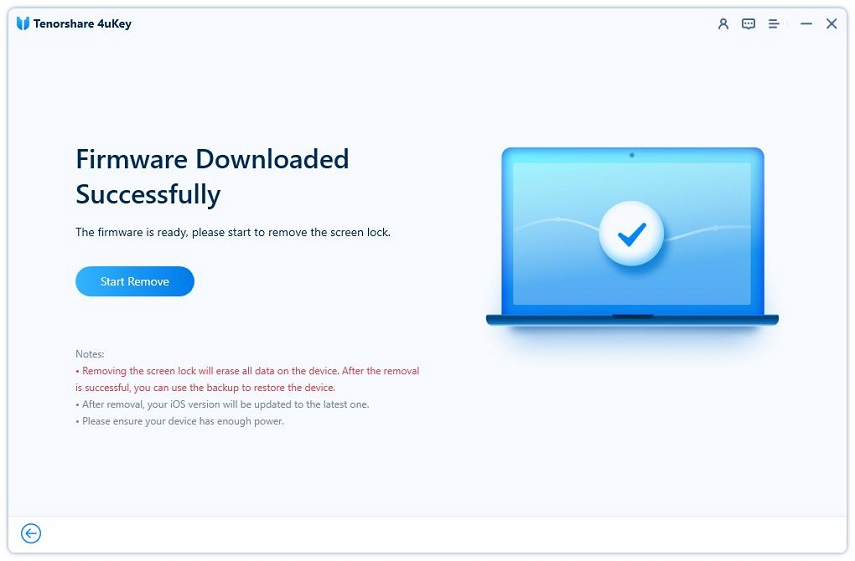
When the password removal procedure is successful, you would be notified.
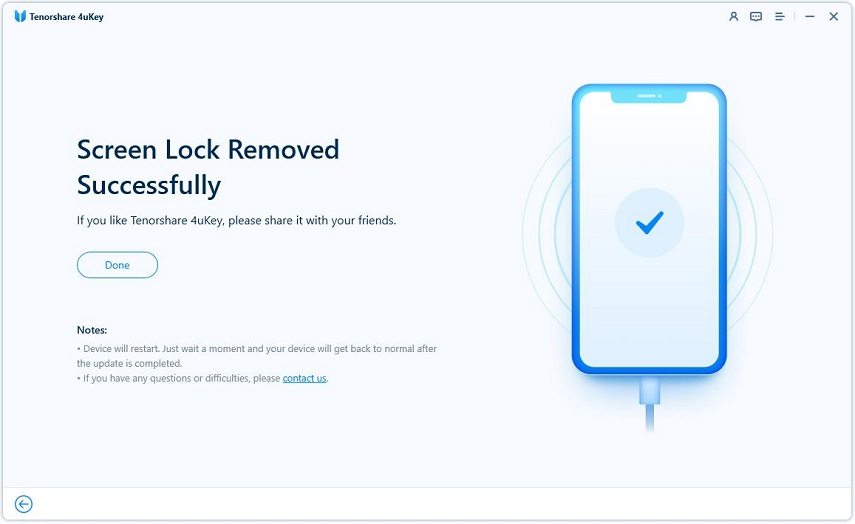
You can now set everything new in your iPhone including the passcode.
Part 2: When Do You Need to Enter iPhone Unlock Passcode
iPhone passcode is mandatory for ensuring the security of the data that you have stored safely in your iPhone. Not just for the security, it is also required to authenticate various other functions and some of these include:
1. Changing The General Settings
A passcode is used to change the general settings of your iPhone. Every functionality of your iPhone is primarily managed in the settings section of this device. This ensures that only you can change these settings on your iPhone.
2. Unlocking Your Phone
iPhone passwords are majorly used for unlocking your iPhone. If you have set up a lock on your phone in the form of a passcode, you can be sure that nobody except you would be able to access the contents of your phone.
3. Making a Backup of Your iPhone
Regular backup is necessity for any device to avoide accidentally losing any important data on your iPhone. When you are going to backup and restore data, your iPhone may ask you to enter the passcode.
⚠️ Important Notes
It is important to understand that some solutions may result in data loss. For example, resetting your device through iCloud will erase all content and settings.
Additionally, after a reset, you will be required to enter your Apple ID to activate the device. This is part of Apple’s security system (Activation Lock), which protects your device from unauthorized use.
👉 Always ensure that you know your Apple ID credentials before performing a reset.
🚫 What You Should Avoid
When facing this issue, avoid making common mistakes that could worsen the situation:
Do not repeatedly enter incorrect passcodes
Do not ignore system updates
Do not install unknown or untrusted software
Do not attempt risky modifications
Taking the wrong approach can lead to further complications.
❓ Frequently Asked Questions
Is the “passcode expired” error serious?
No, it is usually a temporary issue caused by system glitches or security policies.
Will I lose my data?
You will not lose data if you restart or update your iPhone. However, resetting the device will erase everything.
Can this issue fix itself?
Sometimes, yes. A simple restart or waiting can resolve the problem if it is temporary.
🧠 Final Thoughts
The “iPhone passcode expired” message may seem alarming, but in most cases, it is easy to fix.
Start with simple solutions like restarting your device or updating iOS. If the issue continues, you can use iCloud to reset your iPhone and set a new passcode.
By following these steps carefully, you can resolve the problem and regain access to your device without complications.
Explore more guides on GetIPSW to fix, restore, and manage your iPhone easily.
You Might Also Like
Apr 23, 2026
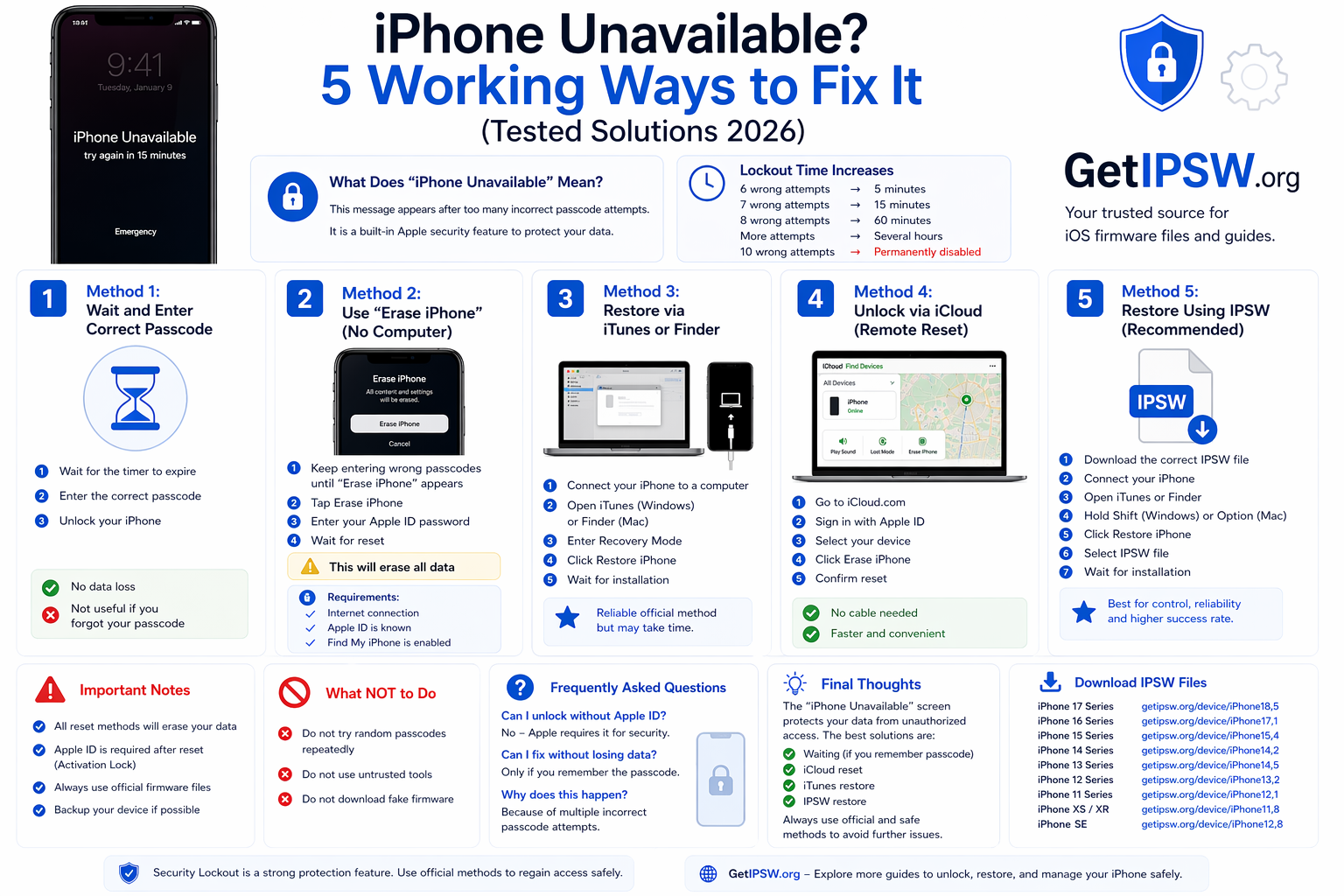
iPhone Unavailable? 5 Working Ways to Fix It (Tested Solutions 2026)
In this guide, you’ll discover 5 proven methods to fix the iPhone Unavailable screen and regain access to your device.
Read more →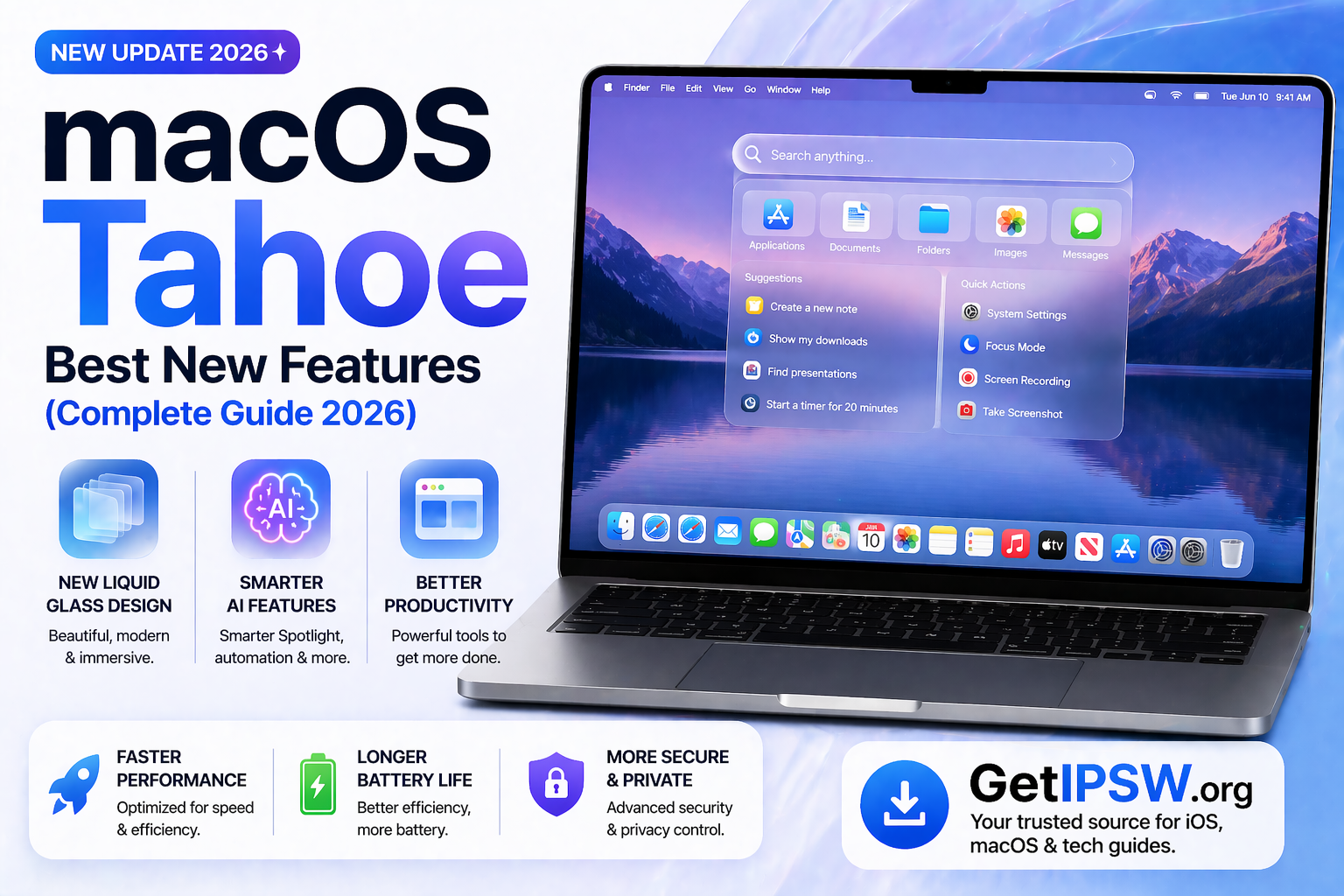
Apr 24, 2026
Best New Features in macOS Tahoe
macOS Tahoe is one of Apple’s most important desktop updates in recent years. Instead of focusing only on design, it combines a visual refresh with powerful productivity tools, AI integration, and deeper ecosystem connectivity.
Read more →
May 17, 2026
How to Find Your iPhone Model Identifier Before Downloading IPSW
Learn how to find your iPhone model identifier before downloading an IPSW file, avoid wrong firmware errors, and choose the correct iOS firmware safely.
Read more →