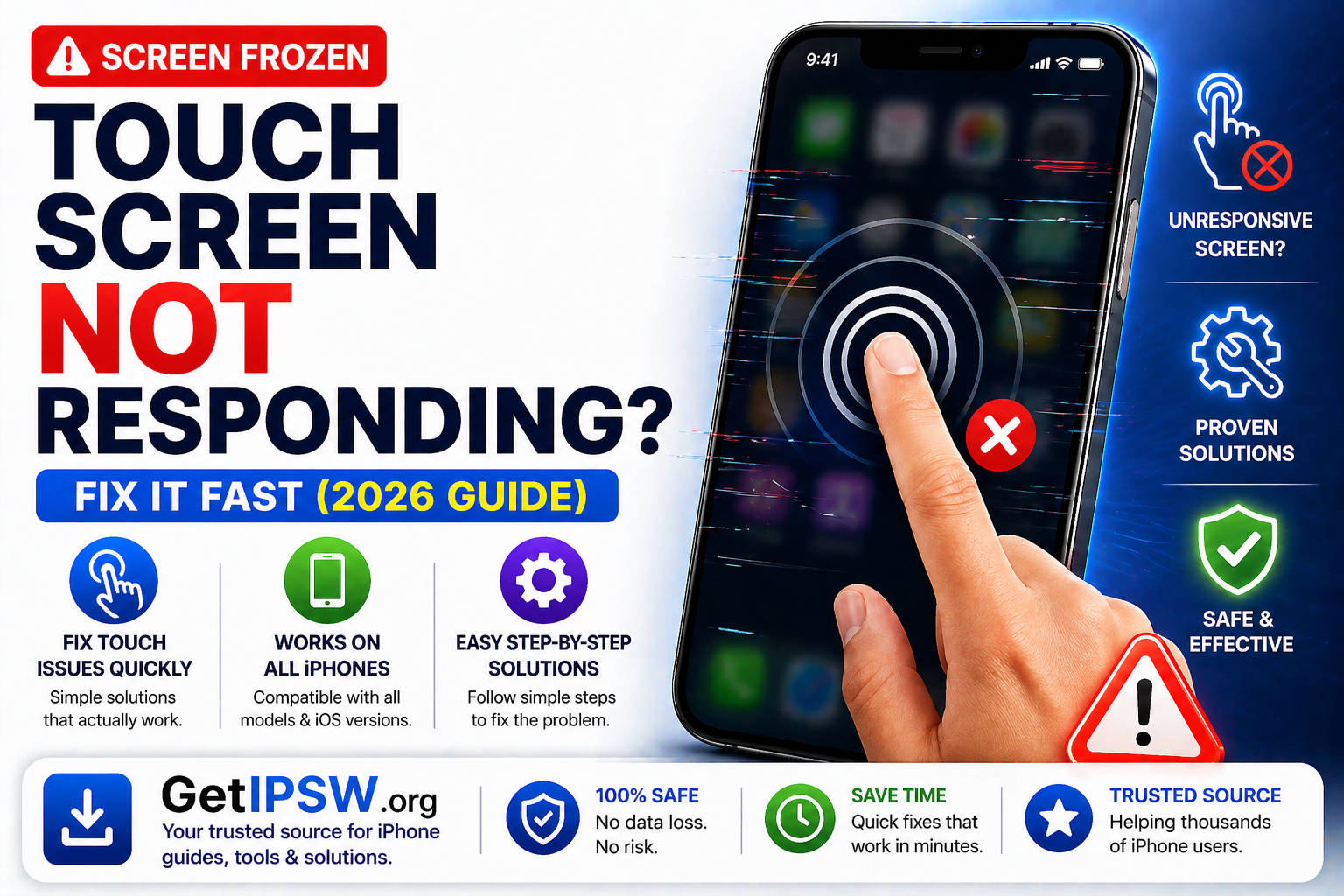
iPhone Touch Screen Not Responding? Try These Solutions (2026 Guide)
If your iPhone touch screen is not responding, lagging, or freezing, it can make your device almost unusable. This issue can happen on any iPhone model and is usually caused by software glitches, screen problems, or temporary system bugs.
The good news is that most touch screen issues can be fixed quickly without professional repair.
Why Is My iPhone Screen Not Responding?


Common causes include:
Temporary system glitches
Screen protector or dirt blocking touch
iOS bugs or outdated software
Overheating or low memory
Physical screen damage (rare)
1. Force Restart Your iPhone
This is the most effective first step.
iPhone 8 and later:
Press and release Volume Up
Press and release Volume Down
Hold the Side button until the Apple logo appears
👉 This fixes most temporary issues without data loss.
2. Clean Your Screen
Dirt, oil, or moisture can affect touch sensitivity.
👉 Use a microfiber cloth to clean the screen gently.
3. Remove Screen Protector or Case


Some accessories interfere with touch input.
👉 Remove them and test your screen again.
4. Charge Your iPhone
Low battery or unstable power can affect responsiveness.
Plug in your device
Let it charge for a few minutes
5. Close Background Apps
Too many apps can slow down the system.
👉 Open the App Switcher and close unused apps.
6. Update iOS


Software bugs can cause touch issues.
Steps:
Go to Settings → General → Software Update
Install the latest version
7. Free Up Storage Space
Low storage can cause lag.
Steps:
Go to Settings → General → iPhone Storage
Delete unused apps and large files
8. Reset All Settings
If the issue continues:
Go to Settings → General → Transfer or Reset iPhone
Tap Reset All Settings
👉 This will not delete your data.
9. Use Recovery Mode (Advanced)
If your screen is completely unresponsive:
Connect your iPhone to a computer
Enter Recovery Mode
Choose Update or Restore
10. Check for Hardware Damage
If nothing works, the problem may be physical:
Cracked screen
Water damage
Internal display issue
👉 In this case, visit a repair center.
When the Problem Is Serious
You should take action if:
Screen doesn’t respond at all
Ghost touches occur
Only part of the screen works
Frequently Asked Questions
Why is my iPhone screen frozen?
Usually due to software glitches or memory issues.
Can iOS update fix touch problems?
Yes, updates often resolve bugs.
Will resetting fix the issue?
Yes, in most software-related cases.
Final Thoughts
A non-responsive iPhone screen can be frustrating, but it’s often easy to fix. Start with simple solutions like restarting and cleaning your screen, then move to advanced fixes if needed.
In most cases, your iPhone will be back to normal within minutes.
Explore more iPhone troubleshooting guides on GetIPSW.
You Might Also Like
Apr 28, 2026
iPhone Not Charging? Common Causes and Fixes
If your iPhone is not charging, charging slowly, or not responding when plugged in, it can be frustrating. This issue can affect any iPhone model and is usually caused by simple problems like dirt, faulty cables, or software glitches.
Read more →
Apr 22, 2026
Download iOS 18 IPSW for iPhone (All Models) – Direct Links
Download iOS 18 IPSW files for all iPhone models with direct links. Access official Apple firmware and learn how to install iOS 18 safely with our step-by-step guide.
Read more →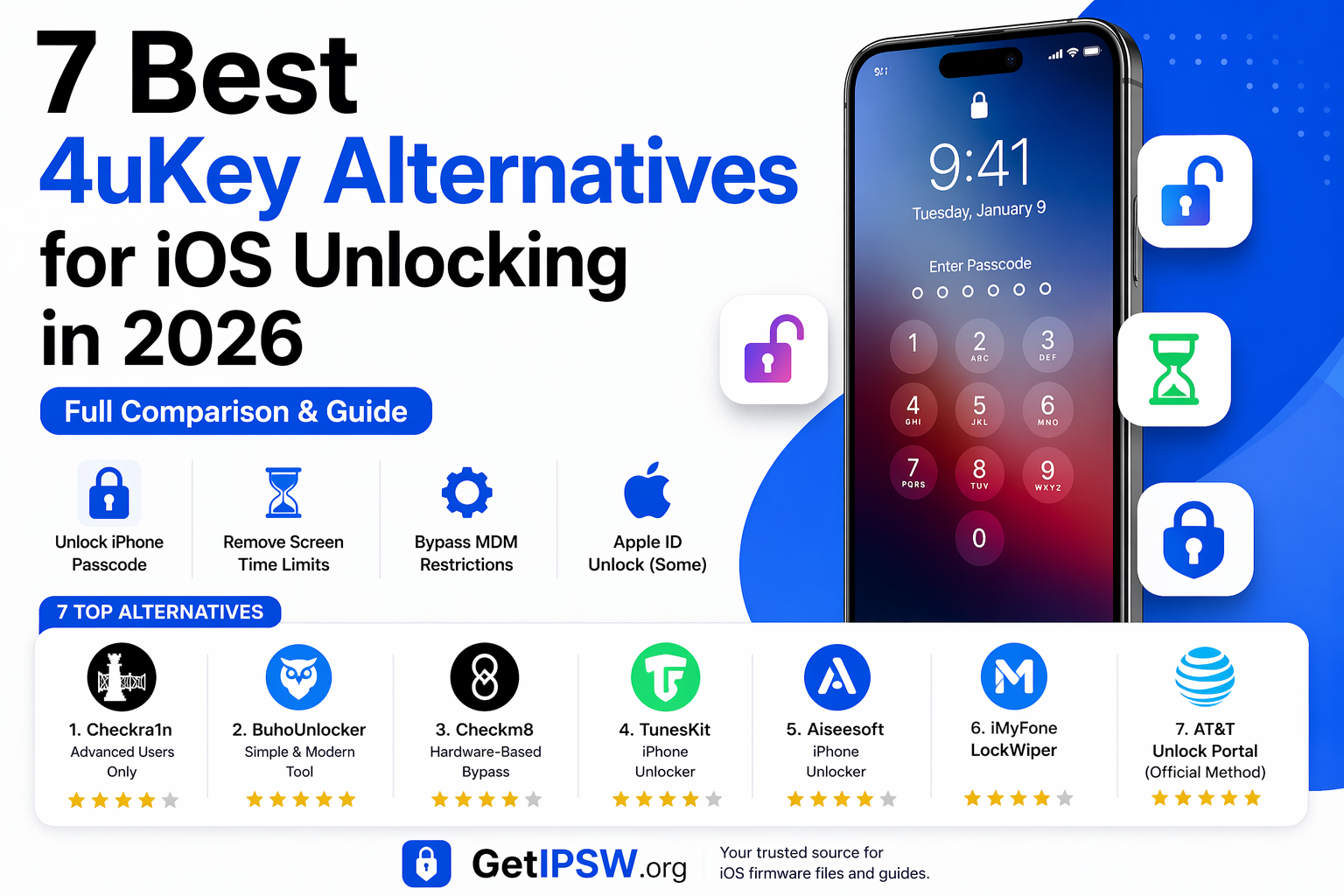
Apr 23, 2026
7 Best 4uKey Alternatives for iOS Unlocking in 2026
Getting locked out of your iPhone can feel like hitting a wall. Whether you forgot your passcode, are dealing with a disabled device, or facing restrictions like Screen Time or MDM, tools like 4uKey are often suggested.
Read more →