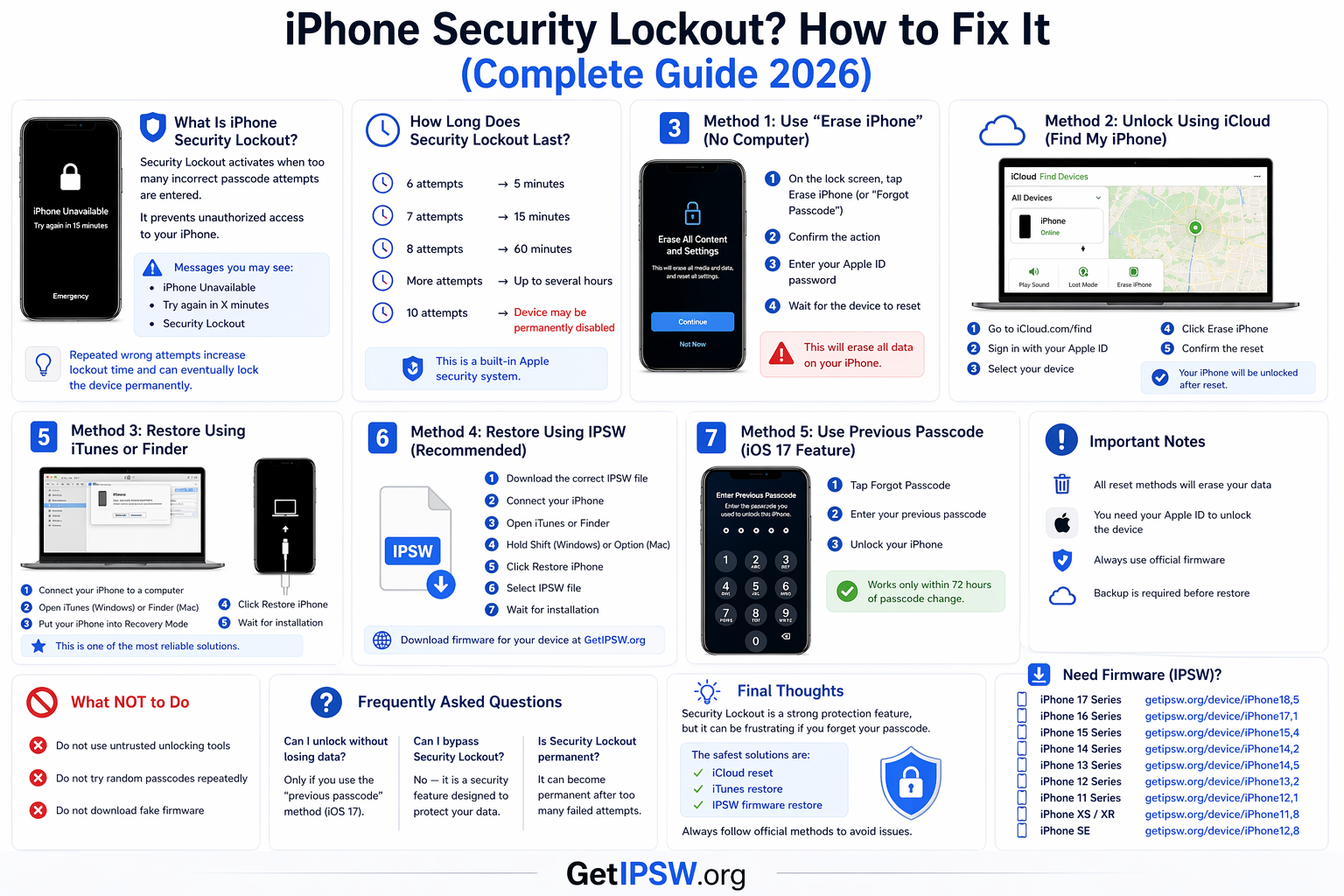
iPhone Security Lockout? How to Fix It (Complete Guide 2026)
In this guide, you’ll learn what Security Lockout means and how to fix it using safe and effective methods.
iPhone Security Lockout? How to Fix It (Complete Guide 2026)
Is your iPhone showing “iPhone Unavailable” or “Security Lockout” message? Don’t panic — this is a common security feature designed to protect your device.
In this guide, you’ll learn what Security Lockout means and how to fix it using safe and effective methods.
🔐 What Is iPhone Security Lockout?
Security Lockout is a protection feature that activates when too many incorrect passcode attempts are entered.
👉 It prevents unauthorized access to your iPhone.
After several failed attempts, your device will show messages like:
“iPhone Unavailable”
“Try again in X minutes”
“Security Lockout”
📌 As explained, repeated wrong attempts increase lockout time and can eventually lock the device permanently
⏱️ How Long Does Security Lockout Last?
The lockout duration increases with each wrong attempt:
6 attempts → 5 minutes
7 attempts → 15 minutes
8 attempts → 60 minutes
More attempts → up to several hours
10 attempts → device may be permanently disabled
👉 This is a built-in Apple security system.
🔧 Method 1: Use “Erase iPhone” (No Computer)
👉 Works on iOS 15.2 and later
On the lock screen, tap Erase iPhone (or “Forgot Passcode”)
Confirm the action
Enter your Apple ID password
Wait for the device to reset
⚠️ This will erase all data on your iPhone.
🌐 Method 2: Unlock Using iCloud
👉 Requires “Find My iPhone” to be enabled
Go to iCloud website
Sign in with your Apple ID
Select your device
Click Erase iPhone
Confirm the reset
👉 Your iPhone will be unlocked after reset.
⚙️ Method 3: Restore Using iTunes or Finder
Connect your iPhone to a computer
Open iTunes (Windows) or Finder (Mac)
Put your iPhone into Recovery Mode
Click Restore iPhone
Wait for installation
👉 This is one of the most reliable solutions.
🔗 Method 4: Restore Using IPSW (Recommended)
👉 For more control and better success rate
Download firmware here:
iPhone 17 Series – https://www.getipsw.org/device/iPhone18,5
iPhone 16 Series – https://www.getipsw.org/device/iPhone17,1
iPhone 15 Series – https://www.getipsw.org/device/iPhone15,4
iPhone 14 Series – https://www.getipsw.org/device/iPhone14,2
iPhone 13 Series – https://www.getipsw.org/device/iPhone14,5
iPhone 12 Series – https://www.getipsw.org/device/iPhone13,2
iPhone 11 Series – https://www.getipsw.org/device/iPhone12,1
iPhone XS / XR – https://www.getipsw.org/device/iPhone11,8
iPhone SE – https://www.getipsw.org/device/iPhone12,8
Steps:
Download the correct IPSW file
Connect your iPhone
Open iTunes or Finder
Hold Shift (Windows) or Option (Mac)
Click Restore iPhone
Select IPSW file
Wait for installation
🧠 Method 5: Use Previous Passcode (iOS 17 Feature)
👉 New feature in iOS 17
If you recently changed your passcode:
Tap Forgot Passcode
Enter your previous passcode
Unlock your iPhone
⚠️ Works only within 72 hours of passcode change
⚠️ Important Notes
All reset methods will erase your data
You need your Apple ID to unlock the device
Always use official firmware
Backup is required before restore
🚫 What NOT to Do
❌ Do not use untrusted unlocking tools
❌ Do not try random passcodes repeatedly
❌ Do not download fake firmware
❓ Frequently Asked Questions
Can I unlock without losing data?
Only if you use the “previous passcode” method (iOS 17).
Can I bypass Security Lockout?
No — it is a security feature designed to protect your data.
Is Security Lockout permanent?
It can become permanent after too many failed attempts.
🧠 Final Thoughts
Security Lockout is a strong protection feature, but it can be frustrating if you forget your passcode.
The safest solutions are:
iCloud reset
iTunes restore
IPSW firmware restore
👉 Always follow official methods to avoid issues.
Explore more guides on GetIPSW to unlock, restore, and manage your iPhone safely.
You Might Also Like
Apr 25, 2026
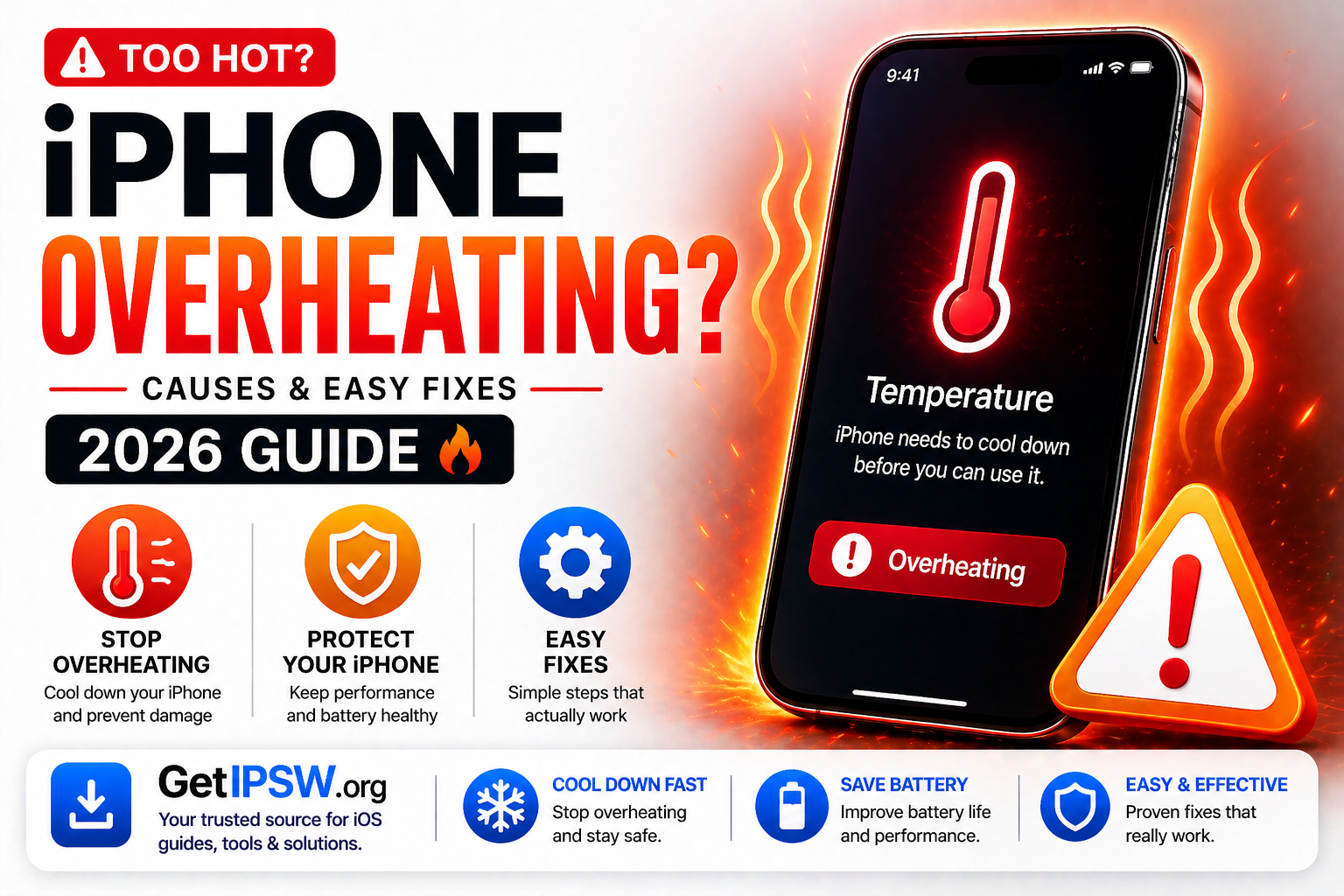
iPhone Overheating? Causes and Easy Fixes You Need to Know (2026 Guide)
If your iPhone gets unusually hot, it can affect performance, battery life, and long-term device health. While occasional warmth is normal, frequent overheating is a sign that something isn’t right.
Read more →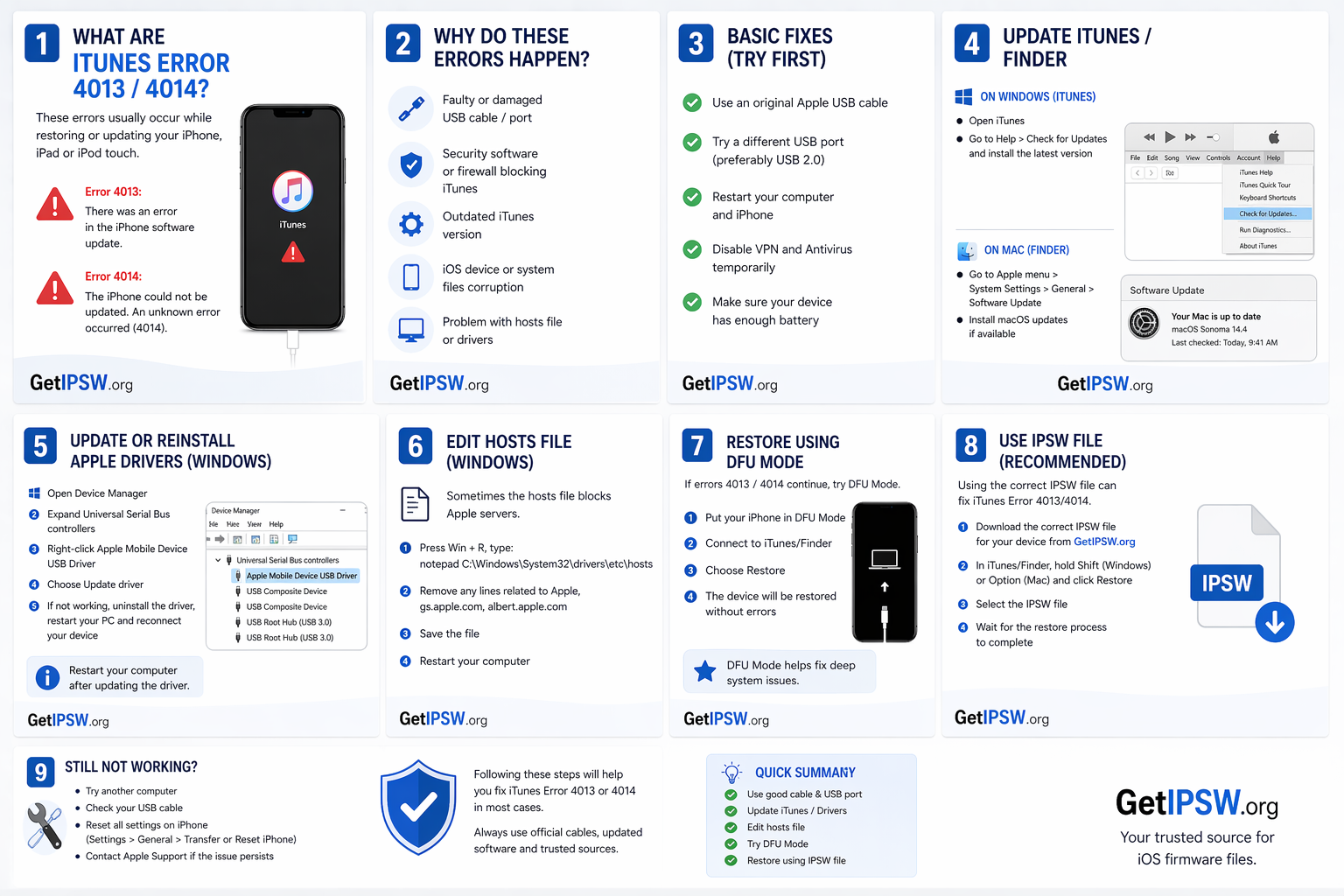
Apr 23, 2026
Fix iTunes Error 4013 / 4014 (2026)
Are you facing iTunes error 4013 or 4014 while restoring your iPhone? You’re not alone.
Read more →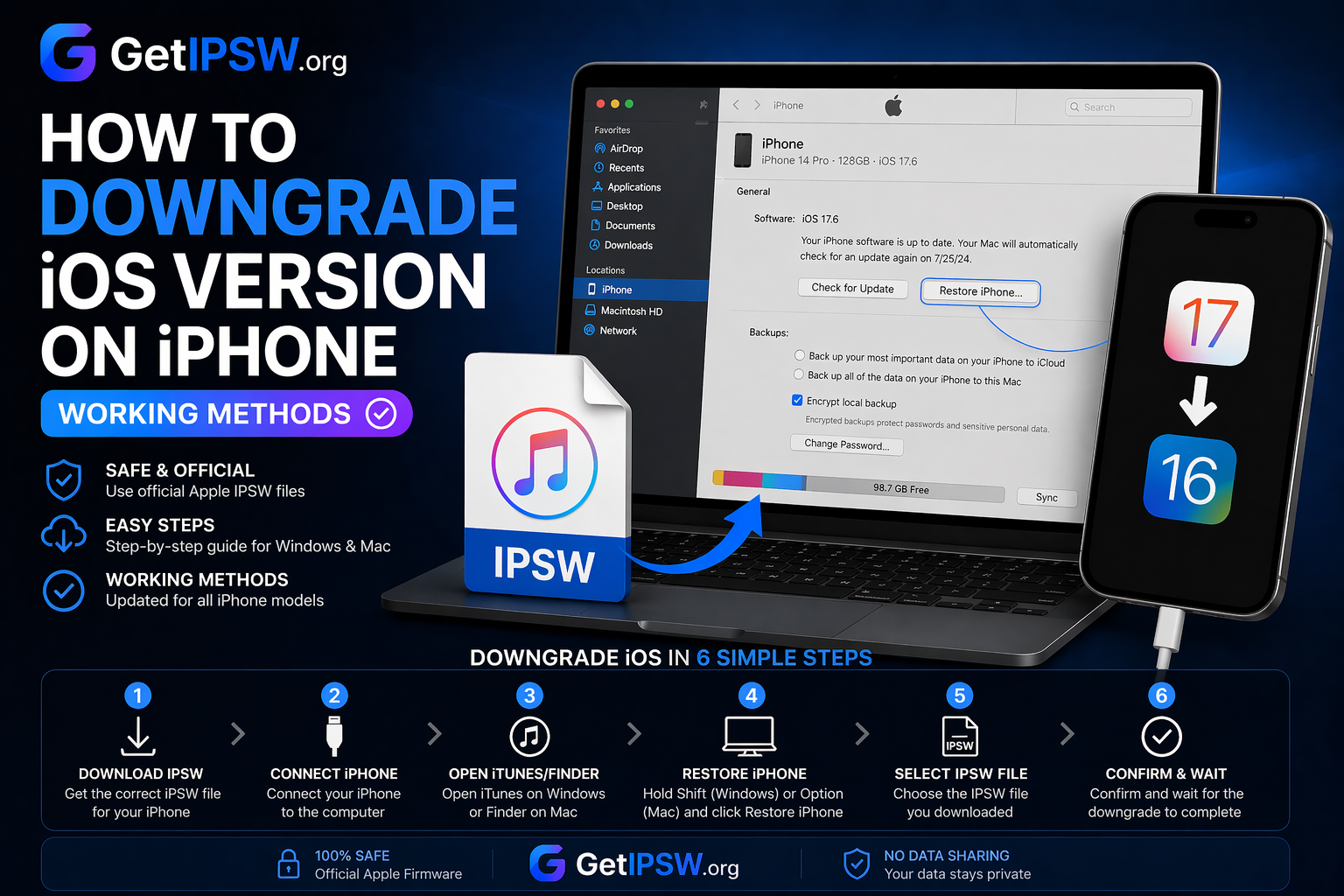
Apr 23, 2026
How to Downgrade iOS Version on iPhone (Working Methods)
Looking to downgrade your iPhone to an earlier iOS version? You’re in the right place.
Read more →