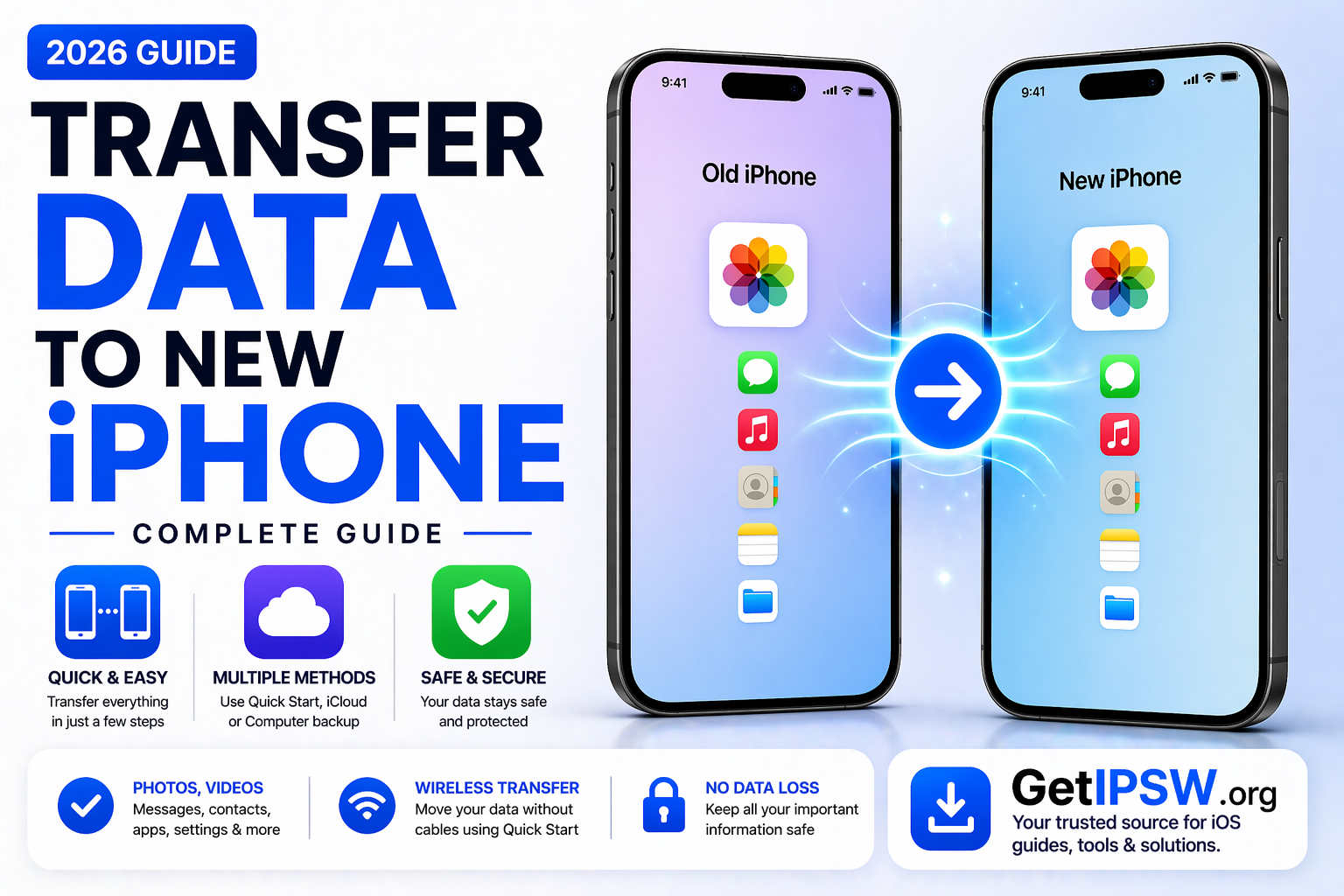
How to Transfer Data from Old iPhone to New iPhone
Getting a new iPhone is exciting, but transferring your data from your old device is a critical step. Fortunately, Apple provides several reliable methods to move your photos, apps, messages, and settings safely.
In this guide, you’ll learn the best ways to transfer data from your old iPhone to a new one, step by step.
What Data Can Be Transferred?


When transferring data, you can move:
Photos and videos
Contacts and messages
Apps and app data
Settings and preferences
Apple ID and accounts
Most of your data will be restored exactly as it was on your old device.
Method 1: Quick Start (Best and Easiest)


Quick Start is the fastest way to transfer data wirelessly.
Steps:
Turn on your new iPhone
Place it near your old iPhone
Wait for the Quick Start screen to appear
Tap Continue
Scan the animation with your old iPhone
Follow on-screen instructions
Choose Transfer from iPhone
👉 Keep both devices close and connected to power during the transfer.
Method 2: Transfer Using iCloud Backup

This method uses your iCloud backup to restore data.
Steps:
Backup your old iPhone to iCloud
Turn on your new iPhone
During setup, choose Restore from iCloud Backup
Sign in with your Apple ID
Select the latest backup
👉 Data will download gradually after setup.
Method 3: Transfer Using Computer (Mac or Windows)


Use this method for a full and fast transfer.
Steps:
Backup your old iPhone using iTunes or Finder
Connect your new iPhone
Choose Restore Backup
Select your latest backup
👉 This method is faster and does not rely on internet speed.
Method 4: Transfer Specific Data Only


If you don’t want to transfer everything, you can sync specific data via iCloud.
Steps:
Enable iCloud sync (Photos, Contacts, etc.) on old iPhone
Sign in on new iPhone with same Apple ID
Turn on the same sync options
👉 Data will automatically appear on your new device.
Tips for a Smooth Transfer
Charge both iPhones
Use a stable Wi-Fi connection
Keep devices close during transfer
Update both devices to the latest iOS
These steps help prevent interruptions.
What to Do After Transfer


After transferring:
Check your apps and data
Sign in to apps if needed
Re-enable Face ID or Touch ID
Verify photos and messages
Frequently Asked Questions
How long does data transfer take?
Between 10 minutes and a few hours depending on data size.
Will I lose data during transfer?
No, if done correctly.
Which method is best?
Quick Start is the easiest, while computer backup is the fastest.
Final Thoughts
Transferring data from an old iPhone to a new one is simple when using the right method. Whether you choose Quick Start, iCloud, or a computer backup, each option ensures your data remains safe and intact.
Taking a few minutes to follow the correct steps will ensure a smooth transition to your new iPhone.
Explore more iPhone guides and tutorials on GetIPSW.
You Might Also Like

May 16, 2026
iOS 26.5 IPSW Download: Complete Guide, Compatible iPhones, Signed Status and Installation Steps
Download iOS 26.5 IPSW for iPhone. Check compatible devices, build number, signed status, file details, and learn how to install it safely.
Read more →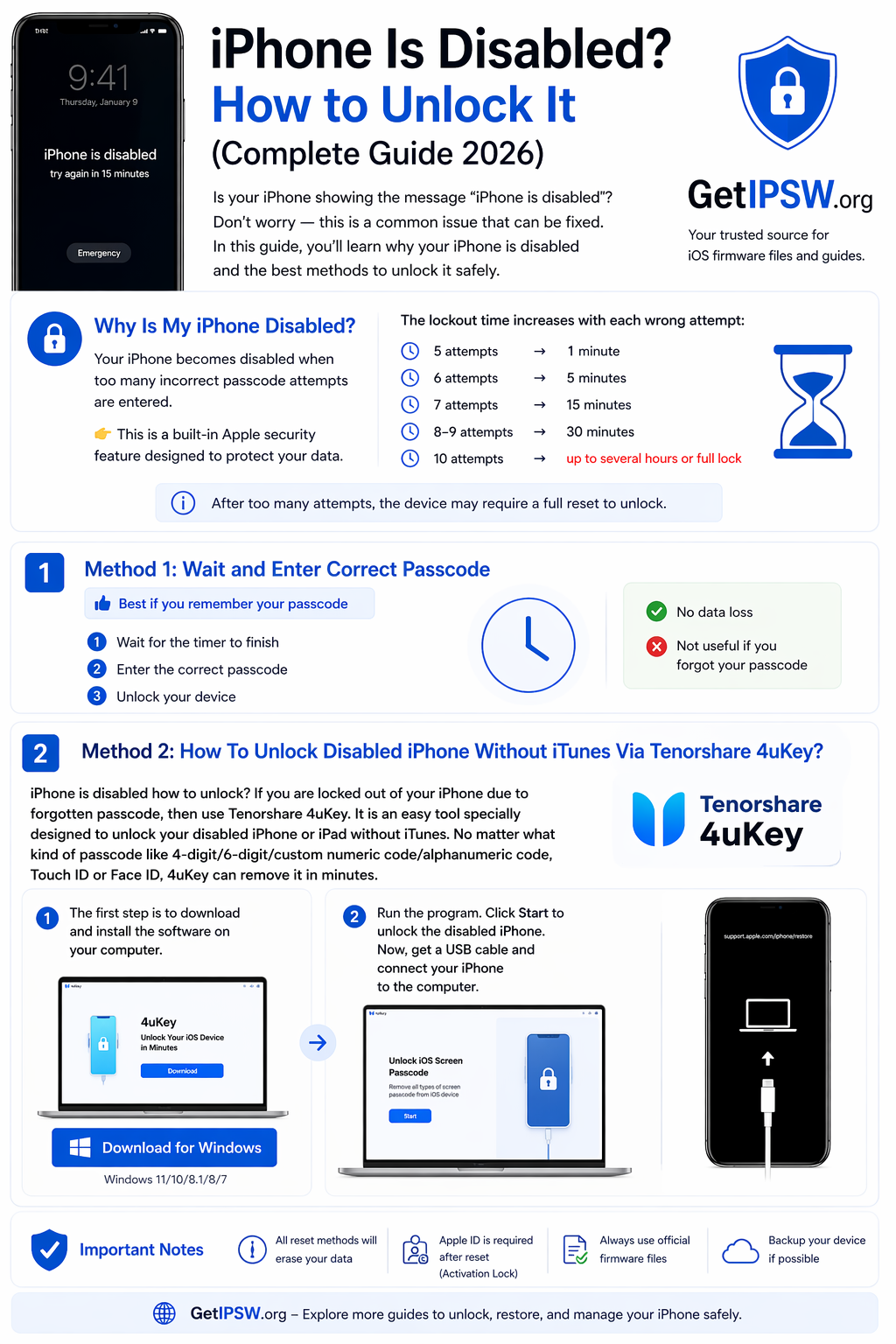
Apr 23, 2026
iPhone Is Disabled? How to Unlock It (Complete Guide 2026)
In this guide, you’ll learn why your iPhone is disabled and the best methods to unlock it safely.
Read more →
May 16, 2026
iOS 26.5 Features: What’s New in Apple’s Latest iPhone Update
Discover the new iOS 26.5 features, including encrypted RCS messaging, Pride Luminance wallpaper, Suggested Places in Maps, security fixes, and more.
Read more →