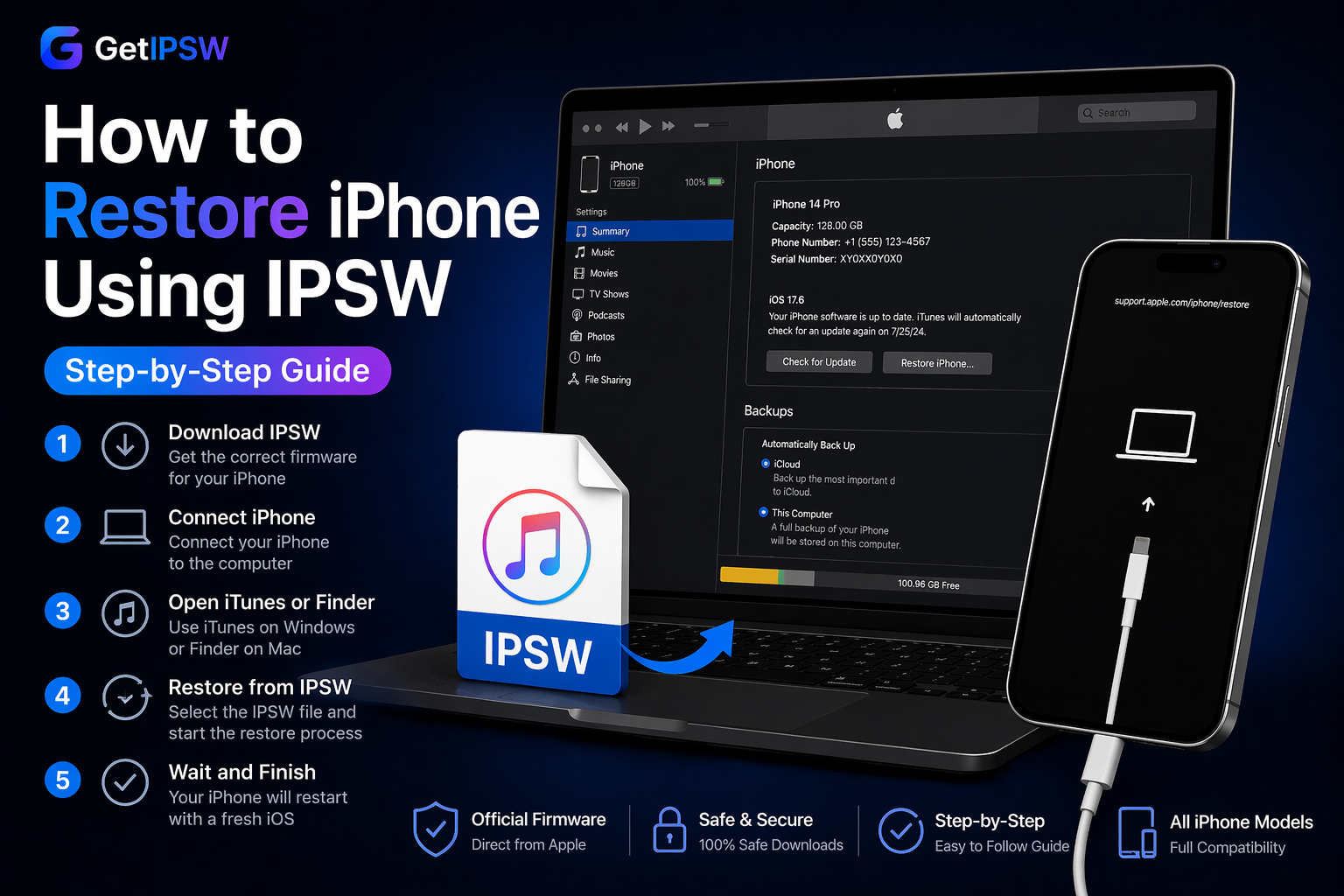
How to Restore iPhone Using IPSW (Step-by-Step Guide)
Looking to restore your iPhone using an IPSW file? You’re in the right place.
What is an IPSW File?
An IPSW file is an official Apple firmware file used to install or restore iOS on iPhone devices.
Using IPSW files allows you to:
- Restore a malfunctioning iPhone
- Reinstall iOS manually
- Fix system errors
- Perform a clean installation
All IPSW files available on our platform are hosted on Apple servers and are safe to use.
Before You Start
Before restoring your iPhone, make sure to:
- Backup your iPhone (this process may erase all data)
- Download the correct IPSW file for your device
- Ensure your battery is at least 50% charged
- Use the latest version of iTunes (Windows) or Finder (Mac)
🔗 Download IPSW File
👉 You can download the correct firmware for your device here:
- iPhone 17 Series – https://www.getipsw.org/device/iPhone18,5
- iPhone 16 Series – https://www.getipsw.org/device/iPhone17,1
- iPhone 15 Series – https://www.getipsw.org/device/iPhone15,4
- iPhone 14 Series – https://www.getipsw.org/device/iPhone14,2
- iPhone 13 Series – https://www.getipsw.org/device/iPhone14,5
- iPhone 12 Series – https://www.getipsw.org/device/iPhone13,2
- iPhone 11 Series – https://www.getipsw.org/device/iPhone12,1
- iPhone XS / XR – https://www.getipsw.org/device/iPhone11,8
- iPhone SE – https://www.getipsw.org/device/iPhone12,8
Make sure to download the IPSW file that matches your exact iPhone model.
⚙️ How to Restore iPhone Using IPSW
🪟 On Windows (Using iTunes)
-Download and install the latest version of iTunes
-Connect your iPhone to your PC using a USB cable
 -Open iTunes
- Choose the IPSW file you downloaded
- Confirm and wait for the restore process to complete
🍏 On Mac (Using Finder)
- Connect your iPhone to your Mac
- Open Finder
- Select your device from the sidebar
- Hold the Option (⌥) key and click Restore iPhone
- Select the IPSW file
- Wait for the restore process to complete
🔁 Restore vs Update (Important)

- Restore: Erases all data and installs a fresh version of iOS
- Update: Keeps your data and updates iOS
👉 This guide focuses on a full restore.
⚠️ Common Errors and Fixes
iPhone not recognized
- Try another USB cable
- Restart your computer
- Update iTunes
Restore failed (Error 4013 / 4014)
- Check your USB connection
- Try another port
- Restart your device
IPSW not compatible
- Make sure you downloaded the correct file
- Ensure the iOS version is still signed by Apple
❓ FAQ
Will restoring iPhone delete everything?
Yes, restoring will erase all data on your device.
Can I restore without a computer?
No, IPSW restore requires a computer (Windows or Mac).
Is restoring safe?
Yes, as long as you use official Apple firmware files.
🧠 Final Thoughts
Restoring your iPhone using an IPSW file is one of the most effective ways to fix system issues and reinstall iOS cleanly.
Always make sure to use the correct firmware and follow each step carefully to avoid errors.
You Might Also Like
Apr 23, 2026
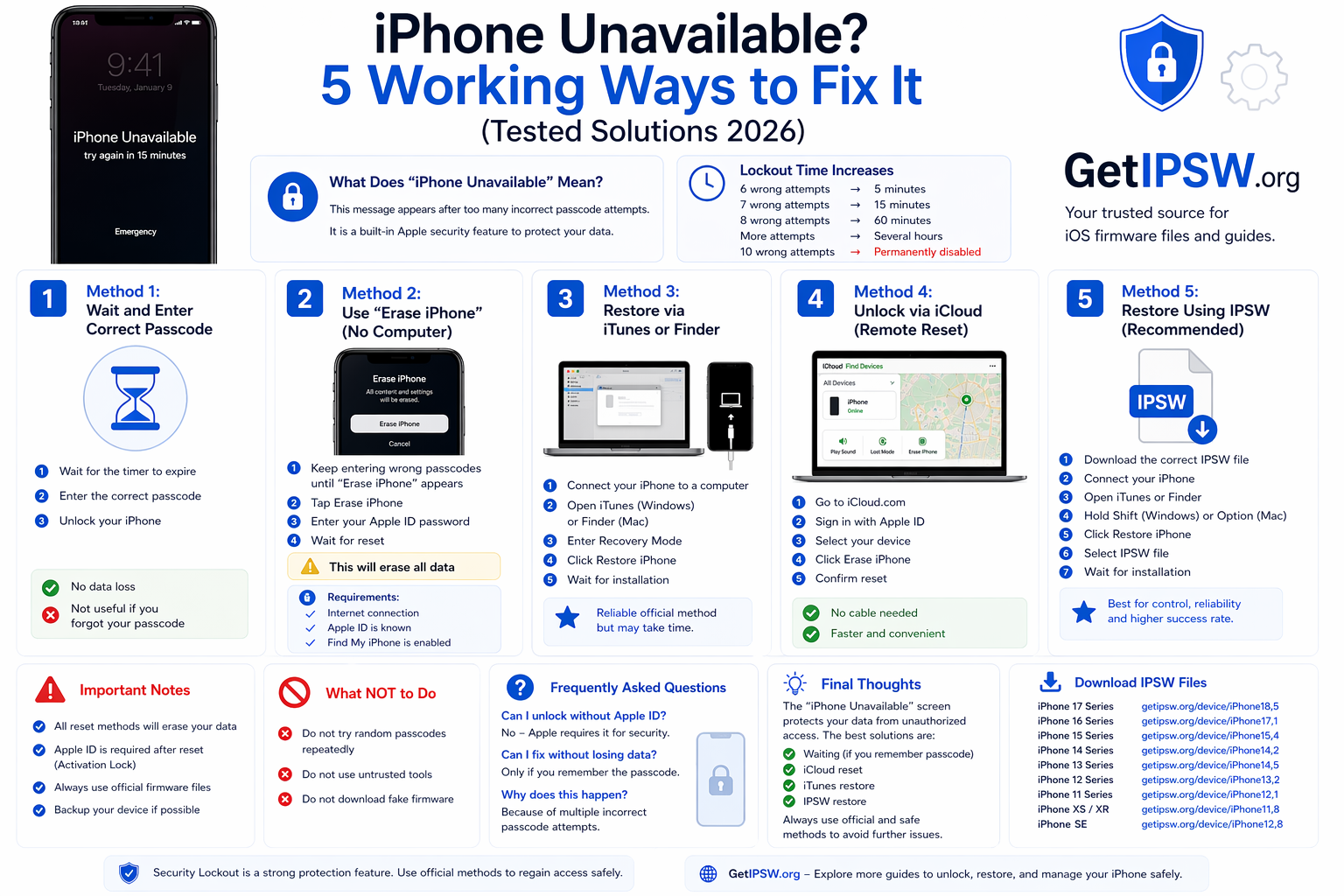
iPhone Unavailable? 5 Working Ways to Fix It (Tested Solutions 2026)
In this guide, you’ll discover 5 proven methods to fix the iPhone Unavailable screen and regain access to your device.
Read more →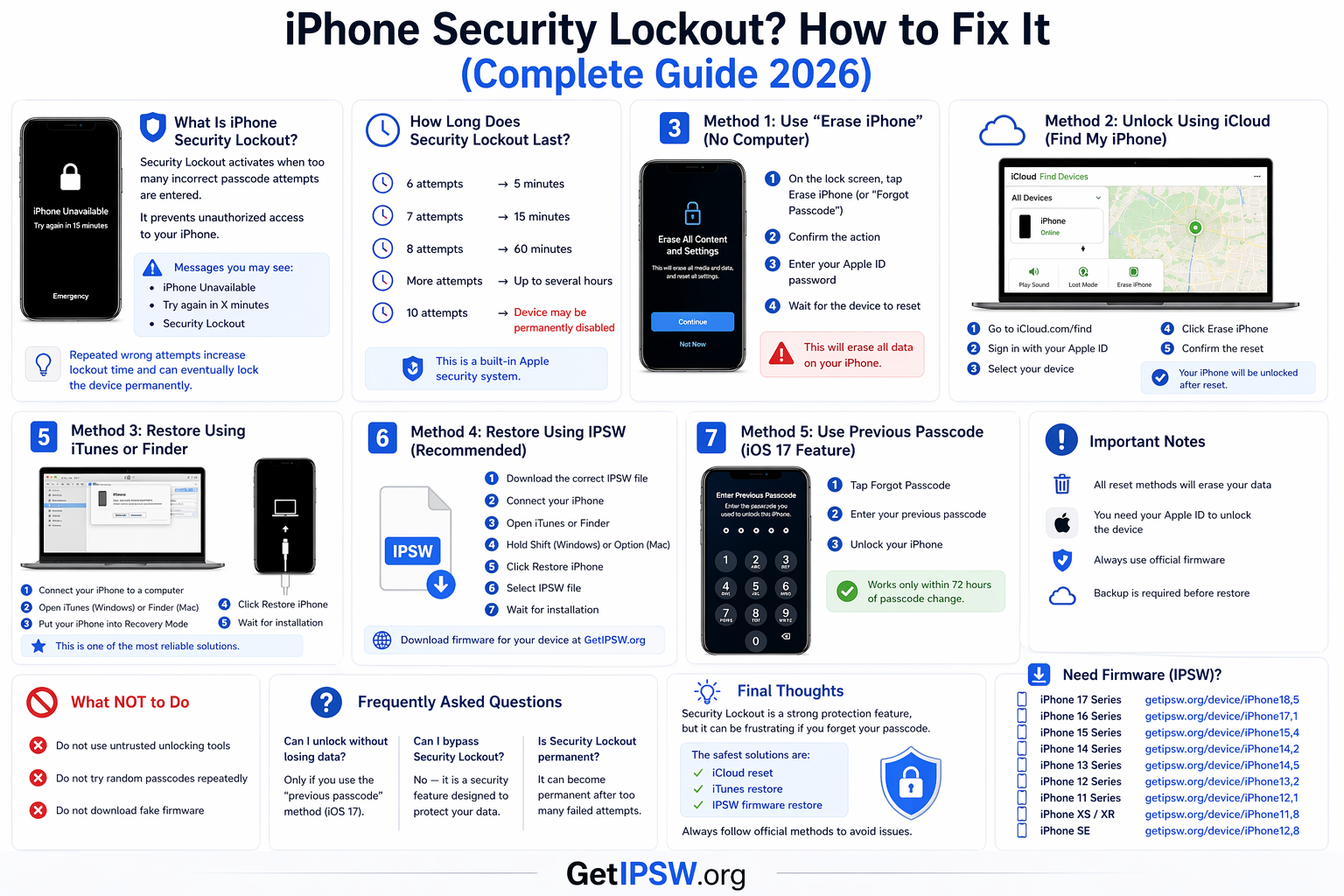
Apr 23, 2026
iPhone Security Lockout? How to Fix It (Complete Guide 2026)
In this guide, you’ll learn what Security Lockout means and how to fix it using safe and effective methods.
Read more →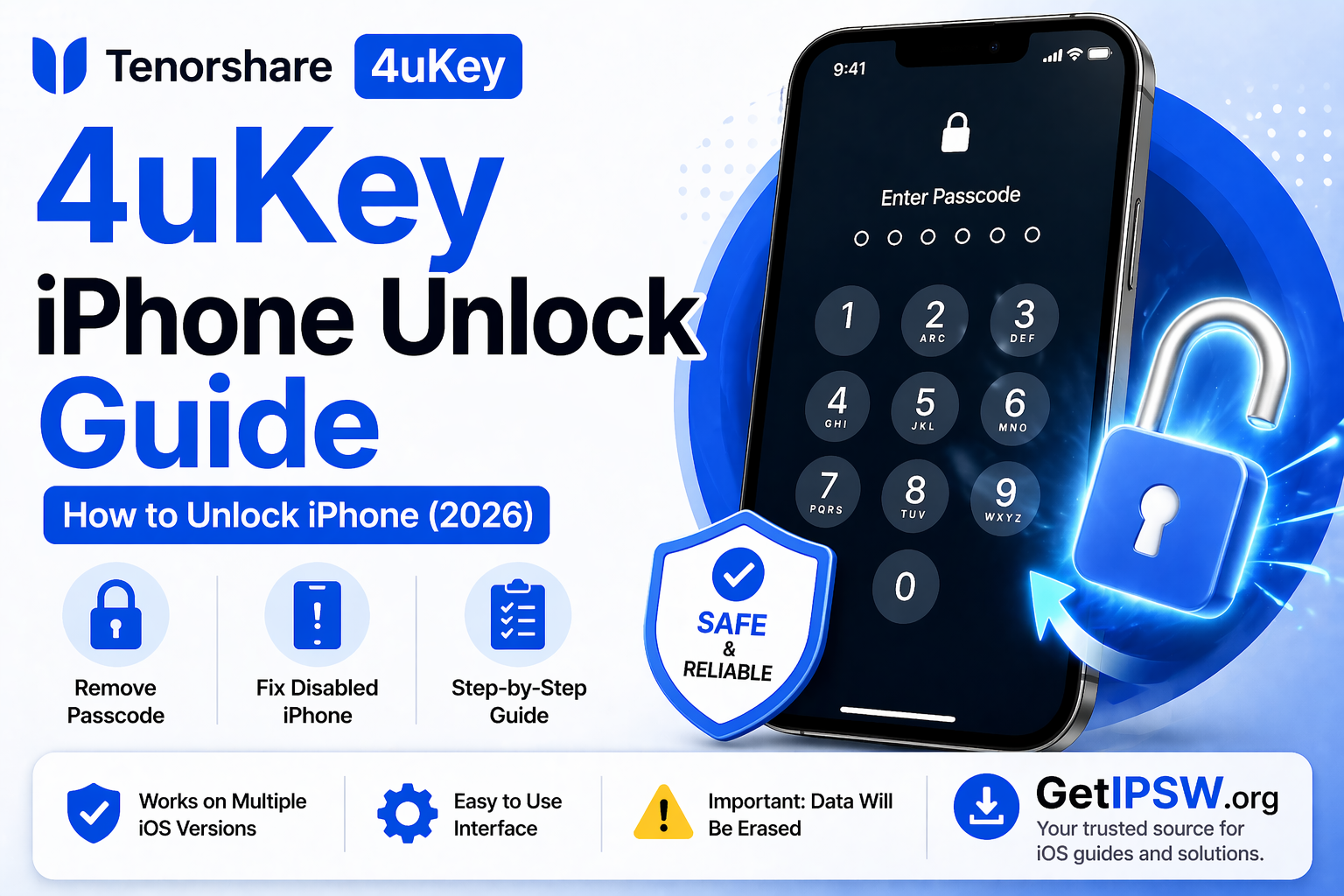
Apr 23, 2026
How to Bypass MacBook Lock iCloud: 6 Simplest Methods
If you’re locked out of your iPhone and looking for a simple solution, Tenorshare 4uKey is one of the most popular tools available.
Read more →