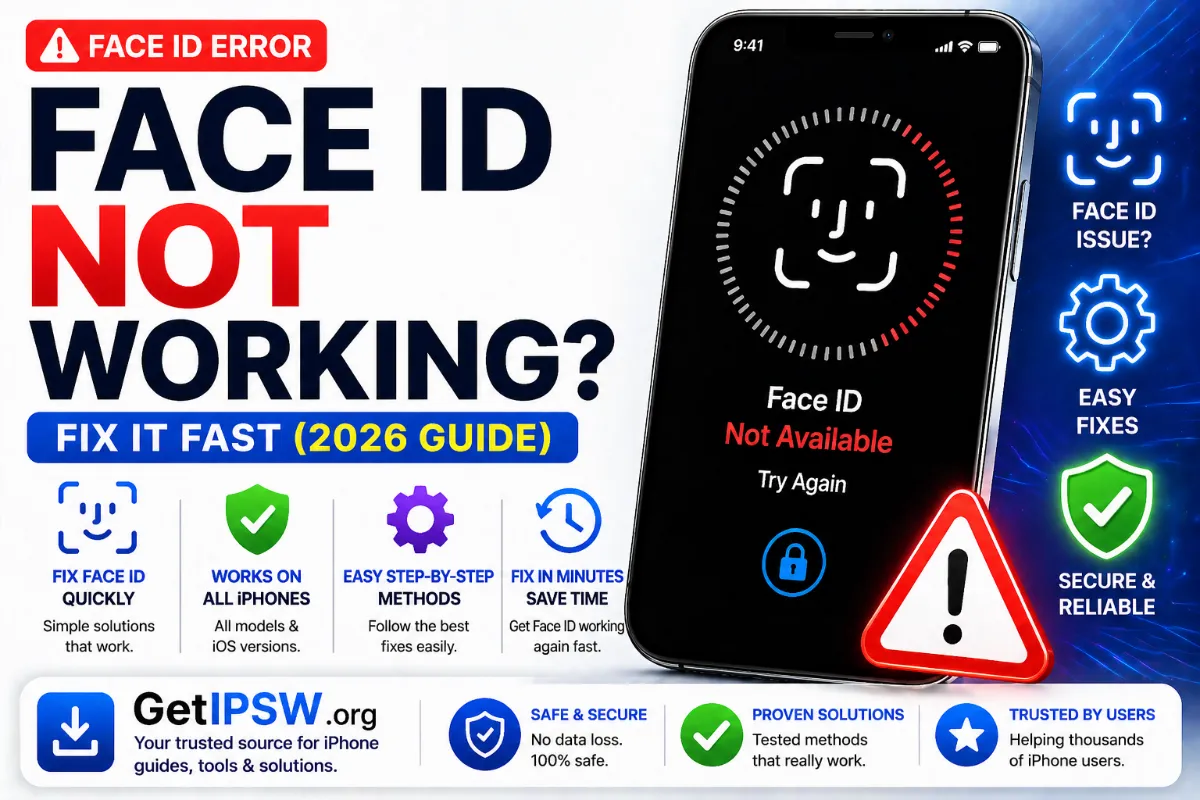
Face ID Not Working? 10 Ways to Fix It
Face ID fails to recognize you, shows 'Face ID is not available' or stopped working after a repair? Here are ten fixes, from simple to advanced.
Face ID uses the TrueDepth camera at the top of the screen to map your face. When it stops working, the cause is usually something covering the sensors, a setting, or a software glitch. Hardware damage is less common but possible after a drop or screen repair.
1. Clean the top of the screen
Dust, grease or makeup on the notch or Dynamic Island blocks the sensors. Wipe it with a soft cloth. Check that the screen protector or case does not cover the area.
2. Hold the iPhone correctly
Hold it 25 to 50 cm (10 to 20 inches) from your face. Face ID works in landscape on iPhone 13 and later; older models need portrait orientation.
3. Check what you are wearing
Sunglasses that block infrared light can stop Face ID. With a face mask, Face ID works if you turn on Face ID with a Mask (iPhone 12 and later) in Settings > Face ID & Passcode.
4. Check the settings
In Settings > Face ID & Passcode, make sure Face ID is turned on for iPhone Unlock, Apple Pay and the apps you need. If you turned off Require Attention for Face ID, try turning it back on, or vice versa.
5. Restart the iPhone
After a restart, iOS always asks for the passcode once. Enter it, then lock and try Face ID again.
6. Set up an alternate appearance
If your appearance changes a lot (glasses, beard, work equipment), add Set Up an Alternate Appearance in the Face ID settings.
7. Reset Face ID
Tap Reset Face ID, then set it up again in good lighting, moving your head slowly in a circle.
8. Update iOS
Install the latest iOS version: point releases often fix exactly this kind of bug. See iOS 27.0.1.
Note: on iPhone 18 Pro models, iOS 27.0 had a bug that made the iPhone restart when Face ID failed. iOS 27.0.1 fixes it.
9. Reset All Settings
Settings > General > Transfer or Reset iPhone > Reset > Reset All Settings resets preferences without deleting data.
10. "Face ID is not available" or "A problem was detected with the TrueDepth camera"
These messages point to hardware. Typical causes are a fall, water exposure, or a screen replacement where the TrueDepth module was damaged or not properly transferred. Face ID components are paired with the iPhone's logic board, so only Apple or an authorized provider can repair them reliably.
Face ID broken and Stolen Device Protection on?
Some security settings require Face ID when you are away from home. Read Stolen Device Protection without Face ID to understand your options.
You Might Also Like

Oct 10, 2026
How to Restore an iPad With an IPSW File (Every Model, Face ID and Home Button)
Restoring an iPad uses different button combinations depending on the model. Here is how to find the right IPSW, enter recovery mode on any iPad, and restore with a Mac or PC.
Read more →
Apr 27, 2026
Wi-Fi Not Working on iPhone? Complete Fix Guide (All iOS Versions)
Your iPhone won't connect to Wi-Fi, keeps disconnecting or says 'No Internet Connection'? Here is how to find out whether the problem is the router, the network or the iPhone.
Read more →
Oct 10, 2026
"This Device Isn't Eligible for the Requested Build": Causes and Fixes
This iTunes, Finder and Apple Devices error appears when you try to install firmware that Apple refuses for your iPhone. Here are the real causes and what you can and cannot do.
Read more →