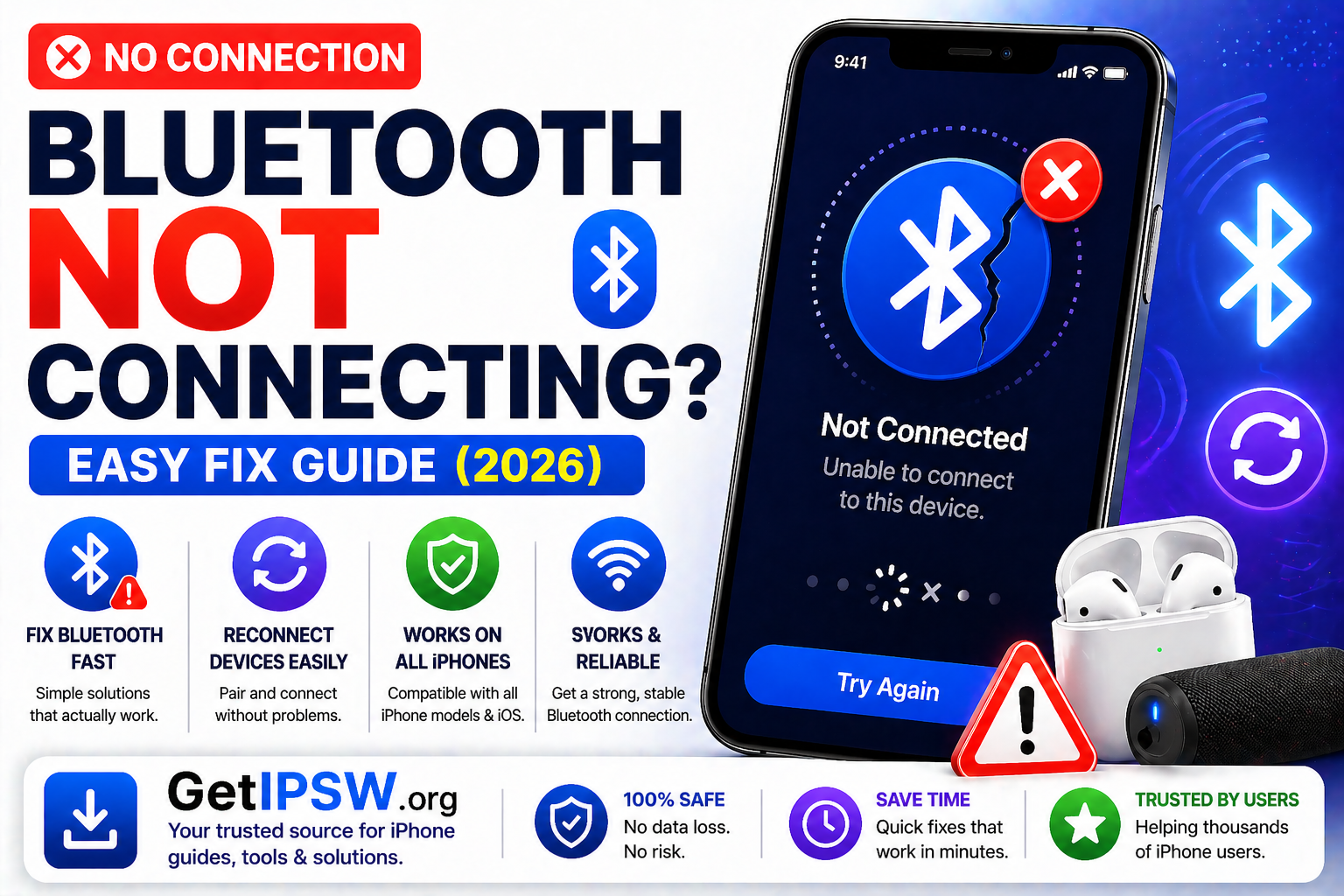
Bluetooth Not Connecting on iPhone? Easy Fix Guide (2026)
If your iPhone Bluetooth is not connecting, keeps disconnecting, or cannot find devices, you’re not alone. This issue affects many users across different iPhone models and iOS versions.
The good news is that most Bluetooth problems are caused by simple settings or temporary glitches—and can be fixed in minutes.
Why Is Bluetooth Not Working on iPhone?


Common causes include:
Bluetooth turned off or glitching
Devices out of range
Software bugs
Interference from other devices
Network or settings issues
1. Turn Bluetooth Off and On
Start with the simplest fix.
Steps:
Go to Settings → Bluetooth
Turn Bluetooth OFF
Wait a few seconds
Turn it back ON
2. Restart Your iPhone
Restarting clears temporary system bugs.
👉 Turn your iPhone off and back on.
3. Restart the Bluetooth Device
The issue may come from the other device.
👉 Turn off your headphones, speaker, or car system, then turn it back on.
4. Move Devices Closer
Bluetooth has limited range.
👉 Keep your devices within a few meters.
5. Forget and Reconnect Device


Steps:
Go to Settings → Bluetooth
Tap the “i” icon next to the device
Tap Forget This Device
Reconnect and pair again
6. Turn Off Airplane Mode
Go to Settings → Airplane Mode
Make sure it is OFF
7. Update iOS


Software updates often fix Bluetooth bugs.
Steps:
Go to Settings → General → Software Update
Install the latest version
8. Reset Network Settings
This fixes many connectivity issues.
Steps:
Go to Settings → General
Tap Transfer or Reset iPhone
Select Reset → Reset Network Settings
👉 This will remove saved WiFi and Bluetooth connections.
9. Check for Interference
Bluetooth may be affected by:
WiFi routers
Other Bluetooth devices
Electronic interference
👉 Try moving to a different location.
10. Reset All Settings (Last Option)
If nothing works:
Go to Settings → General → Transfer or Reset iPhone
Tap Reset All Settings
👉 This does not delete your data.
When It Might Be a Hardware Problem
You may need repair if:
Bluetooth won’t turn on
No devices are detected
Connection drops constantly
👉 Contact Apple Support if needed.
Frequently Asked Questions
Why won’t my iPhone find Bluetooth devices?
Usually due to pairing mode issues or distance.
Will resetting network settings fix Bluetooth?
Yes, in most cases.
Can iOS updates fix Bluetooth issues?
Yes, updates often resolve bugs.
Final Thoughts
Bluetooth issues on iPhone are common but usually easy to fix. Start with simple steps like restarting and reconnecting, then move to advanced solutions if needed.
In most cases, your Bluetooth connection will be restored quickly.
Explore more iPhone troubleshooting guides on GetIPSW.
You Might Also Like
Apr 24, 2026
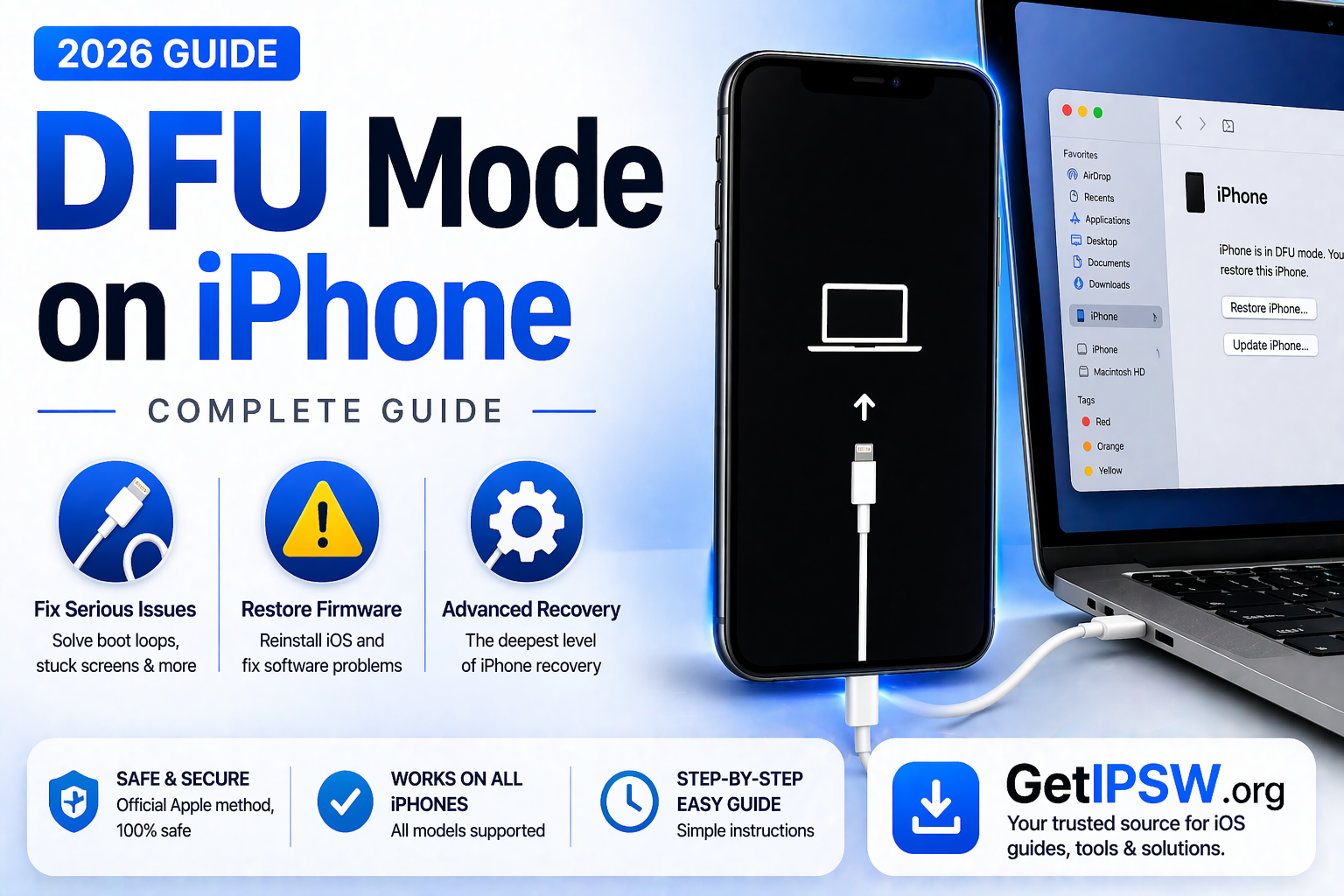
How to Enter DFU Mode on Any iPhone (Complete Guide 2026)
DFU Mode (Device Firmware Update mode) is one of the most advanced recovery states on iPhone. It allows your device to communicate with a computer without loading the operating system or bootloader.
Read more →
May 16, 2026
iOS 15.8.8, iOS 16.7.16 and iOS 18.7.9: Why Apple Still Updates Older iPhones
Learn why Apple released iOS 15.8.8, iOS 16.7.16 and iOS 18.7.9 for older iPhones, which devices are supported, and how to download IPSW files safely.
Read more →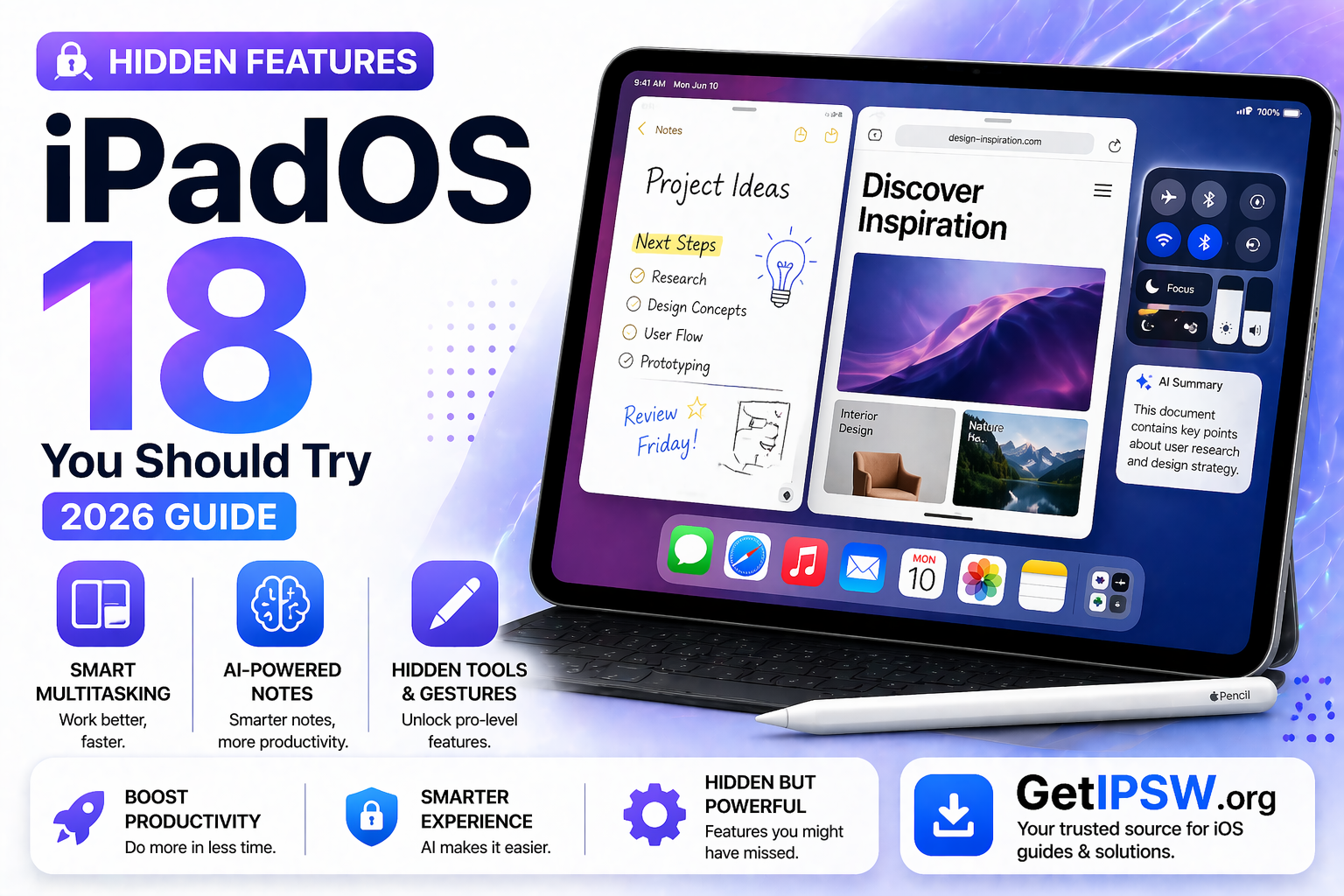
Apr 24, 2026
Hidden Features in iPadOS 18 You Should Try (2026 Guide)
iPadOS 18 introduces a wide range of improvements, but many of its most powerful features are not immediately visible. Beyond the headline updates, there are several hidden tools and enhancements that can significantly improve your productivity and overall experience.
Read more →